
First-time setup
Set your device PIN
The device PIN unlocks the ERA. You enter it after the device powers on and after every lock. Every wallet on the device sits behind it.
Steps
On DEVICE PASSWORD, tap NEXT.
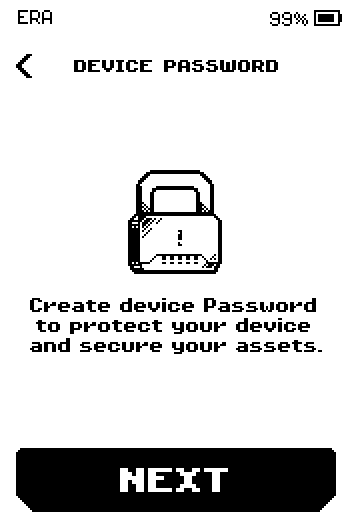
ERA: Device password. On PASSWORD TYPE, tap PINCODE.
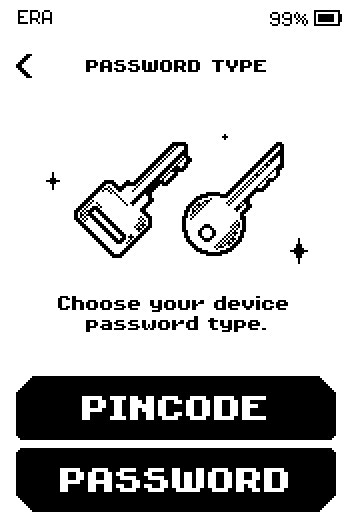
ERA: Password type. On CREATE PINCODE, enter 4 to 8 digits, then tap OK. Each digit shows as a dot.
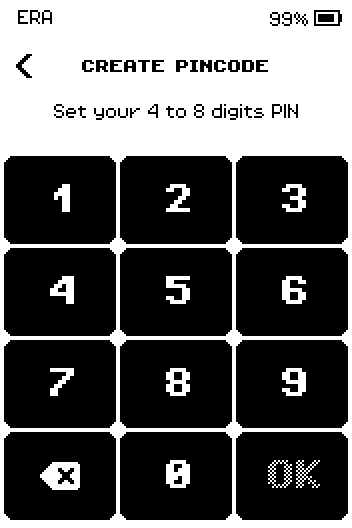
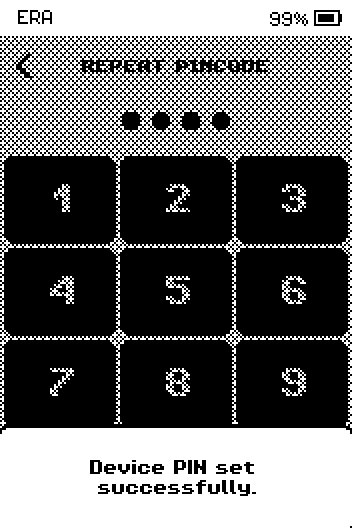
ERA: Create pincode. On REPEAT PINCODE, enter the same digits and tap OK.
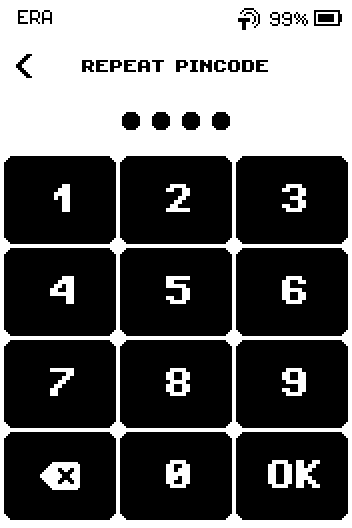
ERA: Repeat pincode.
Done
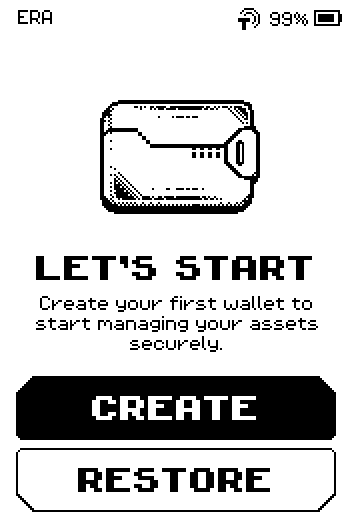
The device shows "Device PIN set successfully." and opens LET'S START with CREATE and RESTORE. Continue with Create your first wallet.
Prefer a text password instead of a PIN?
On PASSWORD TYPE, tap PASSWORD. The device opens a full keyboard; the password is 4 to 256 characters long. You then repeat it once, as with the PIN. The attempt limit is the same.
How the PIN protects you
Lock. Press the hardware button to lock. The device shows PRESS TO UNLOCK. On the charging pad the button is inactive: tap the screen instead.
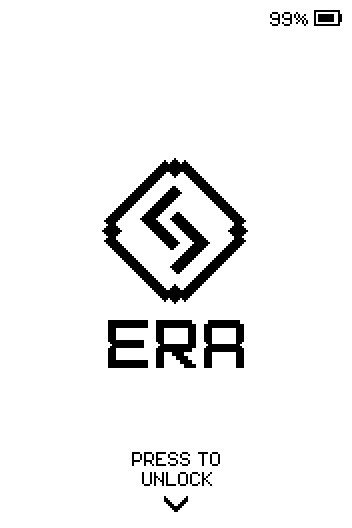
ERA: Locked. Unlock. Press the hardware button again and enter the PIN on CHECK PIN.
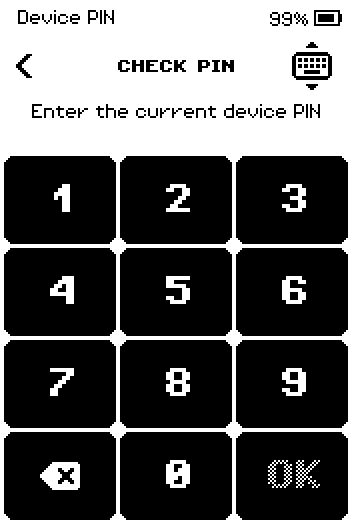
ERA: Check PIN.
Warning: Five wrong PINs erase the device. Write the PIN somewhere separate from your backup, and never on the backup itself.
Five attempts. After a wrong PIN the device shows WRONG PIN and how many attempts remain. After the fifth wrong entry the device resets itself and erases every wallet on it. Your wallets stay recoverable from their backups.
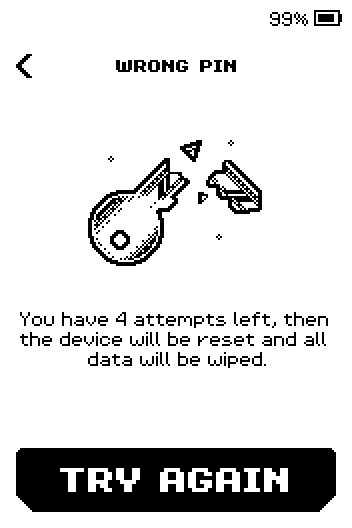
ERA: Wrong PIN. Change it later under SETTINGS > Device password on the main menu. Source: Help Center
Wallet passwords are separate. A wallet can carry its own password on top of the device PIN; see Wallet password vs device PIN.
Trouble?
ERROR with "The repeated PIN was entered incorrectly." → tap RETRY and enter the PIN twice again.
You tapped the back chevron on CREATE PINCODE → you are back on PASSWORD TYPE; nothing was saved. Tap PINCODE again.
OK stays grey → the PIN has fewer than 4 digits.