
Signing transactions
Sign a Bitcoin transaction
This example sends 0.0006 BTC from a wallet imported from the standard test phrase abandon × 11 about. Your amounts and addresses will differ; the screens are the same.
Steps
Part 1: Scan the request
In your software wallet, create the send and choose to sign it with ERA.
Image coming soon — phone app (for example Sparrow, BlueWallet or Nunchuk) showing the animated PSBT QR codeOn ERA, on the wallet page, tap SIGN — or tap SCAN QR on the Main menu; ERA picks the wallet for you.
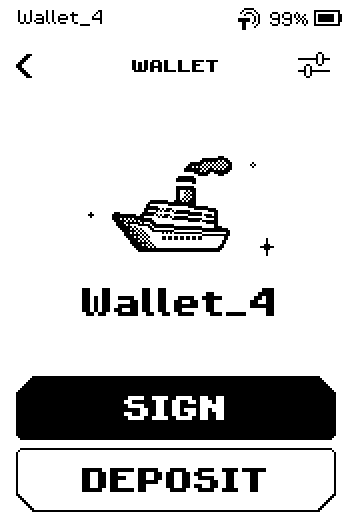
Wallet page with SIGN and DEPOSIT buttons
Starting from SCAN QR on the Main menu
The review page is the same; the status bar shows the wallet ERA picked (here Wallet_4, the test wallet). See SCAN QR: one button for everything.
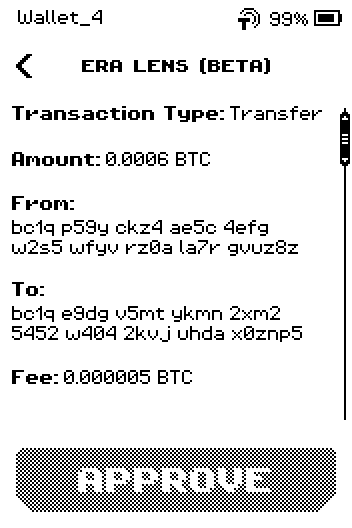
Review page 1 reached from SCAN QR; status bar reads Wallet_4
Point the ERA camera at the QR code on your phone. The review opens once the whole code is read.
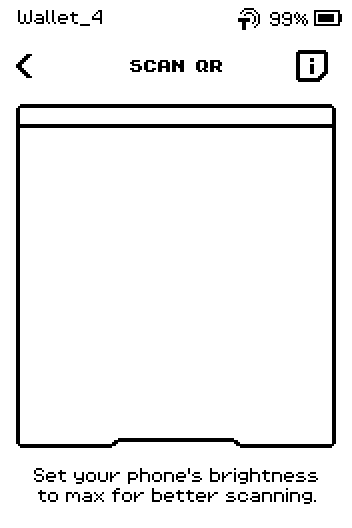
Scan QR page with the camera frame
Part 2: Check and approve
On the first ERA LENS page, check Amount, From, To and Fee.
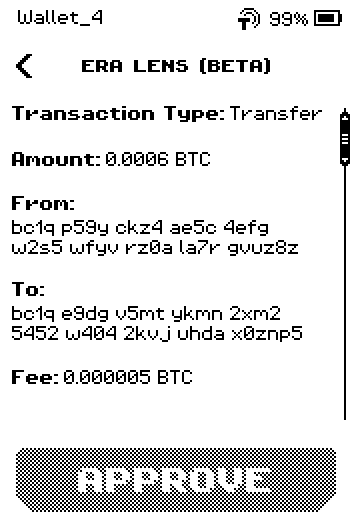
Review page 1: Transfer, 0.0006 BTC, from, to, fee 0.000005 BTC
Note: "Change 1 … (verified)" means ERA has checked that the change address really belongs to your wallet. If that check fails, ERA refuses to sign — see Warnings explained.
Swipe up. Check Change back — the part of your coins that returns to you.
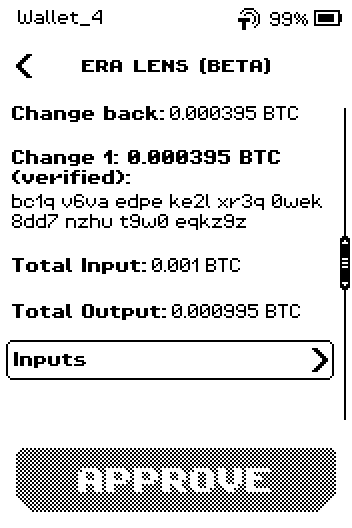
Review page 2: change back 0.000395 BTC, change address verified, totals
To see every coin that goes in and out
Tap Inputs or Outputs.
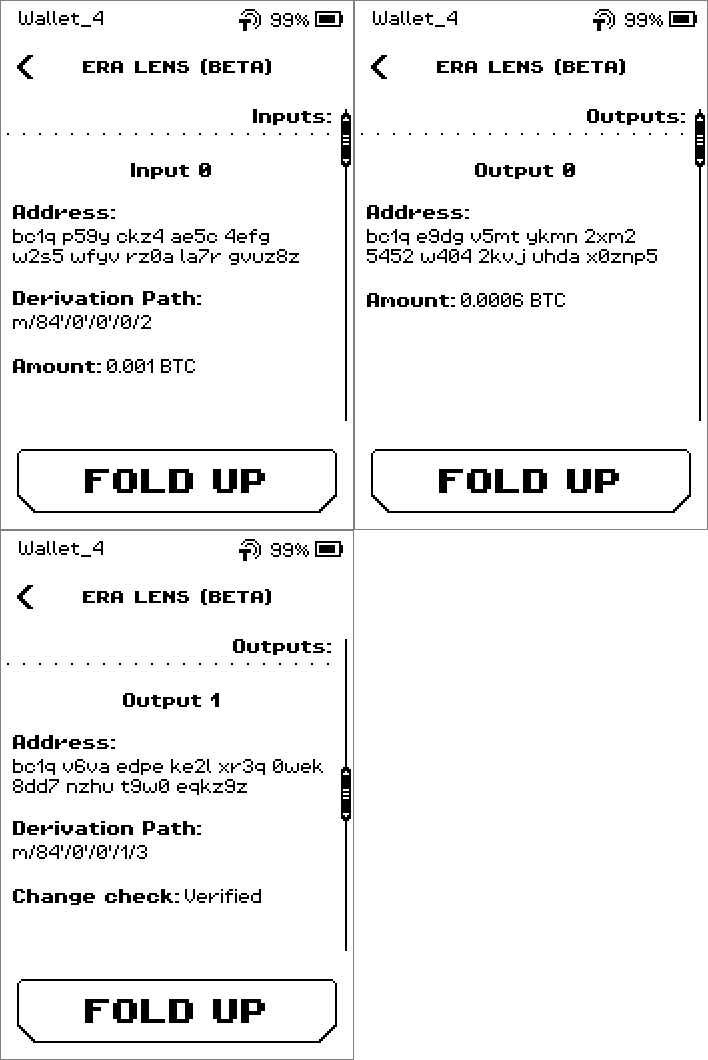
Nested Inputs and Outputs rows with address, path and amount Tap FOLD UP (or the back chevron) to return to the review.
Swipe up to the last page. Check Sign Status and Network, then tap APPROVE.
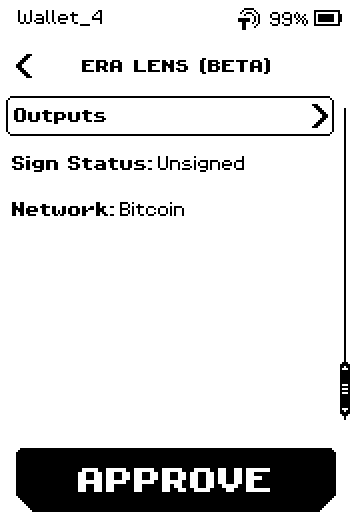
Review page 3: Outputs row, Sign Status Unsigned, Network Bitcoin, APPROVE
Part 3: Return the signature
Show the SCAN TO APPROVE QR code to your software wallet. It is animated; hold the phone still until the app has read it all.
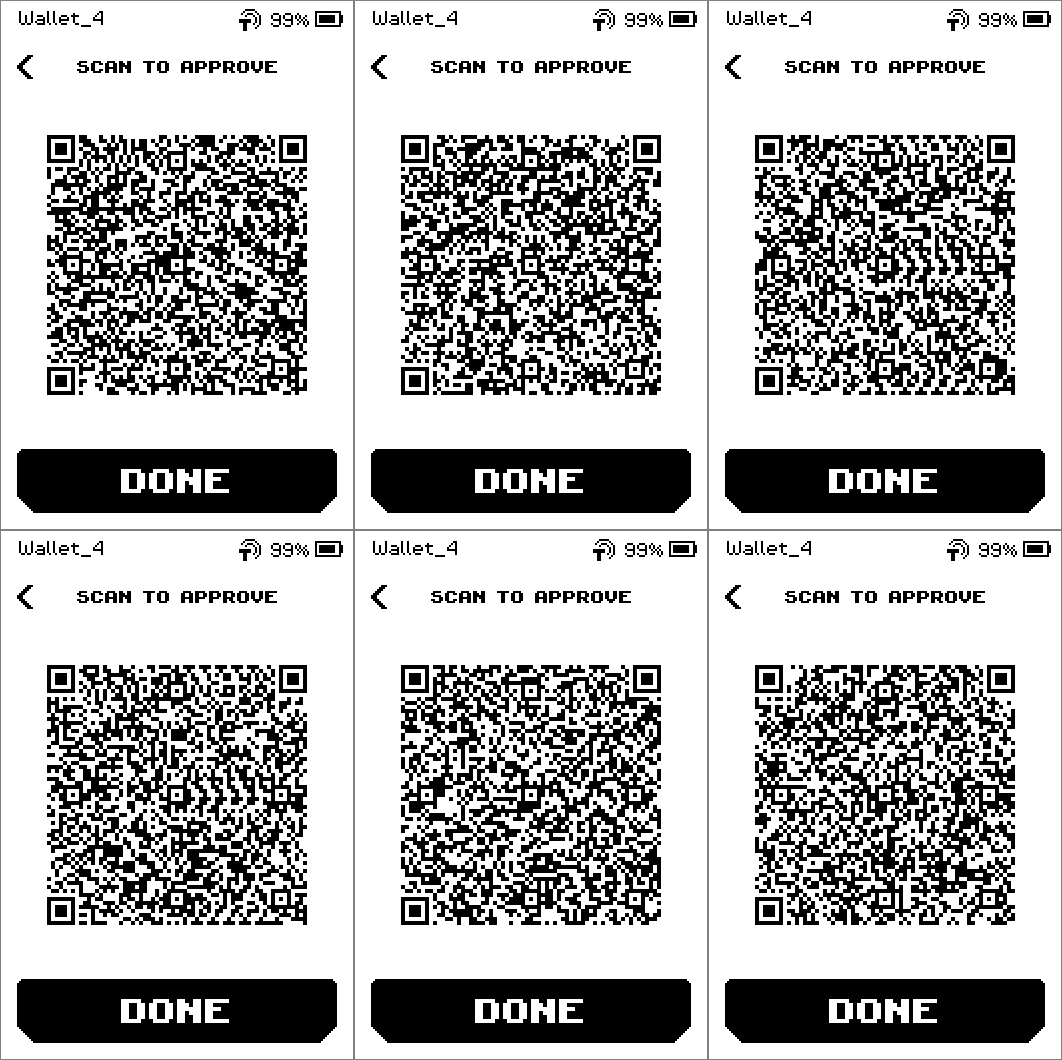
Animated signed-PSBT QR code on the SCAN TO APPROVE page In the software wallet, finish the send (usually Broadcast or Send).
Image coming soon — phone app after scanning ERA, showing the "broadcast" / "send" confirmationOn ERA, tap DONE.
To cancel instead
On any review page, tap the back chevron. ERA returns to the SCAN QR page without signing.
On the SCAN QR page, tap the back chevron again to return to the wallet page.
On the SCAN TO APPROVE page, the back chevron returns to the review; nothing is sent until your software wallet scans the QR code and broadcasts.
Done
The SCAN TO APPROVE page closes when you tap DONE and ERA returns to the wallet page (to the Home screen after a Quick Sign). Your software wallet shows the transaction as sent (broadcast).
Trouble?
The APPROVE button looks greyed out → swipe up to the last review page; it becomes active there.
CHANGE FRAUD appears and there is only CLOSE → the PSBT claims a change address that is not yours. ERA did not sign. Rebuild the transaction in the software wallet and, if it happens again, stop using that software wallet.
"Fee is N% of the total value" appears on the review → the fee is unusually high (5 % or more of what you send). Check the fee setting in the software wallet before approving.
"UNKNOWN DESCRIPTOR" appears → this is a multisig transaction for a wallet setup that is not saved on ERA. See Warnings explained.