
Linking
Link LetsExchange
LetsExchange is a website, so the ERA shows a single instruction and a lower-density QR code that a webcam can read.
Steps
Part 1: On the ERA
On the wallet screen, tap the settings icon (sliders) > Link. See Open the Link menu.
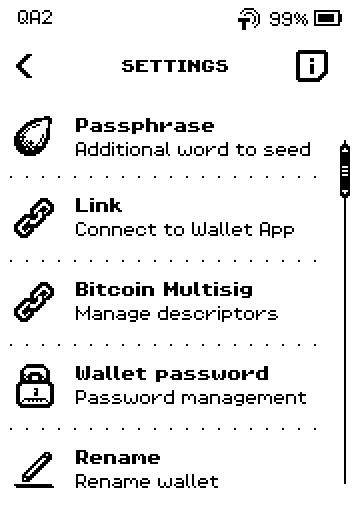
ERA: Wallet settings. On the wallet list, swipe up to the third page and tap LetsExchange.
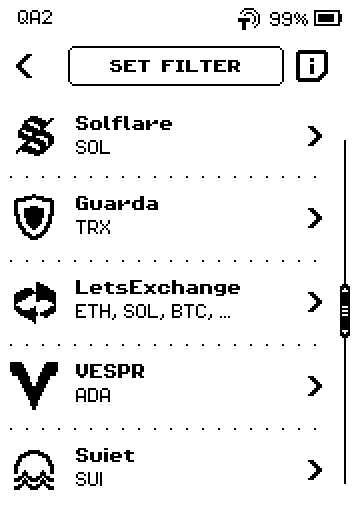
ERA: Wallet app list. On CONNECT LetsExchange, tap SHOW QR. The single step reads "Go to letsexchange.io and follow the instructions there".
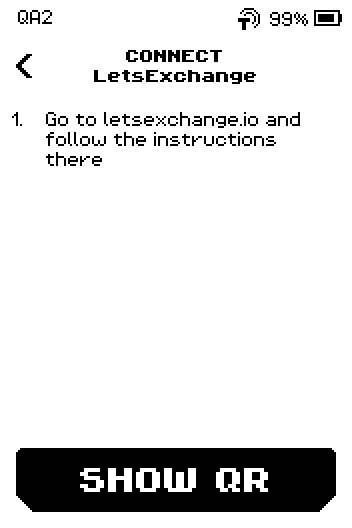
ERA: Connect LetsExchange. QR FOR LINK appears. Leave it on screen.
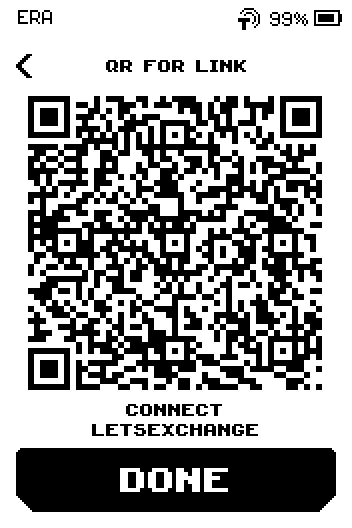
ERA: QR for link.
Part 2: On letsexchange.io
Open letsexchange.io in a browser and follow the connection steps the site gives you. ERA deliberately does not print them: this is the one wallet in the list whose instruction is a single line pointing at the site, because the site owns that half of the flow and can change it without a firmware update.
Show the ERA screen to the camera when the site asks for the QR, and hold still until it confirms.
Image coming soon — Photo — ERA held up to a webcam while letsexchange.io scansPhoto: Scanning with the webcam.
On the ERA, tap DONE. The device returns to the wallet SETTINGS.
Done
LetsExchange shows your ERA addresses, and the ERA is back on SETTINGS.
Trouble?
The site never reads the code → see Linking problems.