
Wallets
Restore a wallet from seed words
Use this when you have a seed phrase (12 or 24 English words) from ERA or from any other wallet.
Steps
Part 1: Choose the import type
Tap RESTORE (on a new device, or after ADD WALLET — see Add another wallet).
On Restore Wallet, tap Import.
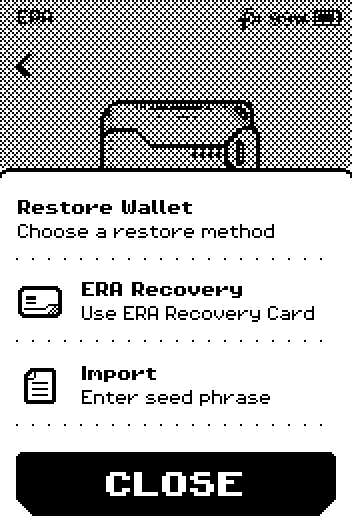
Restore wallet sheet with ERA Recovery and Import options. On SELECT METHOD, tap SINGLE.
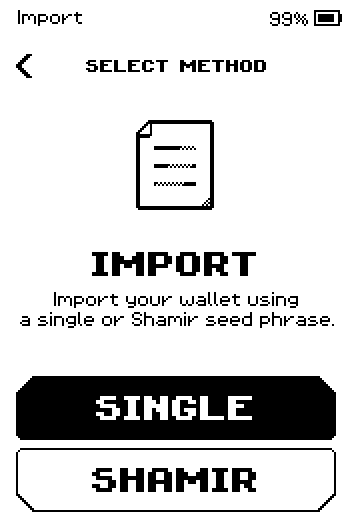
Import method screen with SINGLE and SHAMIR buttons. On WALLET IMPORT, tap 12 WORDS or 24 WORDS to match your phrase.
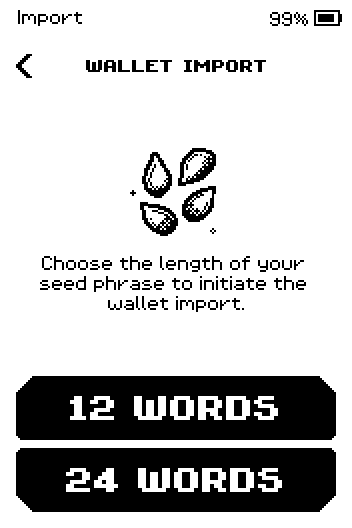
Wallet import screen with 12 WORDS and 24 WORDS buttons.
Part 2: Type the words
Start typing the first word. The counter in the header shows which word you are on.
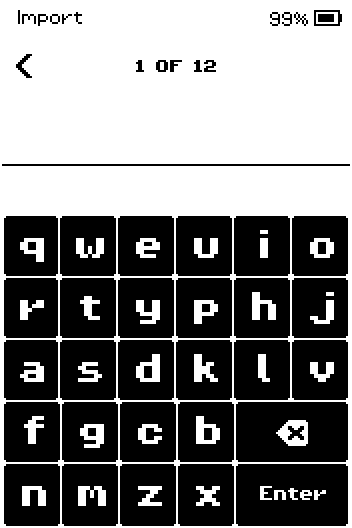
Word 1 of 12 with the on-screen keyboard.
Note: Backspace deletes a letter. The back chevron in the header goes back one word.
After two or three letters, tap the word in the suggestion row. The device moves to the next word.
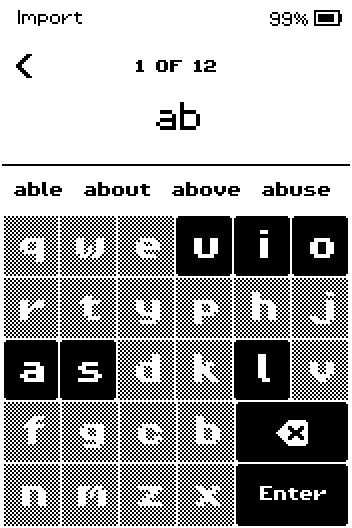
Typing "ab" shows able, about, above, abuse as suggestions. Letters that cannot come next are greyed out.
Typing the whole word instead
Type all the letters and tap Enter.
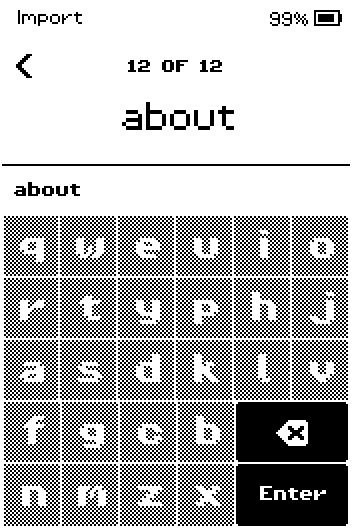
Repeat for every word, then compare the list with your paper. Swipe up for the rest.
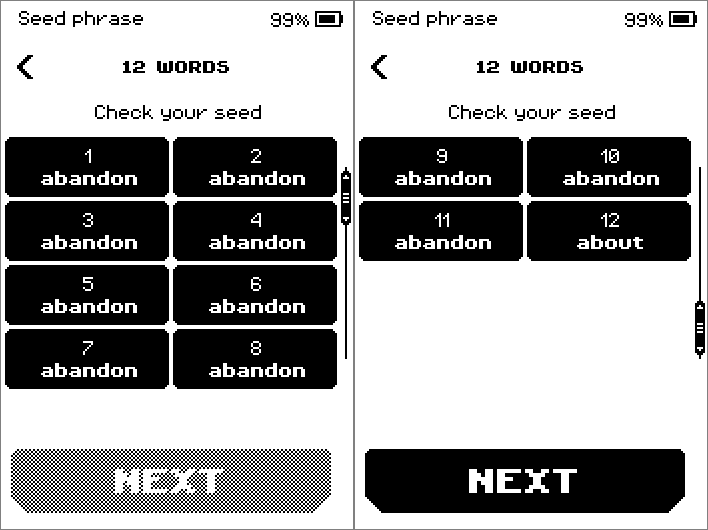
Check your seed pages listing the 12 words.
If a word is wrong
Tap the word, delete it with backspace, retype it and tap Enter.
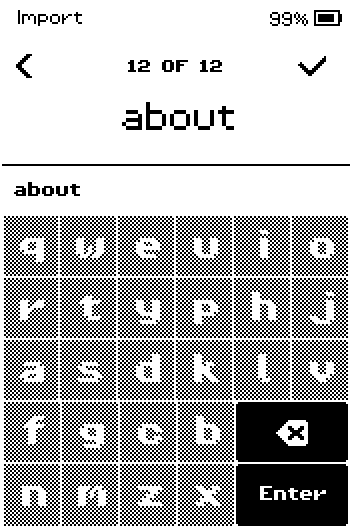
Tap NEXT on the last page.
Part 3: Finish
On ERA BACKUP, tap START to copy the restored wallet to an ERA Recovery Card, the recommended backup. Follow Back up to an ERA Recovery Card from SET PIN; restoring from a card is a tap, not typed words.
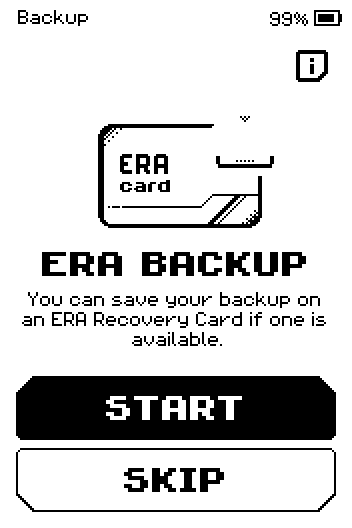
ERA backup offer with START and SKIP buttons.
No ERA Recovery Card at hand?
Tap SKIP instead; you can write a card later from the wallet's settings.
On CREATE NAME, tap CREATE to name the wallet, or SKIP.
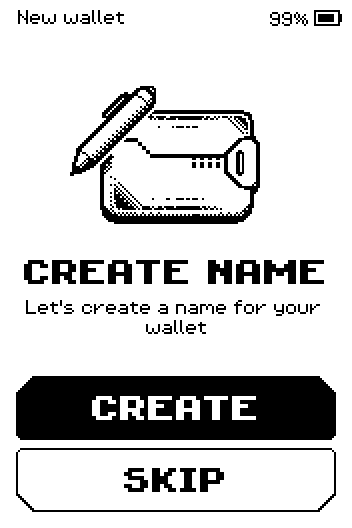
Create name screen with CREATE and SKIP buttons. Pick an icon, tap CONFIRM, then DONE.
On LINK YOUR WALLET, tap LINK NOW or SKIP.
On YOUR WALLET IS READY!, tap FINISH. The device opens the WALLETS list (or the Main menu if this is the first wallet on the device).
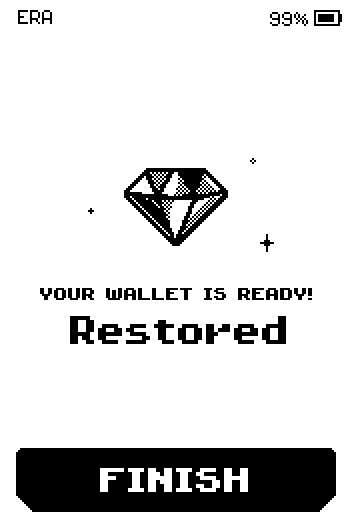
Your wallet is ready screen for the wallet named Restored.
Done
The wallet from your seed phrase is listed under WALLETS (the Main menu shows first if it is the only wallet) and gives the same addresses as before.
Trouble?
Check your seed phrase! appears after NEXT → a word is wrong or two words are swapped. Tap BACK, find the word that differs from your paper, and fix it (see If a word is wrong in Part 2). IGNORE creates a wallet from the wrong words — it will not hold your funds.
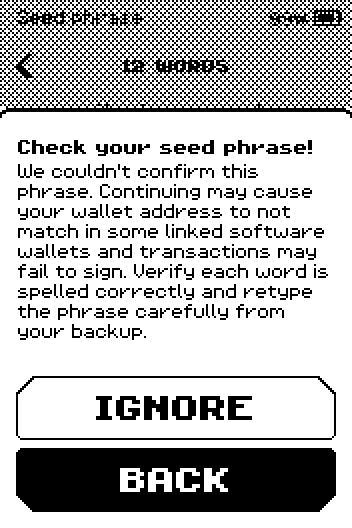
Check your seed phrase warning with IGNORE and BACK buttons. Enter does nothing → the word is incomplete or misspelled. Type it fully, or tap it in the suggestion row.
A word from your paper is not offered at all → it is not in the standard word list; check the spelling on your paper, and check that the phrase was made for a 12/24-word wallet, not a Shamir share (see Restore from Shamir shares).
The addresses differ from your old wallet even though the words were accepted → the old wallet used a passphrase or a different derivation path — see Use a passphrase.