
Device settings and firmware updates
Set the device clock
ERA has no clock setting under SETTINGS. The clock is set by the app over NFC, and the device asks for it only where it matters: on the 2FA screen, because one-time codes (TOTP) are computed from the time. The reminder appears only when the clock is not set and at least one code is saved.
Steps
On the main menu, tap 2FA.
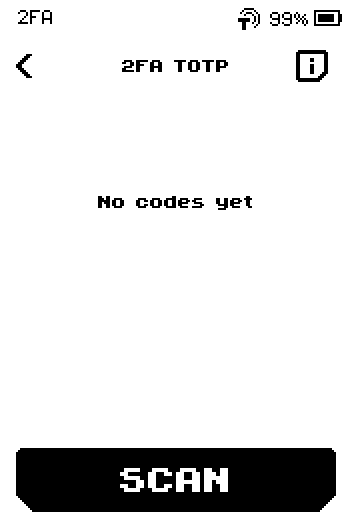
2FA TOTP list, here empty with No codes yet On the 2FA TOTP list, a reminder reads The device clock is not set, so TOTP codes do not work. Tap UPDATE.
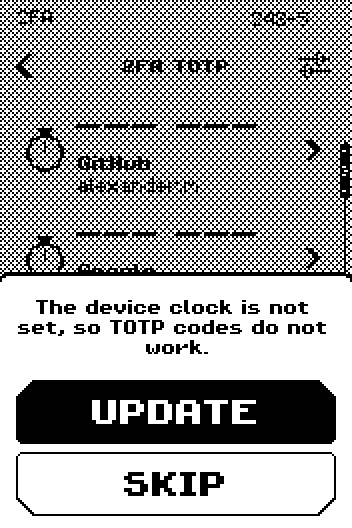
ERA: 2FA list, clock reminder. Keep ERA on the DEVICE TIME page. It lists the steps and waits about 30 seconds for the phone.
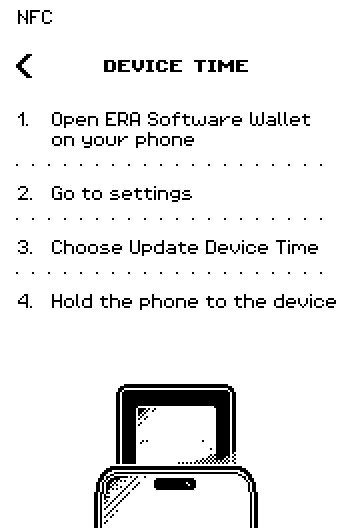
ERA: Device time. On your phone, open the app.
In the app, tap Settings > Update device time. Any other NFC session sets the clock too.
9:41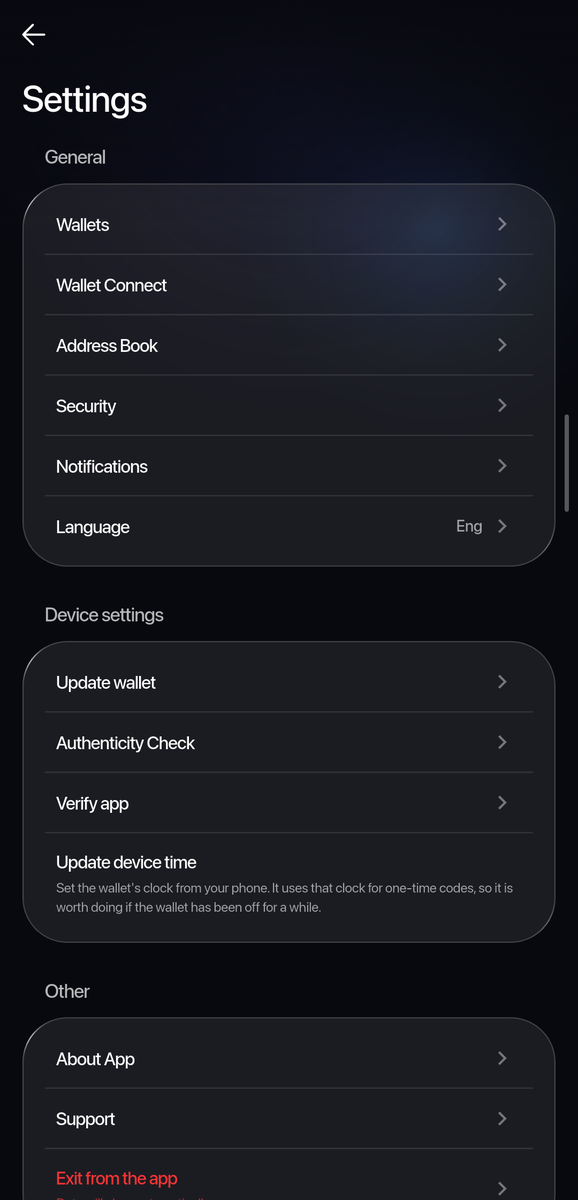
Phone: Settings, with Update device time under Device settings. The app shows Hold the wallet to the phone.
9:41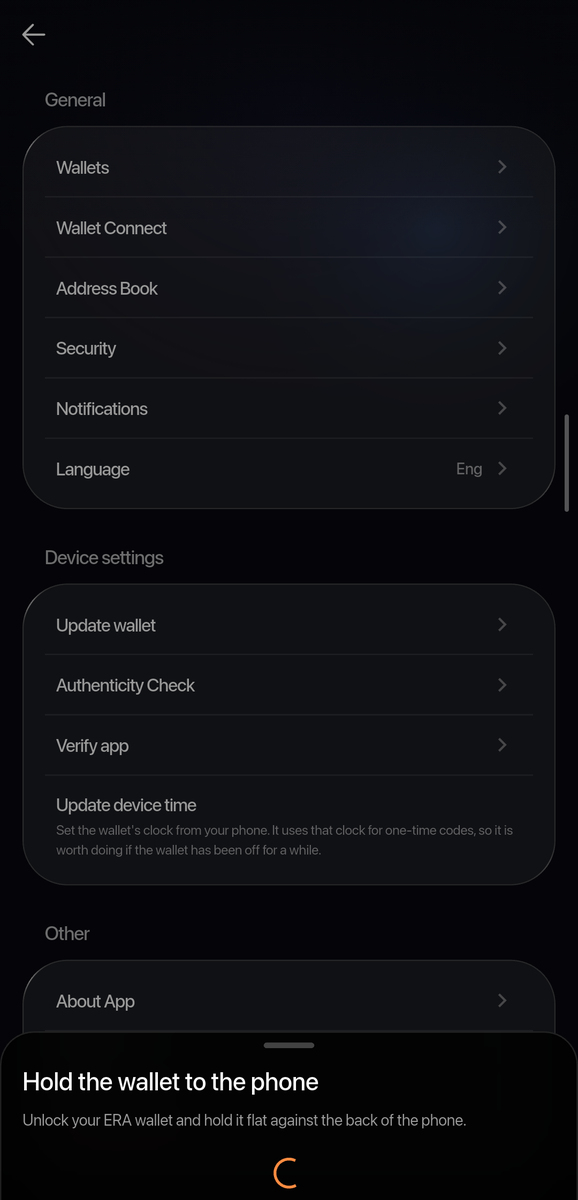
Phone: Hold the wallet to the phone. Hold the phone against the lower half of the front of the device until the page closes.
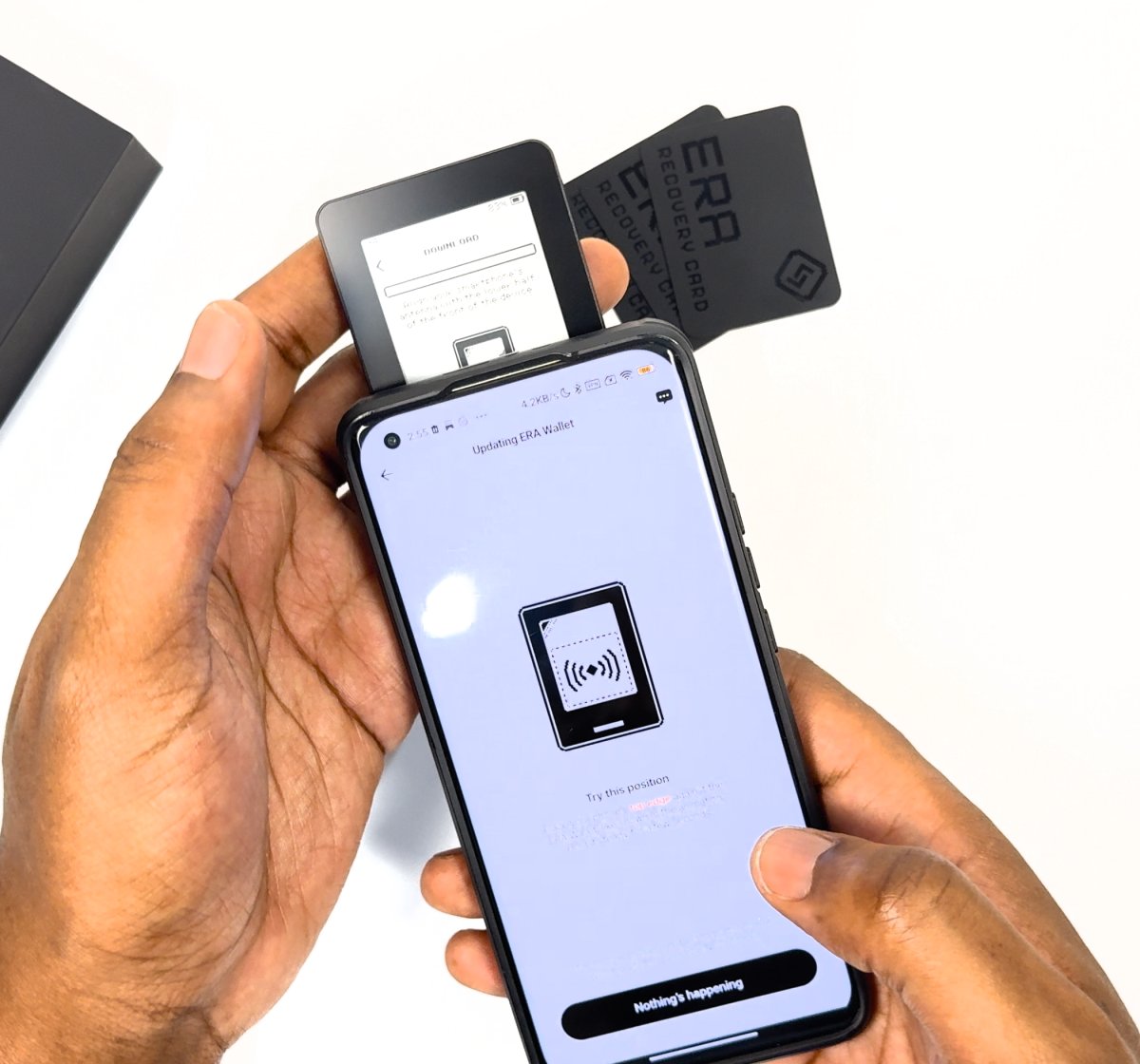
Photo: The phone's top edge over the lower half of the ERA — the same position as for any NFC session (here a firmware update).
Done
The 2FA list shows live codes and the reminder is gone.
Note: The device also takes the time from the phone during any other NFC session, for example a firmware update or a TapSign transaction, so the clock is usually set before you ever see the reminder.
Trouble?
The DEVICE TIME page closes and the reminder is still there → nothing arrived within 30 seconds; move the phone lower on the device and try again.
Codes are still rejected by the website → the phone's own clock is wrong; enable automatic time on the phone, then repeat.
The reminder says the clock has not been synced for a long time → repeat the steps in this guide; codes may drift after months without a sync.