
Two-factor authentication (2FA)
Keep the device time correct for 2FA codes
Authenticator codes are calculated from the current time, so ERA and the website must agree on the time to within a few seconds. ERA has no network and no time signal of its own: the clock is set only by the app, over NFC.
There is no time zone to set on ERA, and no clock setting of any kind on the device. ERA runs its clock in UTC and works each code out from the moment alone, so the same code is the right one in every country. The app does send the phone's UTC offset along with the time, but ERA only files it away: it never shifts the clock, and it never reaches a code.
When you need this
ERA shows The device clock is not set, so TOTP codes do not work. when you open the 2FA list (a new device, or one whose battery was fully drained — the clock keeps running while ERA is switched off, but not without battery power).
A website rejects code after code, although you enter them in time.
ERA shows The device clock has not been synced for a long time, so TOTP codes may be wrong. — it raises this itself once it estimates the clock could be more than 15 seconds off. Until the app has calibrated the clock (syncs spread over at least two days) that can happen within about a day; afterwards only after months.
Steps
On the Home screen, tap 2FA. If the clock is not set, a reminder appears over the list.
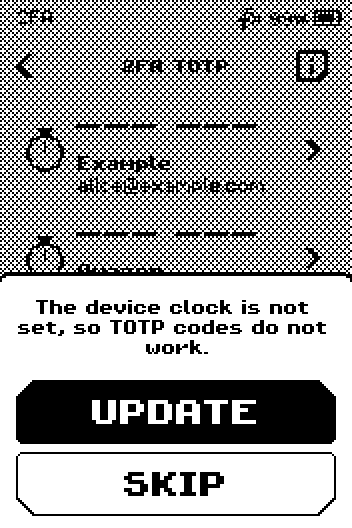
Reminder over the 2FA list: The device clock is not set, so TOTP codes do not work, with UPDATE and SKIP Tap UPDATE. ERA shows the DEVICE TIME page and listens for the phone for 30 seconds.
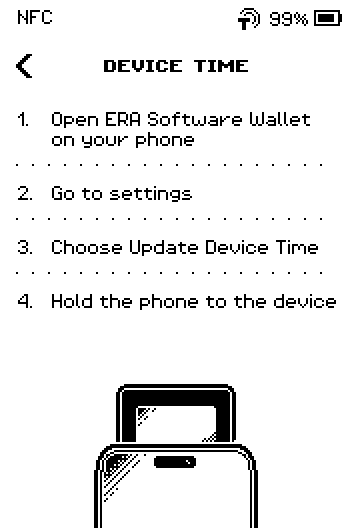
DEVICE TIME page with four numbered steps and a phone held to the device On the phone, open the app.
In the app, tap Settings > Update device time.
Any NFC exchange between the app and ERA sets the clock as well — a firmware update and a Tap Sign signature both do it — because every session opens with the same handshake, and that handshake carries the time. This page is the way to send the time on its own.
9:41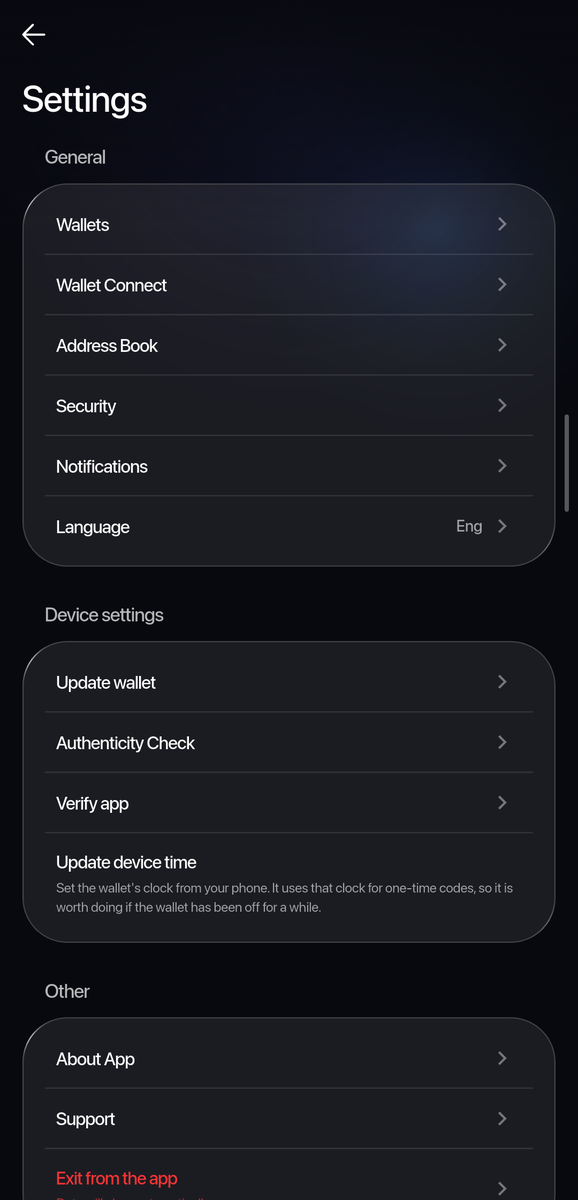
Phone: Settings, with Update device time under Device settings. The app shows Hold the wallet to the phone.
9:41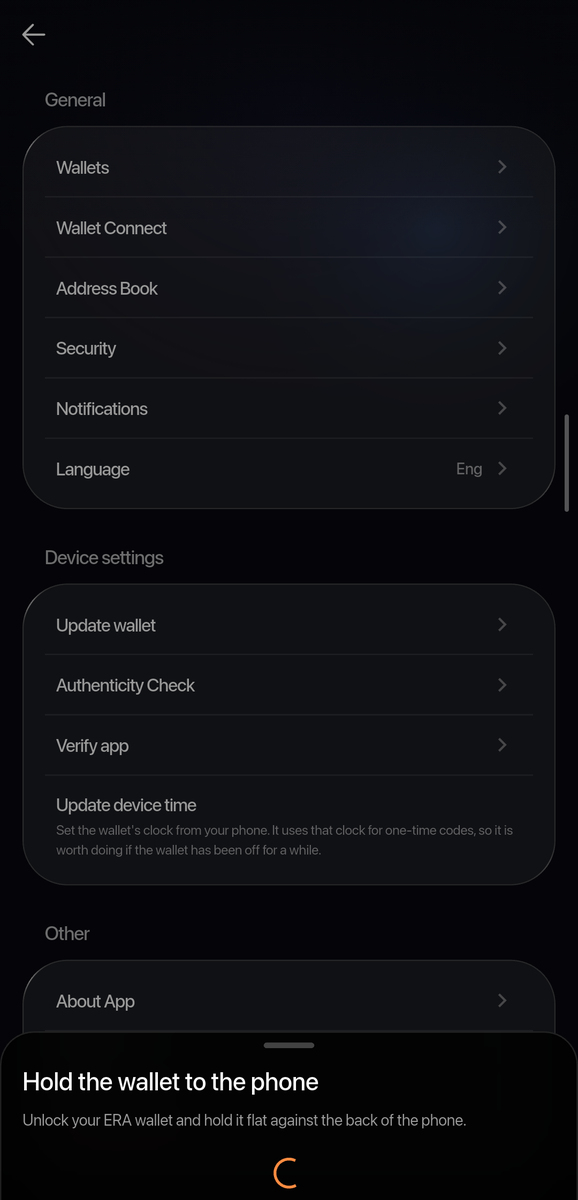
Phone: Hold the wallet to the phone. Hold the phone flat against the back of ERA, as shown on the page. Keep it there until the page closes.
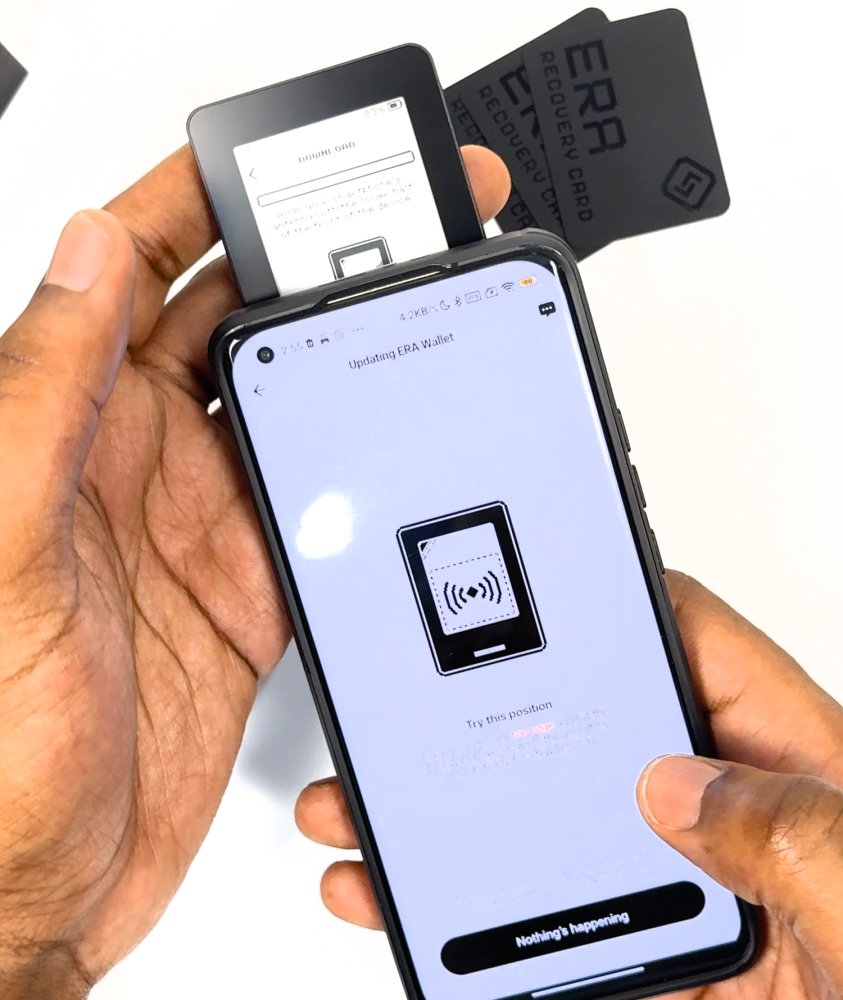
Photo: ERA resting on the phone for an NFC exchange (shown here during a firmware download; the time update uses the same position). Keep the two still until the page closes. Read the list: the dashes are replaced by live codes.
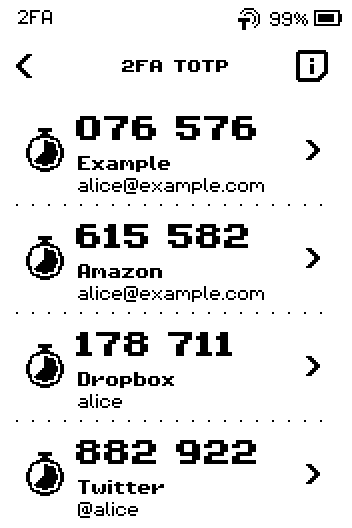
2FA TOTP list with four accounts showing live codes and countdown rings
Done
The 2FA list shows six-digit codes with a countdown ring, and the website accepts them.
You do not have to repeat this before every login, or after a flight. ERA asks for a fresh time itself when its own estimate of the error passes 15 seconds, and any firmware update or Tap Sign in the meantime has already refreshed the clock.
Trouble?
The DEVICE TIME page closed by itself → nothing arrived within 30 seconds. Tap UPDATE again and hold the phone to ERA only after the page is open.
You tapped SKIP → the list shows dashes instead of codes, and the account card shows an empty bar. Open the list again to get the reminder back.
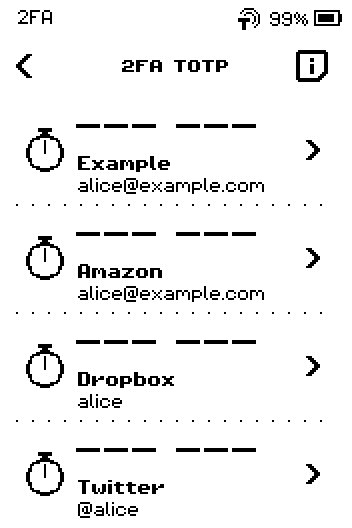
2FA TOTP list showing dashes instead of codes because the clock is not set You moved to another country, or the site's clock keeps a different local time → nothing to change. ERA has no time-zone setting, and a code is worked out from the moment, not from the local hour.
Codes show, but the website still rejects them → the clock alone is not the whole story. Work through this in order:
Wait for the ring to restart, then type the fresh code without a pause. A code already accepted once is refused the second time, and a slowly typed code can land in the next window. Source: rfc-editor.org
Check the row belongs to that website. The site name and the account name are printed on the same row as the code.
Bring the phone online, then run Settings > Update device time once more. The app corrects itself against its own time server immediately before the tap; with no connection it can only pass on the phone's clock, error and all.
Turn on automatic date and time in the phone's own settings, then send the time again. A phone set by hand is the one thing the app cannot correct for you.
If the site still refuses, use its backup code or its recovery route, and try 2FA again afterwards.
Many services do accept a code from the neighbouring 30-second step, which is why small drift usually goes unnoticed — Amazon Cognito, for one, allows 30 seconds either side. The standard only recommends that tolerance and leaves the size of the window to each site, so treat it as luck, not as headroom. Source: rfc-editor.org, rfc-editor.org, docs.aws.amazon.com
The phone does not connect → make sure NFC is on in the phone settings and remove a thick case.