
Signing transactions
Sign on other chains
The scan → review → APPROVE → SCAN TO APPROVE → DONE round trip is the same for every chain (see Signing a transaction). Only the fields on the ERA LENS review pages change. Whatever the chain, the amount, the recipient and the fee on ERA must match what you typed in the software wallet; if anything differs, tap the back chevron and do not approve. All examples use the wallet imported from abandon × 11 about.
Steps
Solana
Create the transfer in your Solana wallet (for example Solflare) and scan its QR code with ERA.
Note: A Solana token transfer whose token ERA does not know shows the amount as "TOKEN" with a warning instead of the token name. Check the token in your software wallet before approving.
Check Type, Amount, From and To.
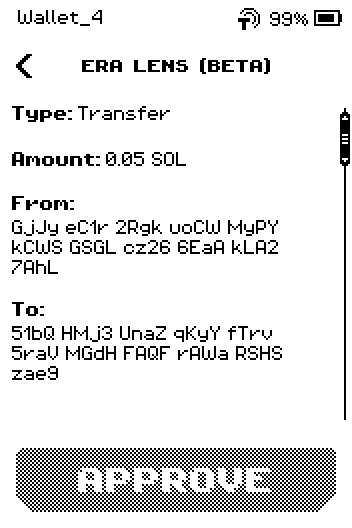
Solana review page 1: Transfer, 0.05 SOL, from, to Swipe up and check Max fee. The Instruction list row opens every instruction the transaction contains.
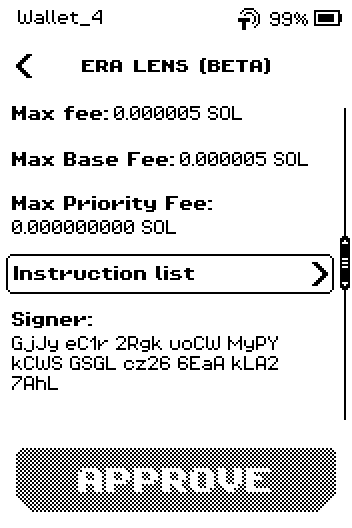
Solana review page 2: max fee, base and priority fee, Instruction list row, Signer Swipe up to the last page (Blockhash, Network) and tap APPROVE.
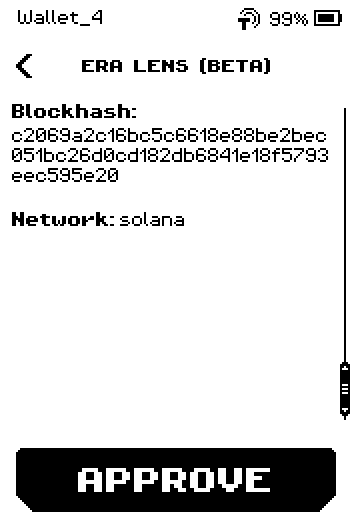
Solana review page 3: blockhash, network solana, APPROVE
TRON
Scan the request from your TRON wallet (for example OKX Wallet). Check Transaction Type, Amount, From and To.
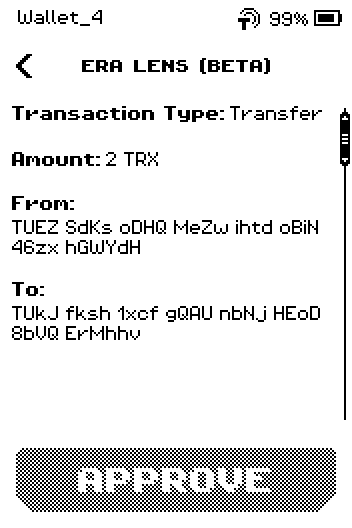
TRON review page 1: Transfer, 2 TRX, from, to Swipe up. Max Fee is the most TRX the network may charge; Gas Limit is its energy cap.
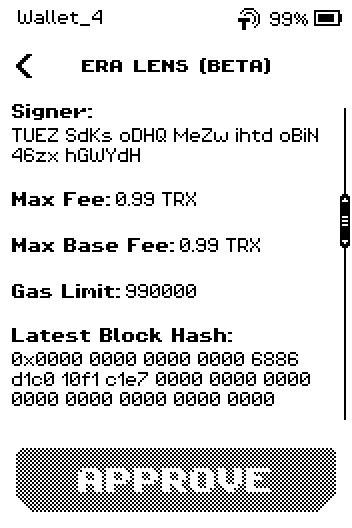
TRON review page 2: signer, max fee 0.99 TRX, gas limit, latest block hash Swipe up to the last page (block number, time, Derivation Path) and tap APPROVE.
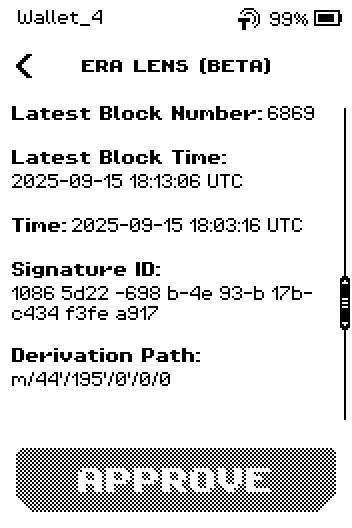
TRON review page 3: block number, time, signature ID, derivation path
Cosmos family (Cosmos Hub, Osmosis, Celestia and others)
Scan the request from Keplr or another Cosmos wallet. Check Transaction Type, Amount, To and From.
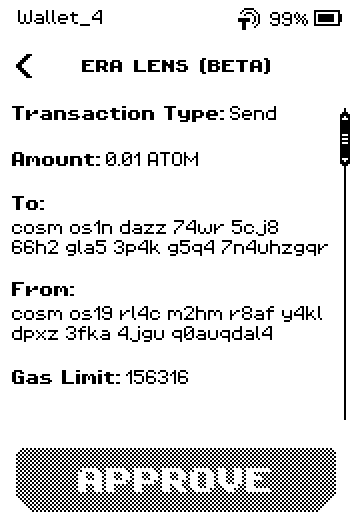
Cosmos review page 1: Send, 0.01 ATOM, to, from, gas limit Swipe up. Check Fee and Network, then tap APPROVE.
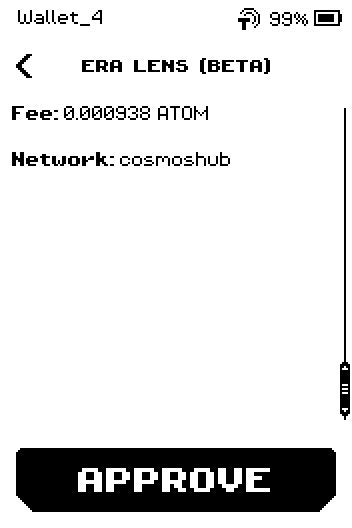
Cosmos review page 2: fee 0.000938 ATOM, network cosmoshub, APPROVE
Staking and voting requests
Staking requests show Delegator and Validator instead of From and To; votes show Voter, the Proposal number and your Vote.
XRP
Scan the request from your XRP wallet. Check Type (Payment), Amount, From and To.
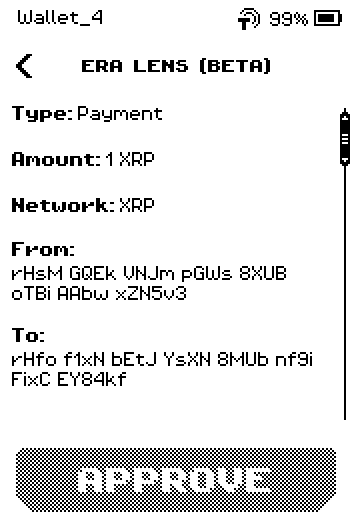
XRP review page 1: Payment, 1 XRP, network XRP, from, to Swipe up. Check the Destination Tag against what the exchange or recipient gave you, then tap APPROVE.
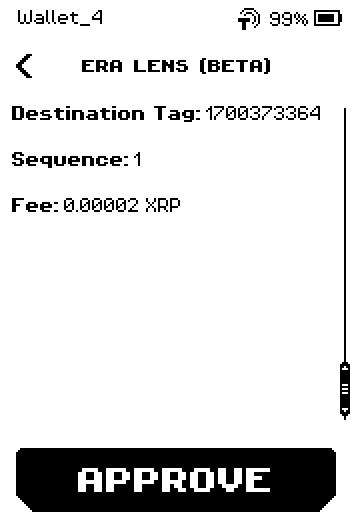
XRP review page 2: destination tag, sequence, fee 0.00002 XRP
Sui
Sui requests are not decoded field by field yet: ERA shows BLIND SIGNING first. Tap CONTINUE only if you built the transaction yourself.
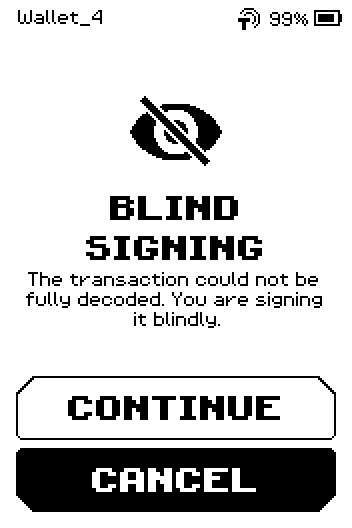
BLIND SIGNING page with CONTINUE and CANCEL The review shows the data size, the network and the app that made the request. Tap APPROVE or go back.
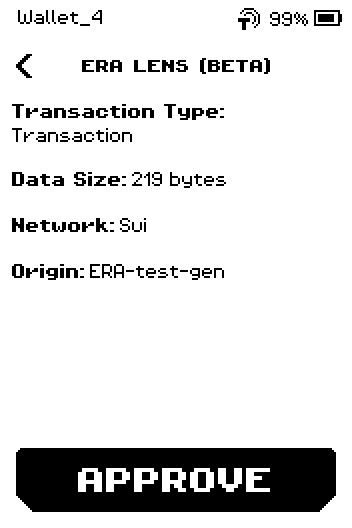
Sui review: Transaction, data size 219 bytes, network Sui, origin
TON and Cardano
TON and Cardano follow the same flow. A TON transfer shows Type, Network, Amount, To and, when present, Comment (jetton and NFT transfers say so under Type); a Cardano transaction shows Type, Amount, Network, From, To, Fee and, for staking, Certificates.
Image coming soon — TON review page 1 (0.1 TON transfer) and Cardano review page 1 (2 ADA transfer)
Done
The SCAN TO APPROVE page closes when you tap DONE. The software wallet shows the transaction as sent to the network.
Trouble?
"INVALID REQUEST" appears → the request is for a chain ERA does not support, or it was built for a different wallet than the one you opened. Re-link the software wallet (see Link a software wallet) and try again.
"FIND YOUR WALLET" appears (Quick Sign) → pick the wallet with SELECT WALLET, or enter its passphrase with PASSPHRASE.
The review says "Unknown transaction" or you see BLIND SIGNING → ERA could not decode the request in full. See Warnings explained.