
Using a wallet day to day
Receive coins (deposit address)
A deposit address is where other people send coins to you. The device shows it as a QR code and as text.
Before you start
Ethereum-compatible networks (BNB Smart Chain, Polygon, Arbitrum and others) are grouped under EVM Chains; Cosmos networks (Cosmos Hub, Osmosis, Celestia and others) under Cosmos Chains. The full list is in Supported chains.
On Bitcoin-only firmware there is no network list; the Bitcoin address opens straight away.
Part 1: Show and check the address
Open the wallet and tap DEPOSIT.
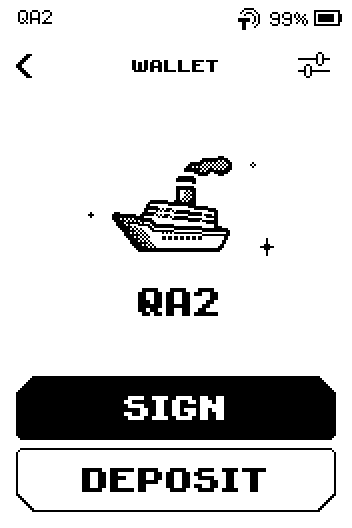
Wallet screen with SIGN and DEPOSIT buttons. Tap the network you want to receive on. Swipe up for more networks; the magnifier searches the list.
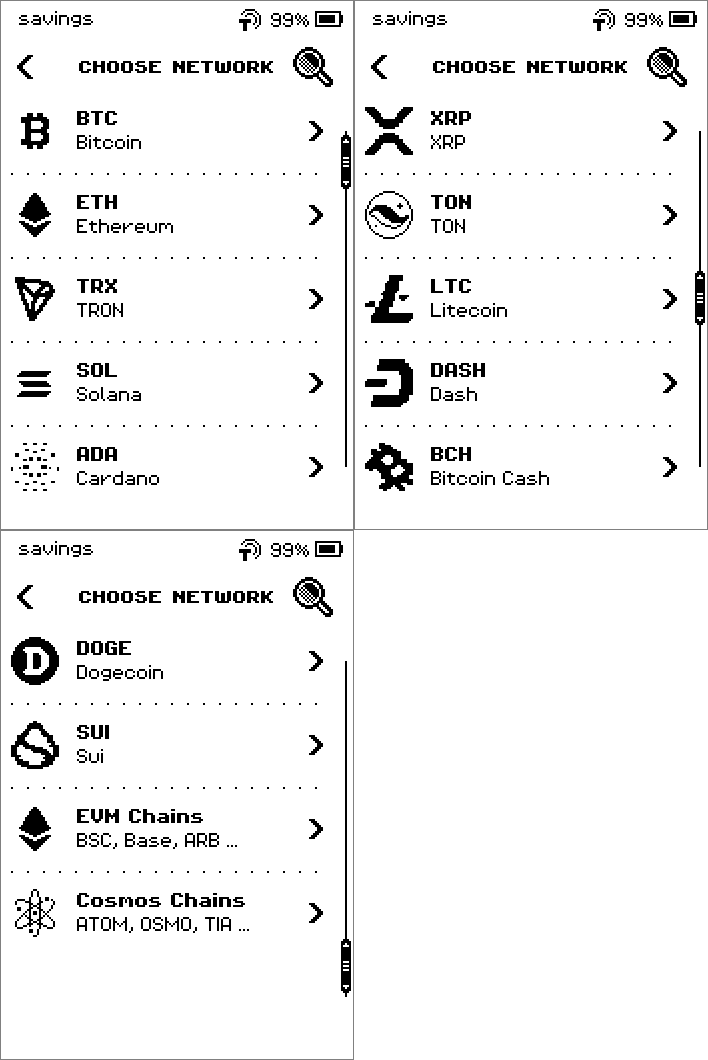
CHOOSE NETWORK list, three pages: BTC, ETH, TRX, SOL, ADA, XRP, TON, LTC, DASH, BCH, DOGE, SUI, EVM Chains, Cosmos Chains. Wait a moment while the device derives the address. The QR code and the address text appear.
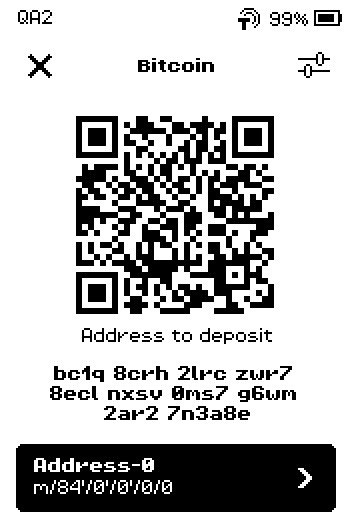
Bitcoin deposit screen with QR code, the address text and the Address-0 button. In the app, open the Receive screen for the same wallet and network, then compare the address with the device, character by character.
9:41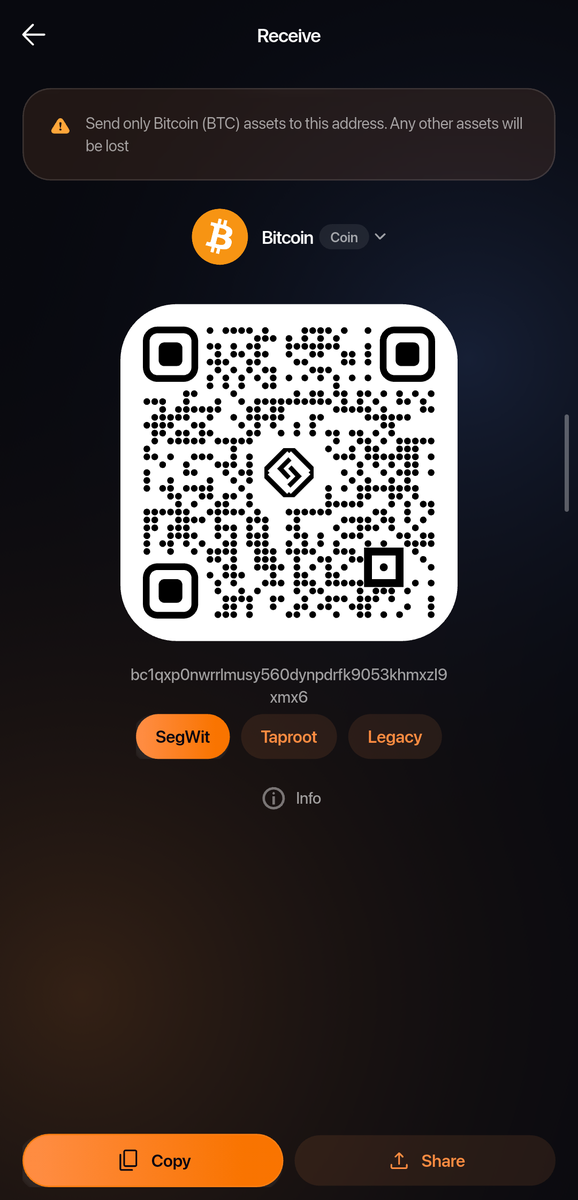
Phone: the app's Receive page for Bitcoin (SegWit). Compare this address with the one on the ERA DEPOSIT screen. (The device is not in this picture.)
Warning: Only send coins to an address that the device screen shows. If the app shows a different address, stop and check that the app is linked to this wallet and uses the same address format.
Let the sender scan the QR code from the device, or copy the address from the app.
Receiving on Ethereum, an EVM network or a Cosmos network
Ethereum: tap ETH in step 2.
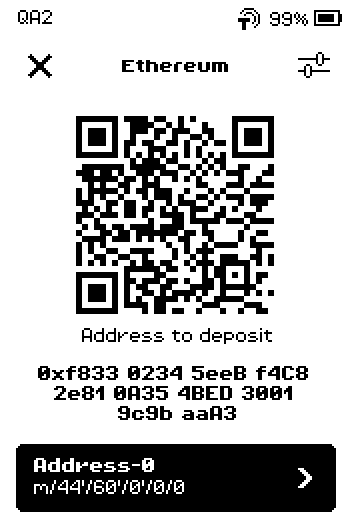
Ethereum deposit screen with a 0x address and the Address-0 button. Another EVM network: tap EVM Chains, then the network.
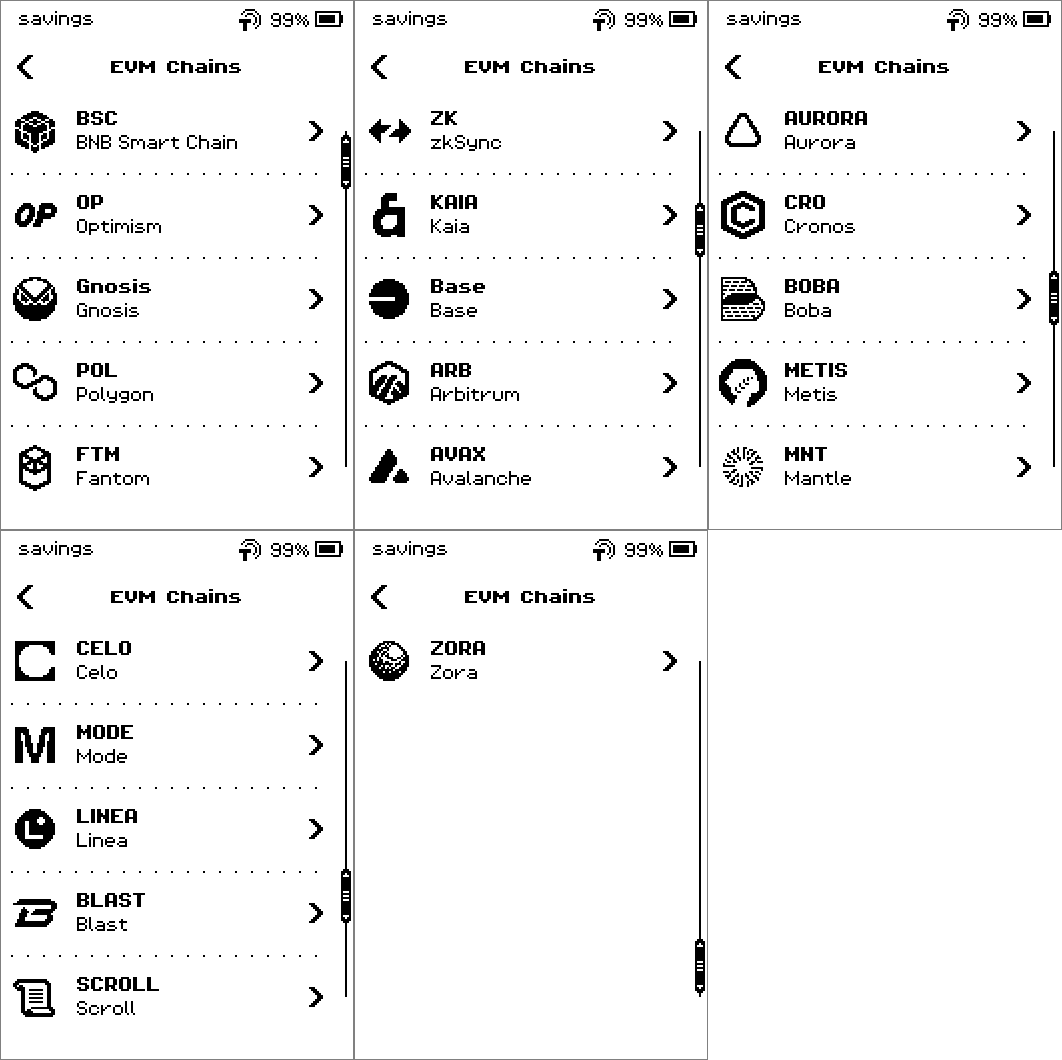
EVM Chains list, five pages from BNB Smart Chain to Zora. The address is the same on every EVM network:
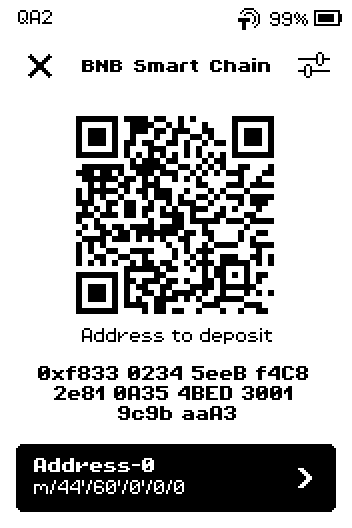
BNB Smart Chain deposit screen showing the same 0x address as Ethereum. A Cosmos network: tap Cosmos Chains, then the network. Each Cosmos network has its own address prefix.
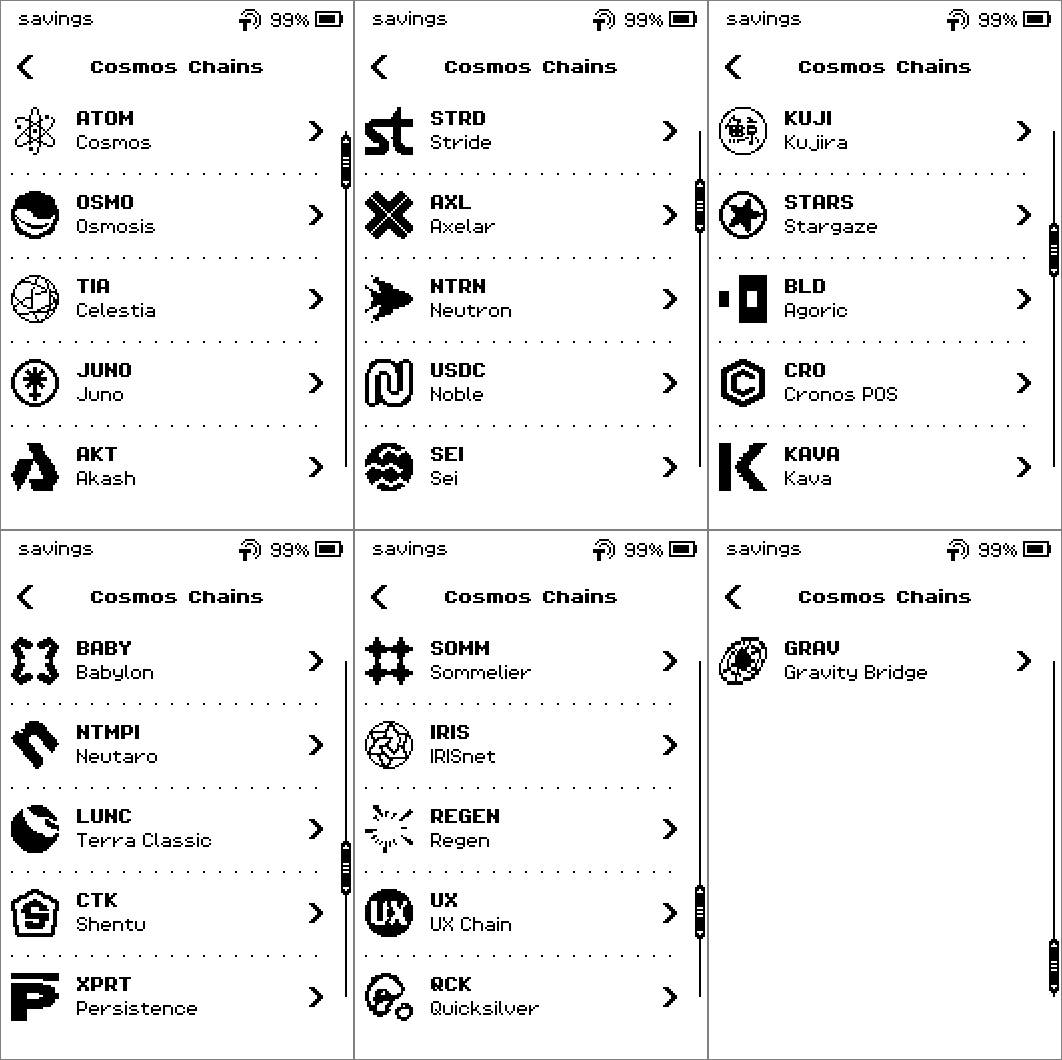
Cosmos Chains list, seven pages from Cosmos Hub to Gravity Bridge. For example, Gravity Bridge addresses start with gravity1:
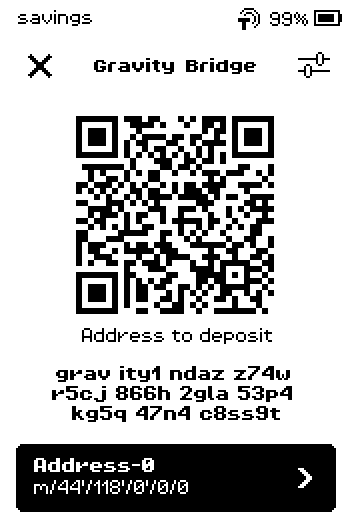
Gravity Bridge deposit screen with a gravity1 address. Every other network works the same way: tap it, wait, compare, share. TRON addresses start with T:
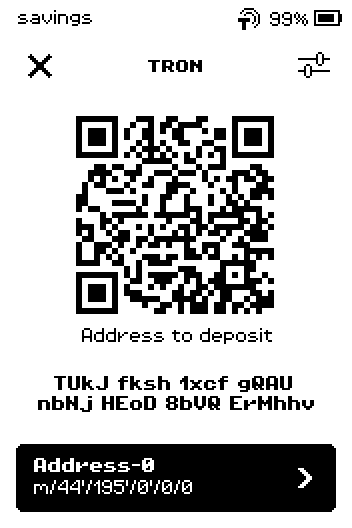
TRON deposit screen with an address starting with T. Solana addresses are 32 to 44 letters and digits:
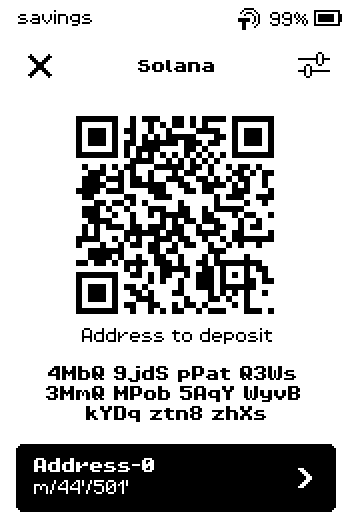
Solana deposit screen with a Base58 address. TON addresses start with UQ:
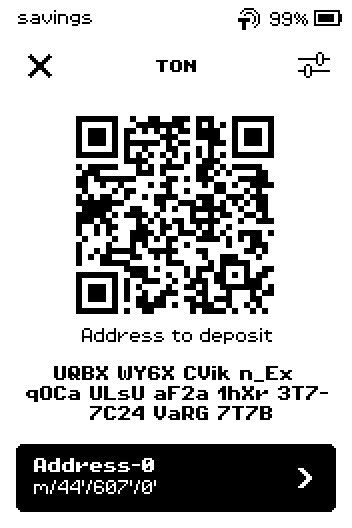
TON deposit screen with an address starting with UQ.
The address-format choice (Part 3) exists for Bitcoin-family coins and for Ethereum (BIP44 standard, Ledger Live, Ledger Legacy); Solana and Litecoin also list alternative paths (see Supported chains). Other networks have one address format; the sliders icon opens DERIVATION PATH with that single path, so there is nothing to change. The i button on that screen exists for Bitcoin only. Source: Help Center
Part 2: Use a fresh address (optional)
On the deposit screen, tap Address-0.
Bitcoin deposit screen with the Address-0 button under the address. Tap the address you want.
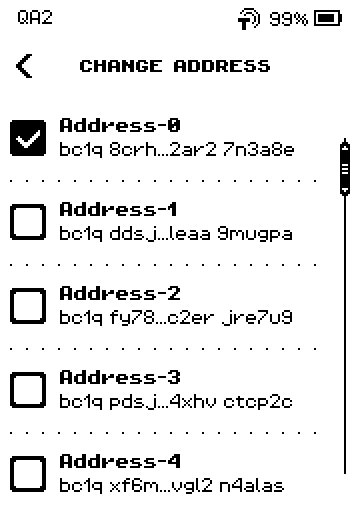
CHANGE ADDRESS list with Address-0 ticked and Address-1 to Address-4 under it. Tap the back chevron.
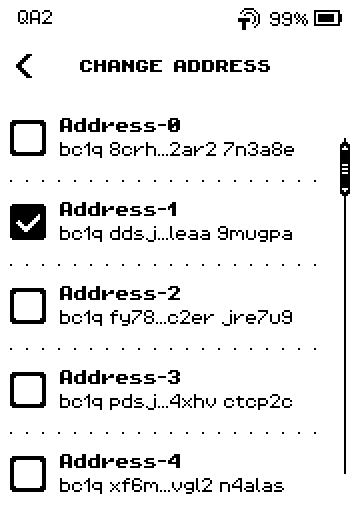
CHANGE ADDRESS list with Address-1 ticked. Check that the deposit screen now shows the address you picked, for example Address-1.
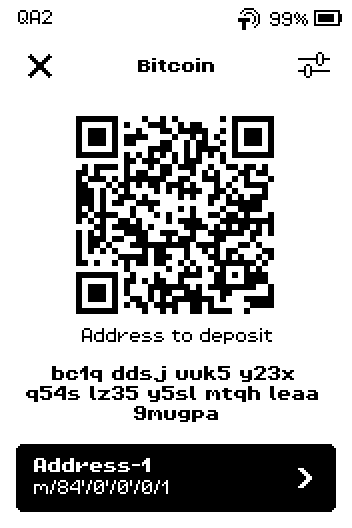
Bitcoin deposit screen showing Address-1 and its bc1q address.
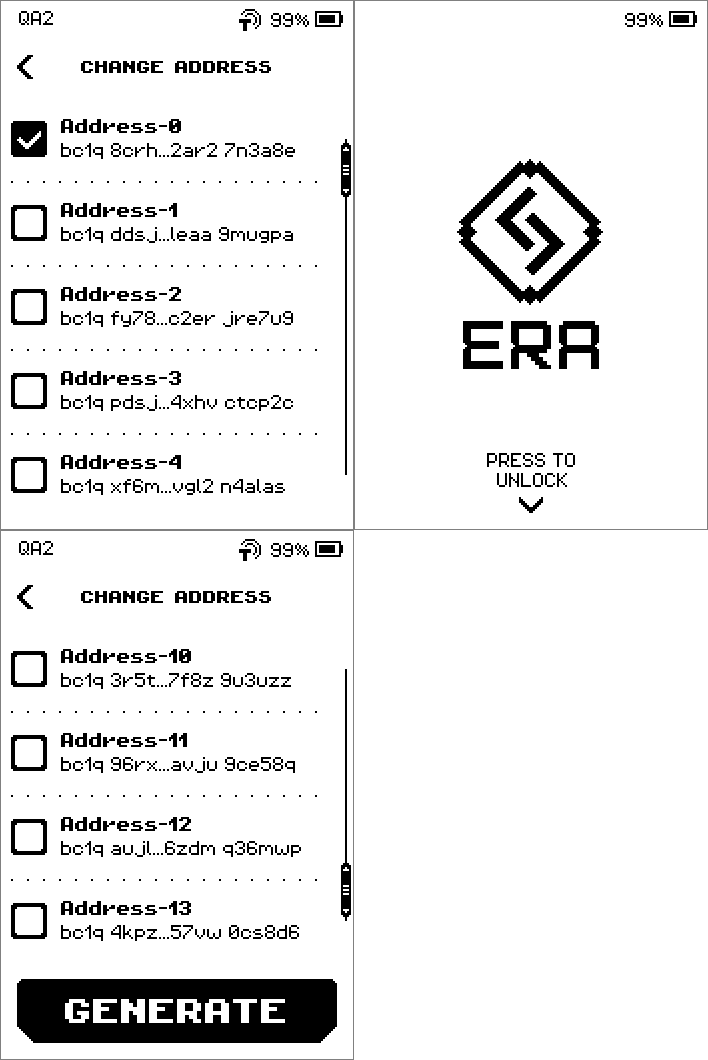
If you need more than 9 addresses
The list shows 9 addresses at first. Swipe to the last page and tap GENERATE for 5 more (up to 29). Every address belongs to the same wallet; a new address for each payment improves privacy.
Part 3: Change the Bitcoin address format (optional)
On the Bitcoin deposit screen, tap the sliders icon at the top.
Bitcoin deposit screen with the sliders icon at the top.
Note: Keep Native SegWit (addresses starting with
bc1q) unless the sender's service cannot pay to it. Your app must use the same format, or it will not see the coins.
Tap a format.
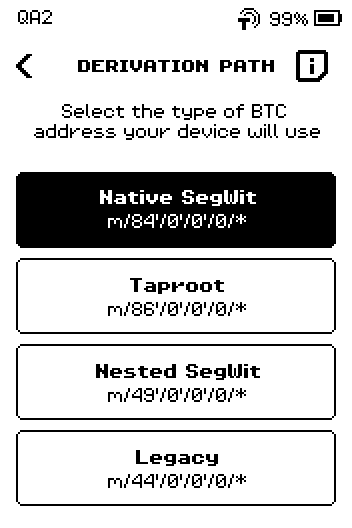
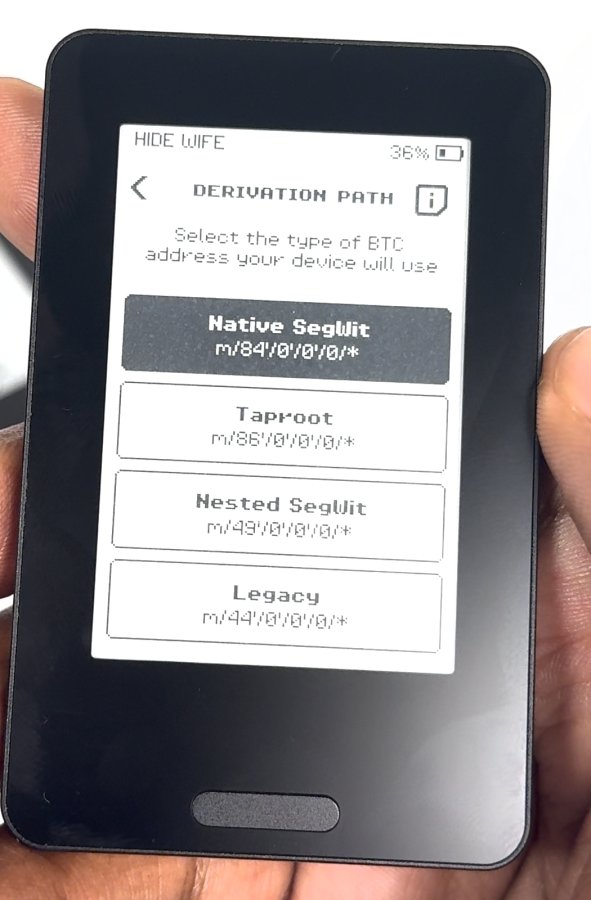
DERIVATION PATH screen with Native SegWit, Taproot, Nested SegWit and Legacy. Tap the back chevron. The address changes to that format.
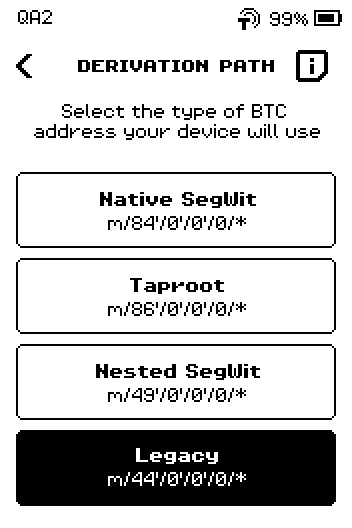
DERIVATION PATH with Legacy selected. Check the address: for example, a Legacy address starts with 1.
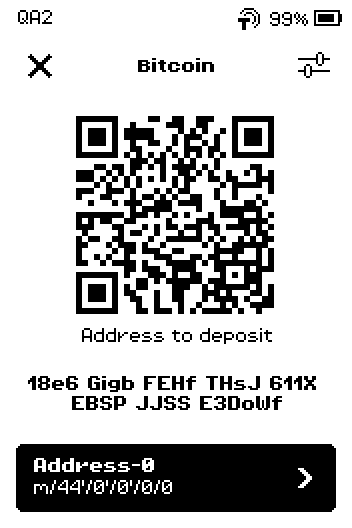
Bitcoin deposit screen showing a Legacy address starting with 1 and the path m/44'.
What each format is
Tap i on DERIVATION PATH to read what each format is and what its addresses start with.
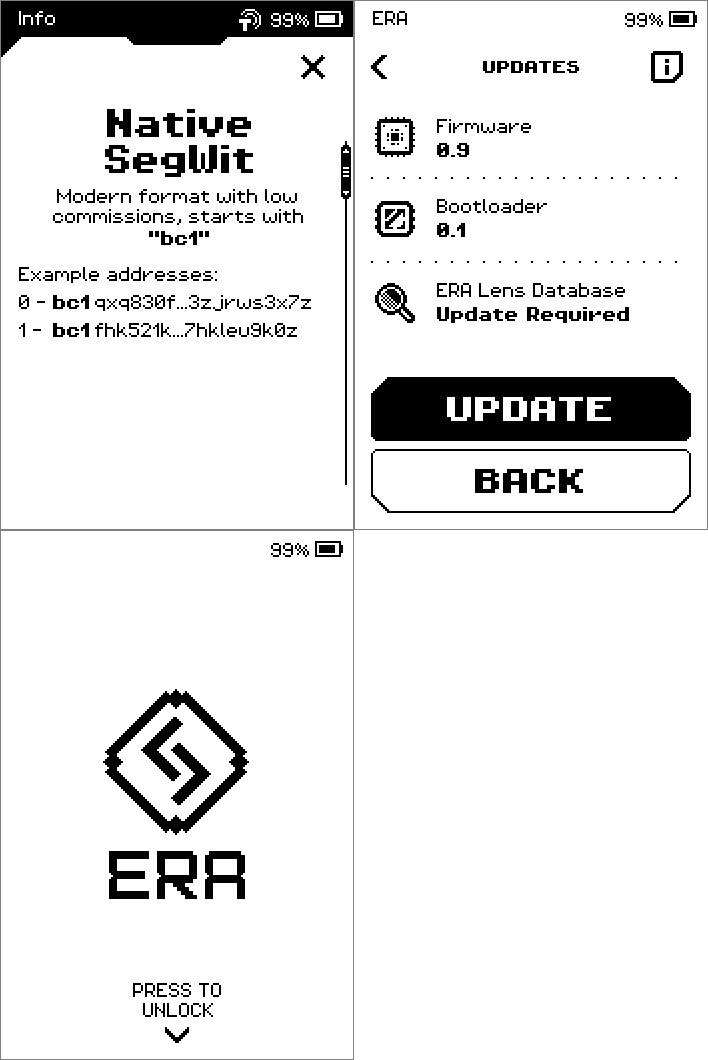
Taproot on a real device
The DERIVATION PATH screen on the device, with Native SegWit selected and Taproot as the second choice.
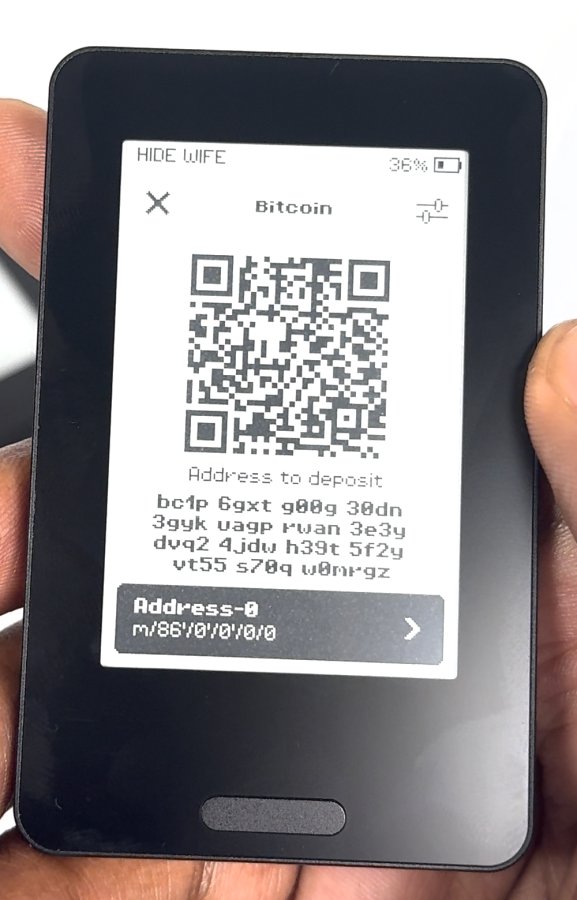
After tapping Taproot, the deposit screen shows a bc1p address and the path m/86'/0'/0'/0/0 under Address-0.
Done
You have a verified receiving address, and you know how to pick a fresh one. The X at the top of the deposit screen closes it.
Trouble?
The app shows a different address than the device → check the address format (Part 3) and the address number (Part 2); both must match the app. If a passphrase is applied on the device, the app must be linked with the passphrase applied too.
The network is not in the list → check the EVM Chains and Cosmos Chains groups, use the magnifier to search, or see Supported chains. On Bitcoin-only firmware only Bitcoin is available.
The sender says the address is invalid → they may be sending on a different network (for example TRON USDT to an Ethereum address). Tap the sender's network in step 2.
"Address to deposit" takes long to appear → the device derives the first 9 addresses; a few seconds is normal.