
Bitcoin multisig
Import a multisig descriptor
The descriptor (the file listing every cosigner and the signing rule) comes from the coordinator app after you have enrolled all keys. Each coordinator names the export differently:
Sparrow — open the wallet's Settings tab, choose Export..., open Coldcard Multisig and choose Show.... Source: github.com, github.com, github.com
Nunchuk — open View wallet config, then the more menu > Export wallet configuration > Coldcard > Export via BBQR. Source: github.com, github.com
BlueWallet — open the vault's details and tap Export Coordination Setup. Source: github.com, github.com
Other coordinators call it export wallet or wallet config. ERA reads the Coldcard-style text config, so pick that format where the coordinator offers a choice.
There are two ways in: from the wallet's Bitcoin Multisig menu (Part 1) or from SCAN QR on the Main menu (Part 2, the quick way — see SCAN QR: one button for everything). Part 2 lets you save the descriptor for several wallets at once.
Part 1: Import from the Bitcoin Multisig menu
Open the wallet's Bitcoin Multisig menu (steps 1–4 of Export your cosigner key).
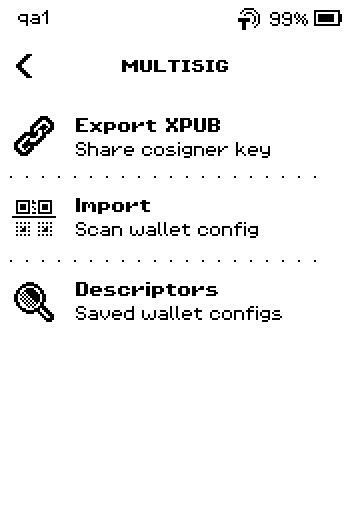
MULTISIG menu with Export XPUB, Import, Descriptors Tap Import.
Point the ERA camera at the descriptor QR code on the phone. Keep it steady until the screen changes.
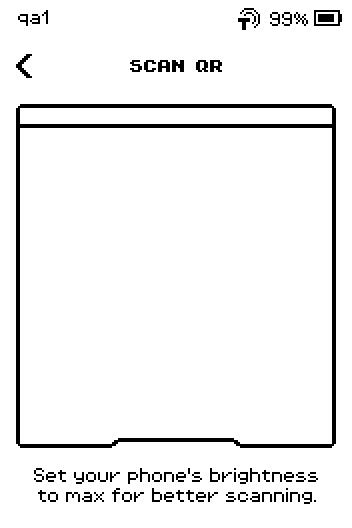
SCAN QR page with an empty camera frame Check Name, Policy (for example 2 of 3), Format and Derivation against what the coordinator shows.
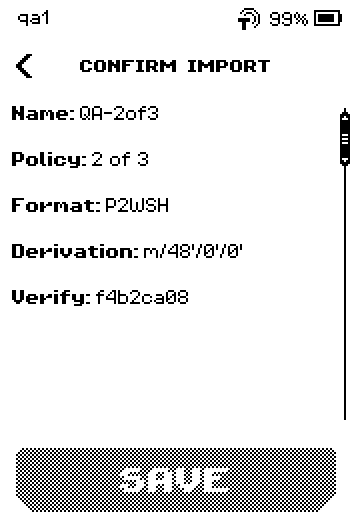
CONFIRM IMPORT page listing Name QA-2of3, Policy 2 of 3, Format P2WSH Verify is ERA's own 8-character code for this descriptor. No coordinator prints it, so leave it out of the comparison and use the cosigner fingerprints in step 5 instead. See View or delete a saved descriptor.
Note: One of the cosigner fingerprints is this ERA wallet's own (compare with the Fingerprint on the XPUB page). If it is missing, the coordinator did not enrol this wallet.
Swipe up to read every cosigner. Each row shows the cosigner's XFP (its fingerprint) and key; SAVE becomes active on the last page.
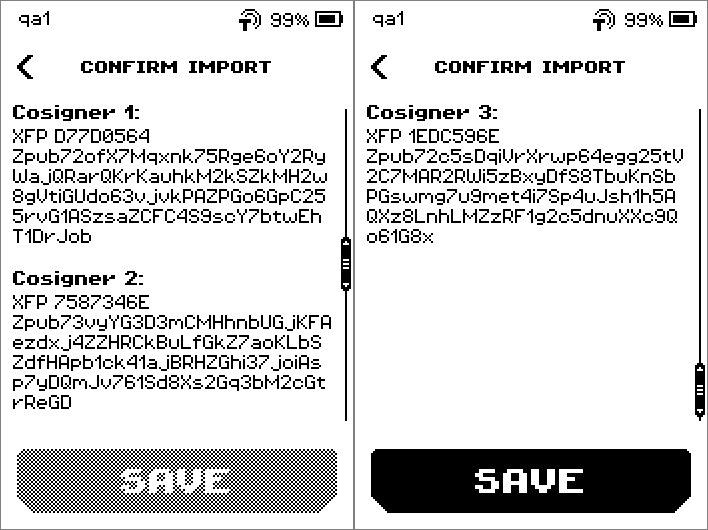
Paging through Cosigner 1, 2 and 3 rows with fingerprints and Zpub keys Tap SAVE.
Tap THIS WALLET. (ALL WALLETS saves the descriptor once for every wallet on this device; such entries show ALL in the Descriptors list.)
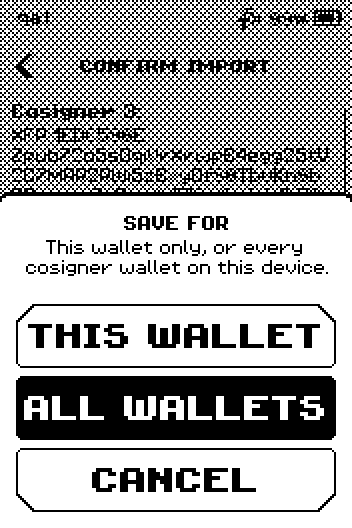
SAVE FOR popup with THIS WALLET, ALL WALLETS and CANCEL ERA shows Multisig descriptor saved. and returns to the wallet SETTINGS after a few seconds.
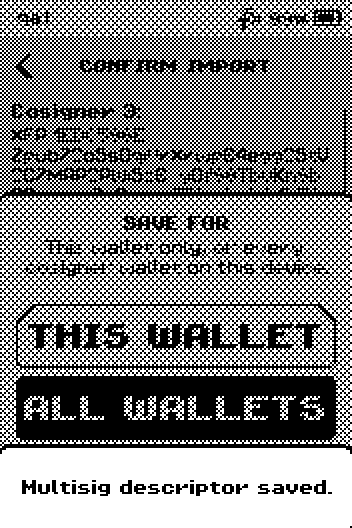
Message Multisig descriptor saved. over the dimmed popup
Part 2: Import from the Main menu
On the Main menu, tap SCAN QR.
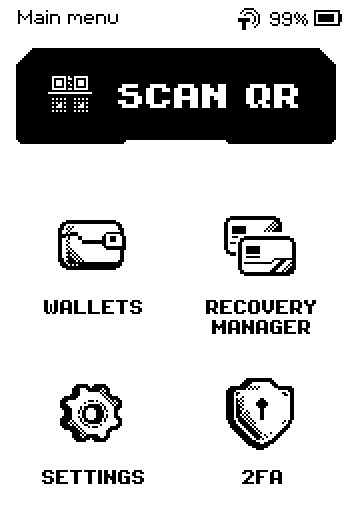
Main menu with SCAN QR, WALLETS, RECOVERY MANAGER, SETTINGS, 2FA Point the ERA camera at the descriptor QR code on the phone.
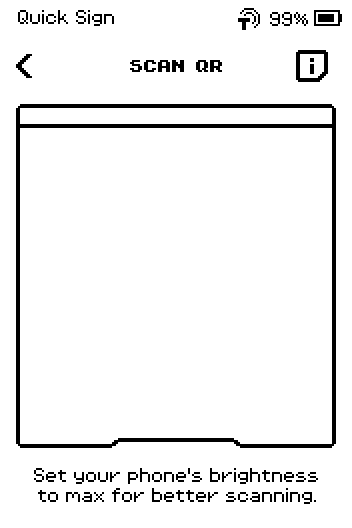
Quick Sign SCAN QR page with an empty camera frame Check the descriptor, then swipe up through the cosigner pages.
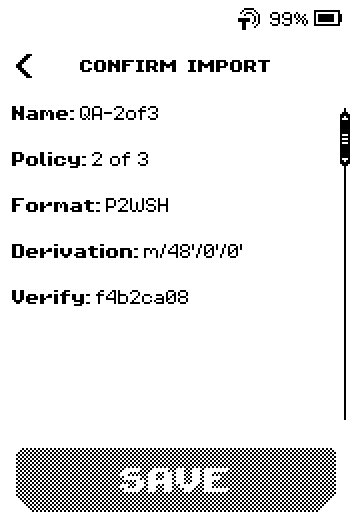
CONFIRM IMPORT page listing Name QA-2of3, Policy 2 of 3, Format P2WSH On the last page, tap SAVE.
Tap PICK WALLET to save it for one wallet, or ALL WALLETS for every wallet on the device.
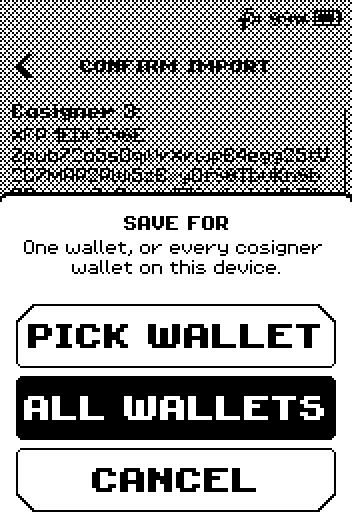
SAVE FOR popup with PICK WALLET, ALL WALLETS and CANCEL Tap the wallet that is a cosigner in this multisig.
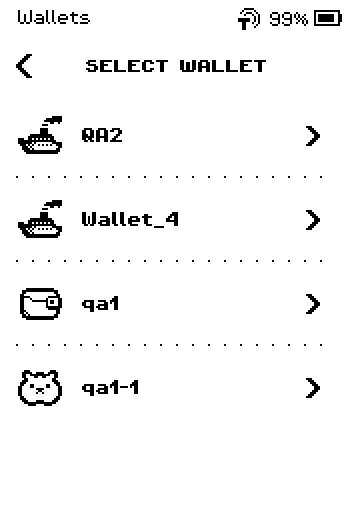
SELECT WALLET list with QA2, Wallet_4, qa1, qa1-1 ERA shows Multisig descriptor saved. Tap the message to return to the Main menu.
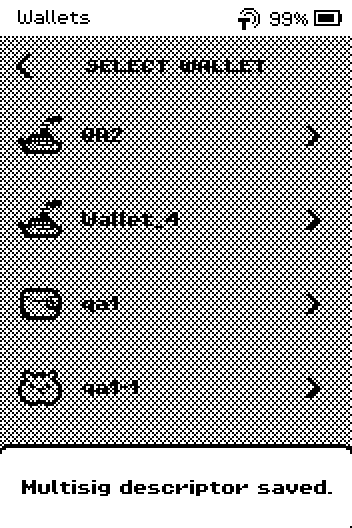
Message Multisig descriptor saved. over the dimmed wallet list
Done
The descriptor is listed under Bitcoin Multisig > Descriptors of the wallet. From now on ERA names the wallet on the signing screen and verifies change outputs.
Trouble?
This multisig descriptor is already saved. → the same wallet is already on the device (for this wallet or for all wallets). Tap the message; nothing else to do.
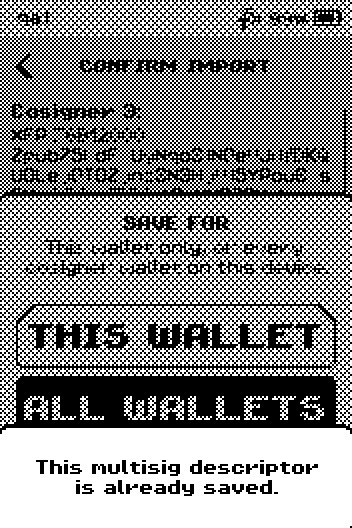
Message This multisig descriptor is already saved. INVALID REQUEST → the QR code is not a multisig descriptor ERA understands. In the coordinator, export the wallet in Coldcard format and scan again.
The camera does not react → set the phone brightness to maximum and hold it 15–20 cm from the ERA camera; an animated QR code needs a few seconds.