
Device settings and firmware updates
Find your way around Settings
All device-level options live in one scrolling list under SETTINGS. Wallet-specific options (passphrase, wallet password, rename) are inside each wallet instead.
Steps
On the main menu, tap SETTINGS.
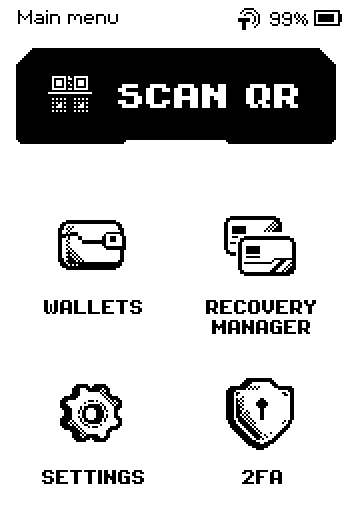
Main menu with SCAN QR, WALLETS, RECOVERY MANAGER, SETTINGS and 2FA Swipe up to see the second half of the list.
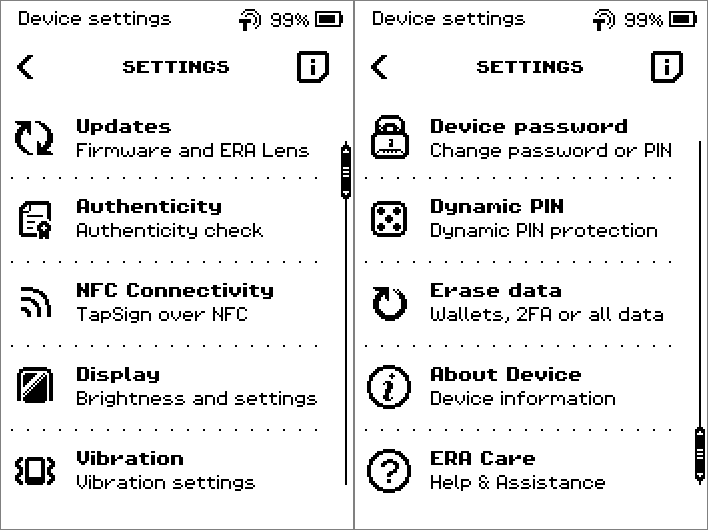
Settings list paging from Updates … Vibration to Device password … ERA Care Tap the i icon in the header to read what a setting does.
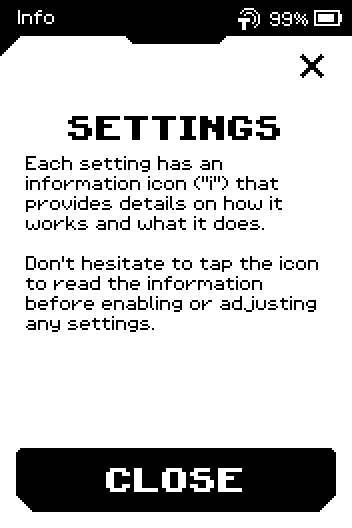
Settings info page: each setting has an information icon
The settings, one line each
| Item | What it does | Guide | |
|---|---|---|---|
| Updates — Firmware and ERA Lens | Shows installed versions and starts an NFC firmware or ERA Lens update from the app. On Bitcoin-only firmware the ERA Lens row is absent. | Update the firmware, Bitcoin-only firmware | |
| Authenticity — Authenticity check | Runs the genuine-device check again with the app. | Device info and authenticity | |
| NFC Connectivity — TapSign over NFC | Master switch for Tap Sign, signing over NFC from the ERA Wallet app. Does not affect firmware updates. | Sign with Tap Sign over NFC | |
| Display — Brightness and settings | Front light, auto lock and auto power off timers. | Display, brightness and vibration | |
| Vibration — Vibration settings | Turns touch feedback on or off. | Display, brightness and vibration | |
| Device password — Change password or PIN | Changes the code that unlocks the device. | Change the device PIN | |
| Dynamic PIN — Dynamic PIN protection | Shuffles the keypad every time you enter a PIN. | Change the device PIN | |
| Erase data — Wallets, 2FA or all data | Erases 2FA codes, wallets, or everything. | Factory reset | |
| About Device — Device information | Legal info, warranty, firmware versions, serial number. | Device info and authenticity | |
| ERA Care — Help & Assistance | Support QR code and links to the app stores. | Device info and authenticity |
There is no language or date/time entry in this list — see Language and Date and time.
Done
You can open any setting from SETTINGS and return with the back chevron.
Trouble?
The list seems to end at Vibration → swipe up on the list; the second page holds five more items.
A setting shows an i icon but no CLOSE button on its info page → tap the X in the header.