
Using a wallet day to day
Use a passphrase
A passphrase is an extra word you add to your seed words; it opens a different, hidden wallet with its own addresses.
Before you start
The device forgets the passphrase when it turns off. Enter it again after the next power-on to reach the same hidden wallet.
Only one passphrase can be active at a time, and it applies to the wallet you set it on.
Part 1: Apply a passphrase
Open the wallet and tap the sliders icon at the top of the screen.
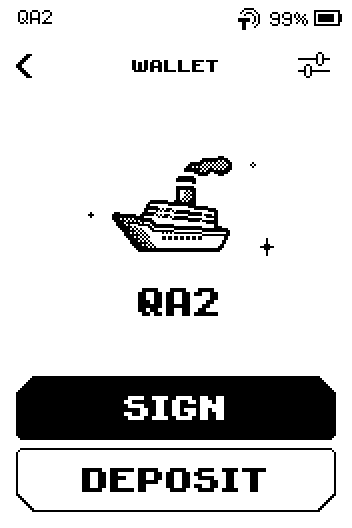
Wallet screen with the wallet name, SIGN and DEPOSIT buttons and the sliders icon at the top. Tap Passphrase.
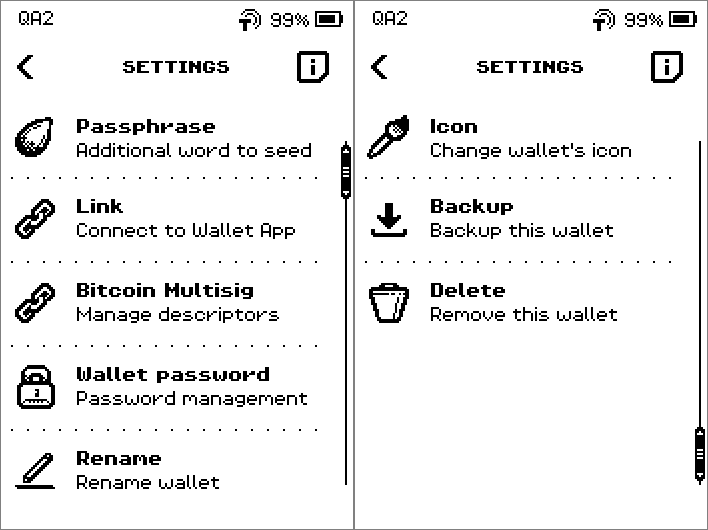
SETTINGS list with Passphrase as the first row, then Link, Bitcoin Multisig, Wallet password and Rename. Tap Create.
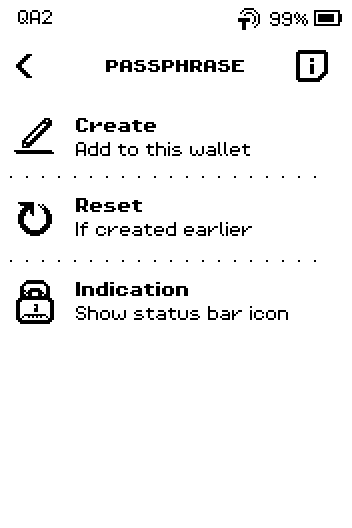
PASSPHRASE menu with Create, Reset and Indication, and an i button in the header.
What a passphrase does (the i screen)
Tap i on the PASSPHRASE menu to read how a passphrase works.
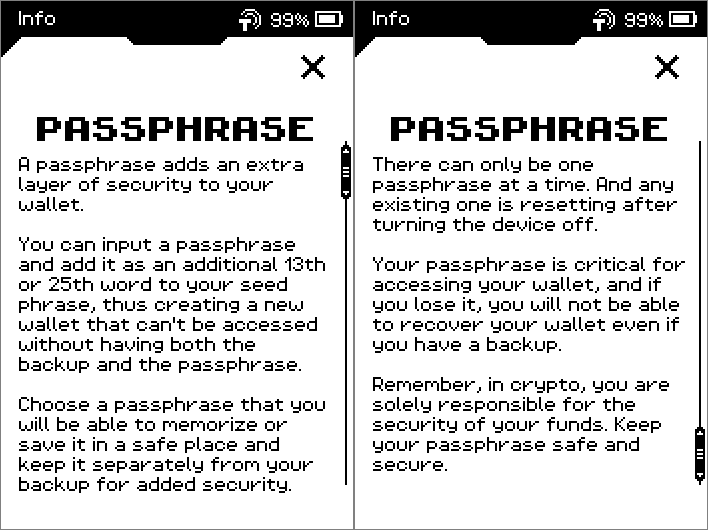
Warning: Coins sent to a passphrase wallet can only be reached with both the seed words and that exact passphrase; a backup alone does not recover them. Write the passphrase down and keep it apart from your seed words.
Type the passphrase. Use the arrow key for capitals and !#1 for digits and symbols.
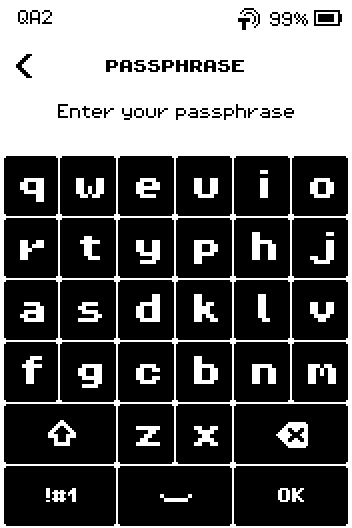
PASSPHRASE keyboard screen, Enter your passphrase, with the arrow, !#1 and OK keys. Check the spelling, then tap OK.
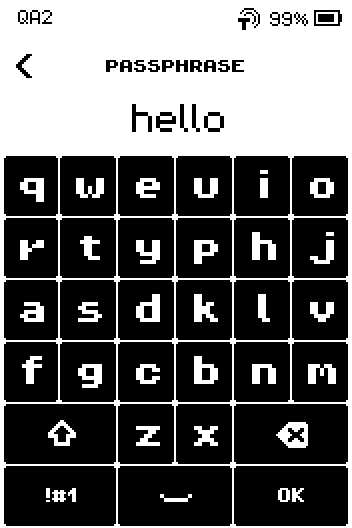
Keyboard with the word hello typed and the OK key. Read the passphrase once more and tap CONFIRM. The message Passphrase successfully applied. appears.
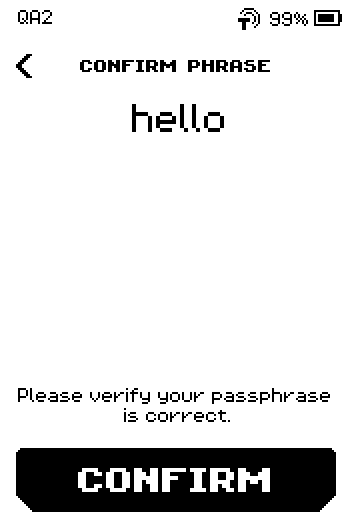
CONFIRM PHRASE screen showing the typed passphrase hello and the CONFIRM button. Return to the wallet screen (back chevron) and tap DEPOSIT. The address differs from the one without a passphrase; that is the hidden wallet.
Wallet screen with SIGN and DEPOSIT buttons.
Part 2: Show an icon while a passphrase is active (optional)
On the PASSPHRASE menu, tap Indication.
PASSPHRASE menu with Create, Reset and Indication. Tap ENABLE. The screen shows ENABLED.
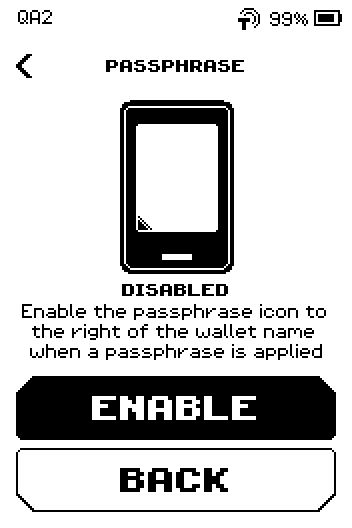
PASSPHRASE indication screen showing DISABLED, with ENABLE and BACK buttons. Tap DONE. The wallet name in the status bar now carries a +PASS icon.
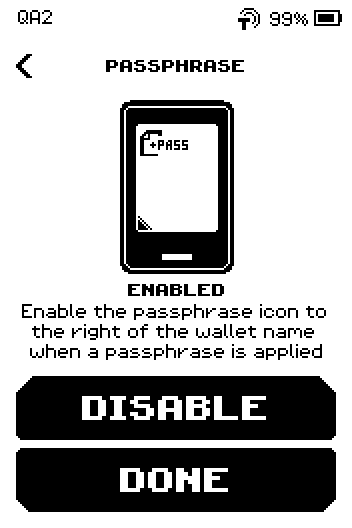
PASSPHRASE indication screen showing ENABLED, with DISABLE and DONE buttons.
Part 3: Remove the passphrase
On the PASSPHRASE menu, tap Reset.
PASSPHRASE menu with Create, Reset and Indication. Tap RESET. The wallet goes back to its normal addresses.
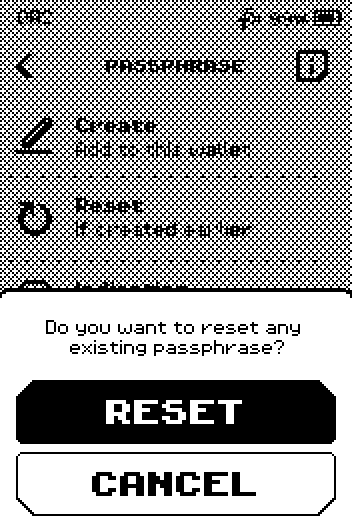
Do you want to reset any existing passphrase? question with RESET and CANCEL buttons.
Done
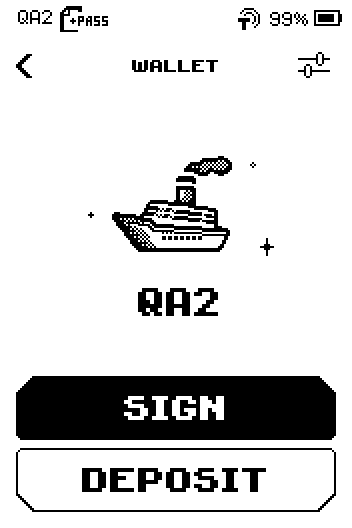
The wallet now opens the hidden passphrase wallet; its addresses and balances belong to that passphrase. With the indication enabled, the wallet name in the status bar carries the +PASS icon.
Trouble?
The app shows a zero balance after applying the passphrase → the app is linked to the wallet without the passphrase. Link it again while the passphrase is applied, or Reset the passphrase.
The hidden wallet is empty after a restart → the passphrase was cleared by the power-off. Enter exactly the same passphrase (capitals and spaces matter).
You typed a passphrase you did not intend → nothing is lost. Tap Reset and create it again.