
Wallets
Add another wallet
One ERA device holds up to 10 wallets, each with its own seed phrase, name and icon.
Steps
On the main menu, tap WALLETS.
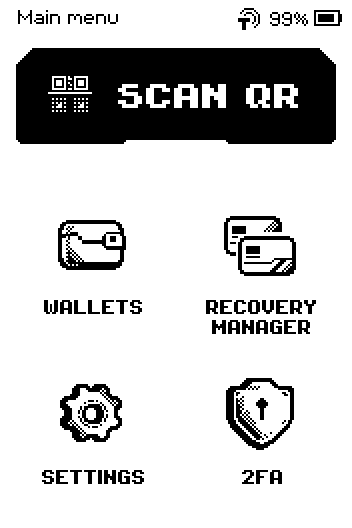
Main menu with SCAN QR, WALLETS, RECOVERY MANAGER, SETTINGS and 2FA. Tap ADD WALLET (or the + icon in the header).
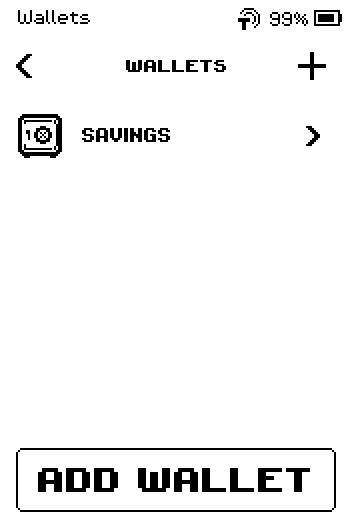
Wallets list with one wallet and the ADD WALLET button. Tap CREATE for a new seed phrase, or RESTORE to bring back an existing one.
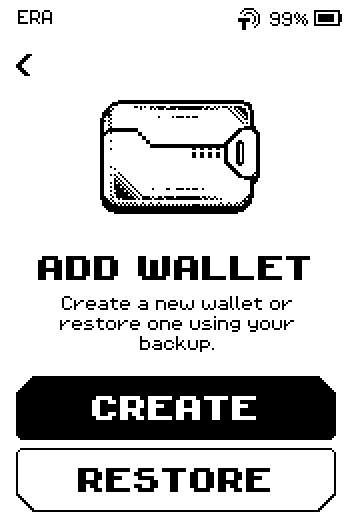
Add wallet screen with CREATE and RESTORE buttons. Follow the guide for your choice:
After FINISH, the device returns to the WALLETS list, which now shows the new wallet.
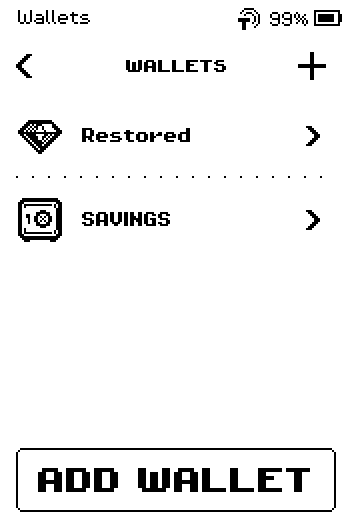
Wallets list with two wallets, Restored and SAVINGS.
Switch between wallets
Open WALLETS and tap the wallet you want.
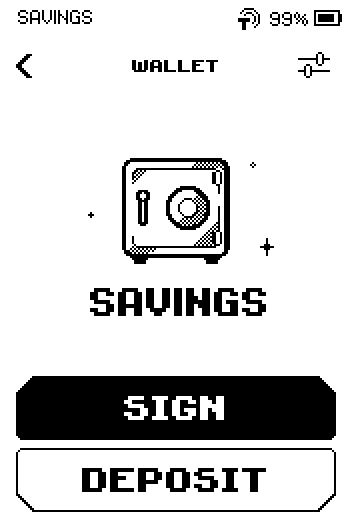
Wallet screen for SAVINGS with SIGN and DEPOSIT buttons. Its name appears in the header of every screen while it is active.
Tap the back chevron and pick another wallet to switch.
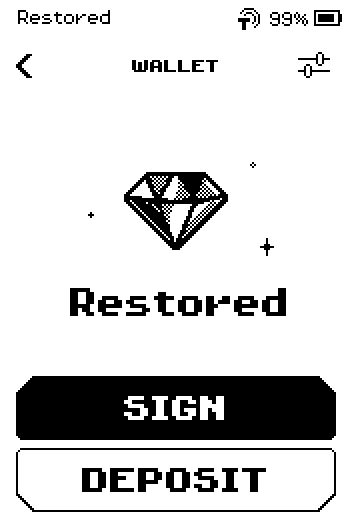
Wallet screen for Restored with SIGN and DEPOSIT buttons.
Note: Each wallet is linked to the app separately. After switching, scan and sign with the wallet whose name is shown in the header.
Done
The new wallet is on the device and you can switch between wallets from the WALLETS list.
Trouble?
SORRY – The maximum number of wallets has been created → you already have 10. Delete one you no longer use — see Rename, change icon or delete a wallet, then add again.
The device asks for your device PIN or password before ADD WALLET → enter it. The secure chip asks for it again from time to time (after a number of wallet operations, or after a wrong wallet password); the same check guards SCAN QR and opening a wallet.
The list order is not the order you created the wallets in → the list is sorted by name, capital letters before small ones. Rename a wallet to move it.