
Device settings and firmware updates
Change the device PIN or password
The device password is the code that unlocks ERA. It can be a PIN (4 to 8 digits) or a typed password (at least 4 characters).
Before you start
You have 5 attempts in total; the counter is the same on the unlock screen and on the CHECK PIN page. After the 3rd and 4th wrong entries, the device waits about 5 minutes before the next try (Try again in 5 minutes).
After the 5th wrong entry, the device erases all data and restarts, the same as Erase everything. Restore from your seed words or ERA card afterwards.
A correct entry resets the counter to zero.
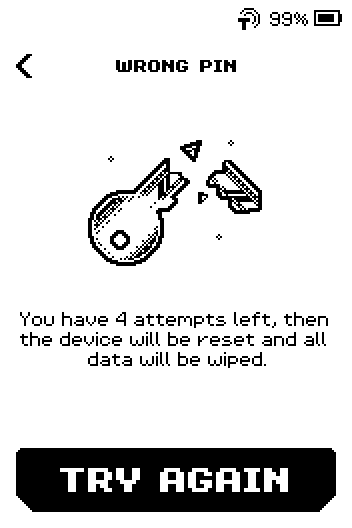
WRONG PIN page: You have 4 attempts left, then the device will be reset and all data will be wiped
Steps
Part 1: Change the PIN or password
On the main menu, tap SETTINGS.
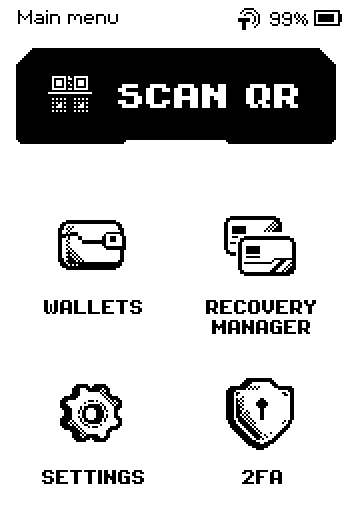
Main menu with SCAN QR, WALLETS, RECOVERY MANAGER, SETTINGS and 2FA Swipe up and tap Device password.
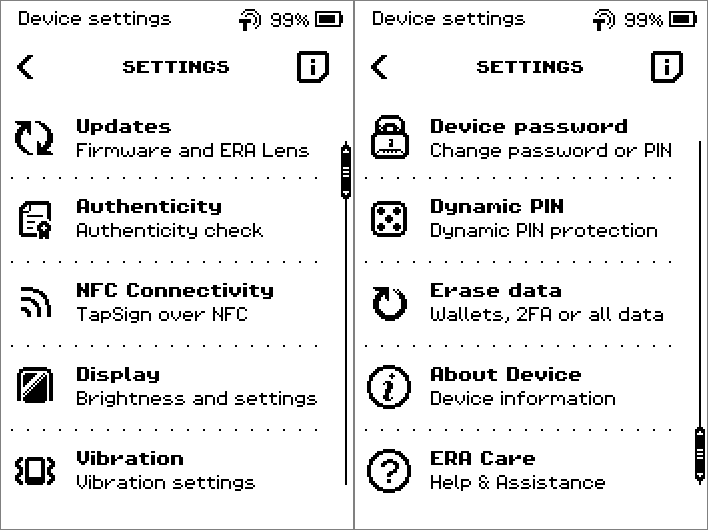
SETTINGS list, second page: Device password, Dynamic PIN, Erase data, About Device, ERA Care Enter your current PIN and tap OK.
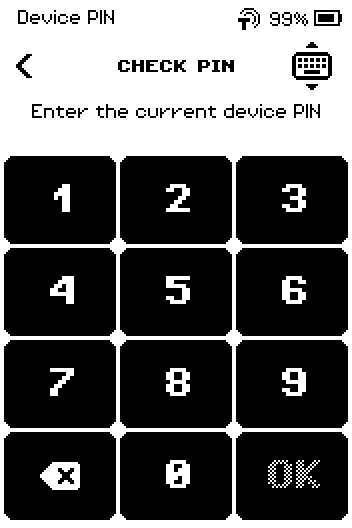
CHECK PIN page asking for the current device PIN Tap PINCODE for digits or PASSWORD for a typed password.
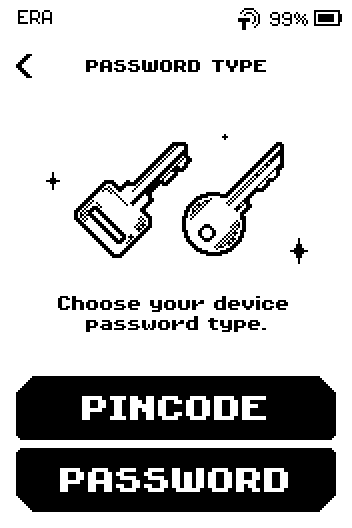
PASSWORD TYPE page with PINCODE and PASSWORD buttons
Warning: A forgotten PIN cannot be recovered; the only way back is Erase everything and a restore from your backup. Choose one you will remember.
Enter the new PIN and tap OK.
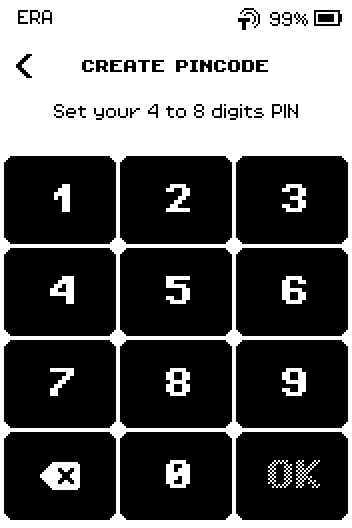
CREATE PINCODE page: set your 4 to 8 digits PIN Enter the same PIN again and tap OK. ERA shows Device PIN changed successfully.
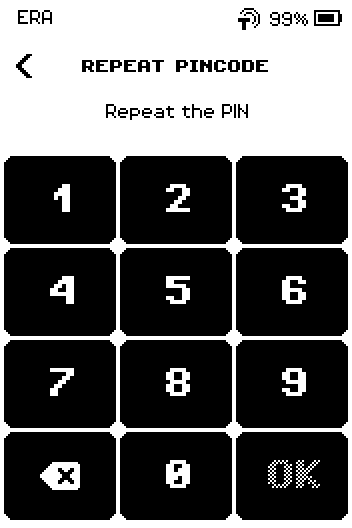
REPEAT PINCODE page asking to repeat the PIN Tap the screen to dismiss the message.
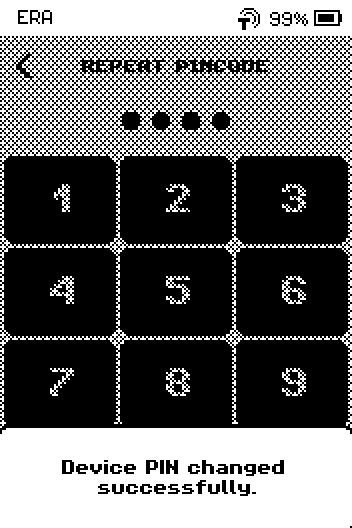
Alert: Device PIN changed successfully
If you chose PASSWORD
Steps 5 to 7 are the same, with the text keyboard instead of the keypad. The message reads Device password changed successfully.
Part 2: Turn on Dynamic PIN (optional)
Dynamic PIN shuffles the digits on the keypad every time you enter a PIN, so someone watching cannot learn your PIN from your finger positions.
On the main menu, tap SETTINGS.
Main menu with SCAN QR, WALLETS, RECOVERY MANAGER, SETTINGS and 2FA Swipe up and tap Dynamic PIN.
SETTINGS list, second page: Device password, Dynamic PIN, Erase data, About Device, ERA Care Tap ENABLE. The keypad preview shows shuffled digits and reads ENABLED.
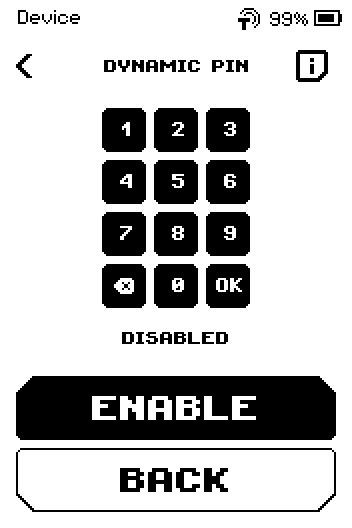
DYNAMIC PIN page with an ordered keypad preview, DISABLED, and the ENABLE and BACK buttons Tap DONE.
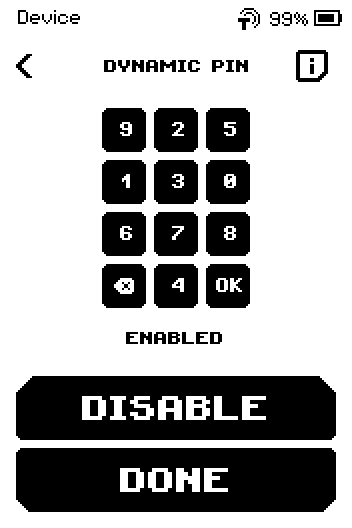
DYNAMIC PIN page with a shuffled keypad preview, ENABLED, and the DISABLE and DONE buttons
Done
The device unlocks with the new PIN or password from the next lock on. Your wallets and backups are unchanged.
Trouble?
Password must be at least 4 characters. → choose a longer password.
Maximum PIN length is 8 characters. → choose a shorter PIN.
The second PIN entry is refused → the two entries differed; start again from Device password.
Try again in 5 minutes on the unlock screen → wait with the device switched on. The timer counts only while ERA is on: time spent switched off does not count, and the wait continues where it stopped.