
Two-factor authentication (2FA)
Remove an authenticator account
Warning: Removing the account on ERA does not turn off 2FA on the website, so you can be locked out of that site. Turn 2FA off on the site, or set it up again with another device, before you delete the account here.
Steps
On the Home screen, tap 2FA.

ERA Home screen with SCAN QR, WALLETS, RECOVERY MANAGER, SETTINGS and 2FA tiles Tap the account you want to remove.
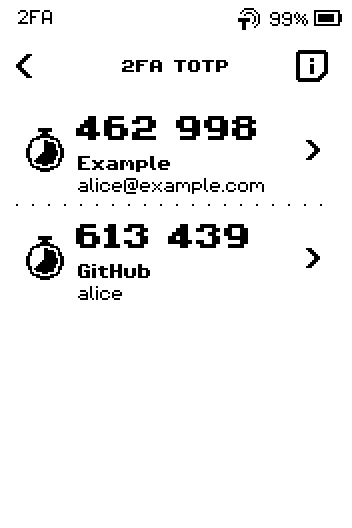
2FA TOTP list with two accounts, Example and GitHub, each with a code Check the site and account name on the ACCOUNT card, then tap DELETE.
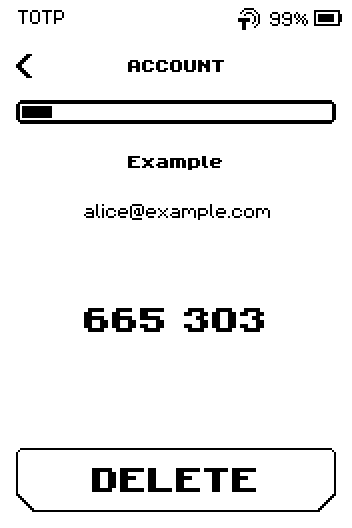
ACCOUNT card with a progress bar, Example, alice@example.com, code 665 303 and a DELETE button Tap DELETE again to confirm, or CANCEL to keep the account.
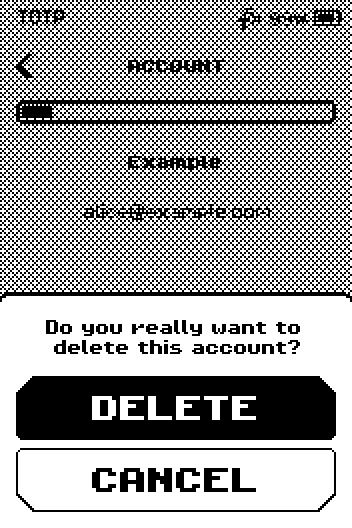
Popup: Do you really want to delete this account? with DELETE and CANCEL Check that the row is gone from the list.

2FA TOTP list with the remaining account Example after the deletion
Done
The account no longer appears in the 2FA list. There is no undo; to use it again, set up 2FA on the website once more and scan its new QR code.
Trouble?
The row is still there after DELETE → ERA shows a message that the deletion failed. Restart the device and try again.
You deleted the wrong account → set up 2FA again on that website; it shows a new QR code to scan. See Add an authenticator account (TOTP).