
Signing transactions
Sign an Ethereum or token transaction
ERA LENS decodes Ethereum requests on the device: it names the function, the token, the spender and the amount instead of showing raw hex. It works the same way on every EVM network ERA supports — Ethereum, Arbitrum, Base, BNB Chain, Polygon and the rest. The examples use a wallet imported from abandon × 11 about (address 0x9858…da94).
Overview and Details
Every review opens in OVERVIEW: the type, the amounts, who receives what, the fee and the network — plus anything ERA marked. DETAILS adds the technical rows underneath: the function, the nonce, the gas limit, hashes and digests.
Tap either half of the strip under the header to switch. Nothing that ERA marked is ever hidden from Overview — a flagged row is pulled up into it whichever mode you are in.
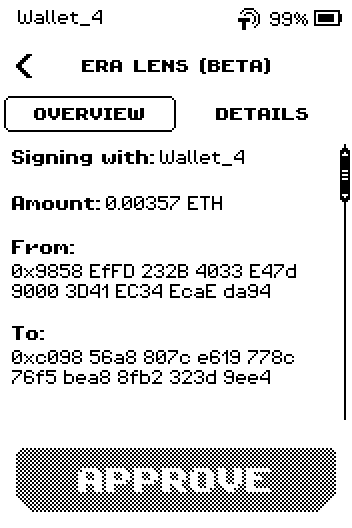
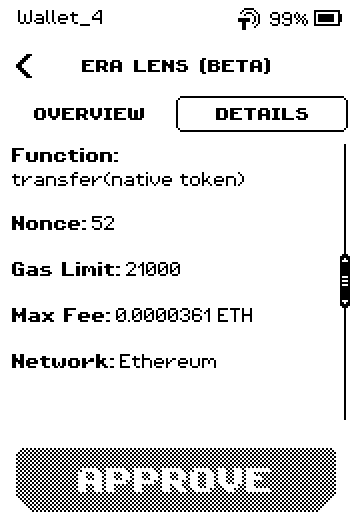
Note: Switching mode re-numbers the pages, and APPROVE only becomes active on the last one. If you switch to Details half-way through, swipe to the end again.
When ERA LENS flags something
ERA LENS does not only decode the request — it judges it. Anything it finds is shown in two places, and they are the same findings seen from opposite ends.
On the row it applies to. A mark sits at the right-hand edge of the row: an ! in a triangle for a warning, an ! in a filled circle for a danger, a crossed-out eye where part of the request could not be read. Tap the row to read what it means; tap anywhere to close.
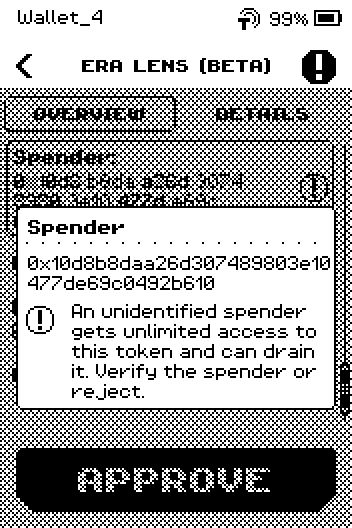
In the header. Whenever there is anything at warning level or above, a badge appears in the top-right corner and blinks for as long as the review is open. Tap it and ERA pages through every finding in turn — the mark, its name, the sentence and the row it belongs to — with the header counting them (RISKS 1/2) and the bottom button reading FULL INFO to take you back to the transaction.
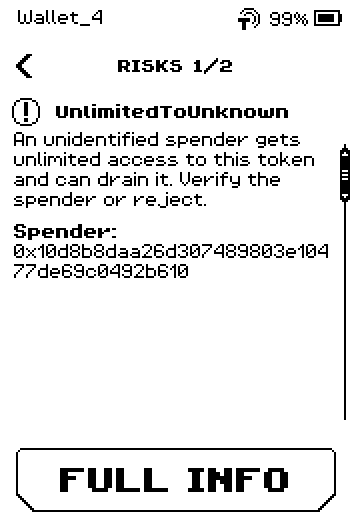
Use the badge to be sure you have seen everything before you approve — a finding can belong to a part of the request that has no row of its own. What each mark means is listed in Warnings explained.
Steps
Part 1: ETH transfer
Create the send in your software wallet and choose to sign with ERA.
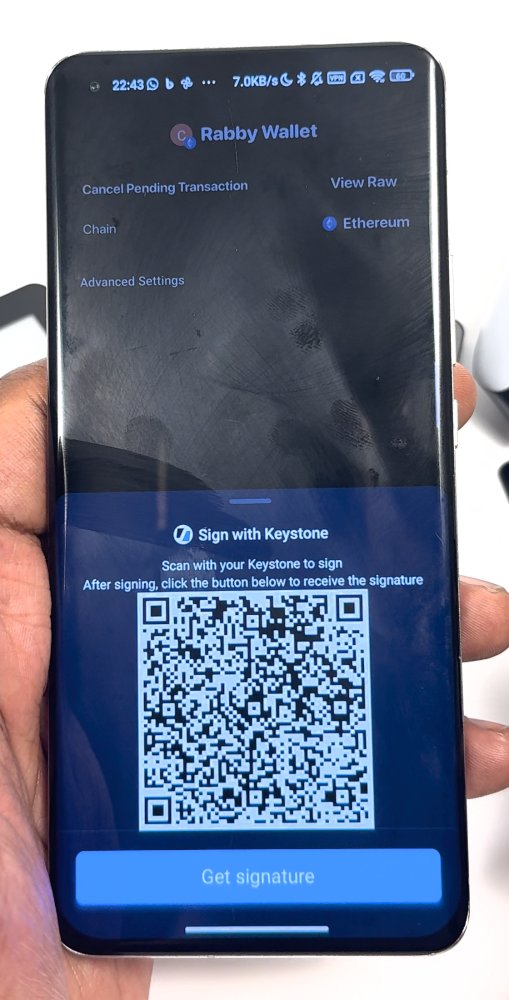
Phone: Rabby shows the request as a QR code (Sign with Keystone). On ERA, on the wallet page, tap SIGN — or tap SCAN QR on the Main menu; ERA picks the wallet for you.
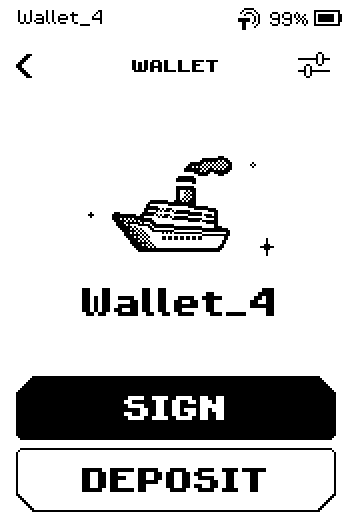
Wallet page with SIGN and DEPOSIT buttons Point the ERA camera at the QR code on your phone.
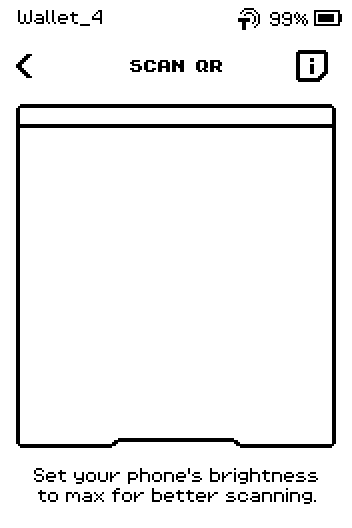
Scan QR page with the camera frame Check the top of the review: Signing with (the wallet ERA will sign with), Amount, From and To.
Overview page 1: Signing with Wallet_4, Amount 0.00357 ETH, From, To. Swipe up. Check Max Fee, Network and Token, then tap APPROVE.
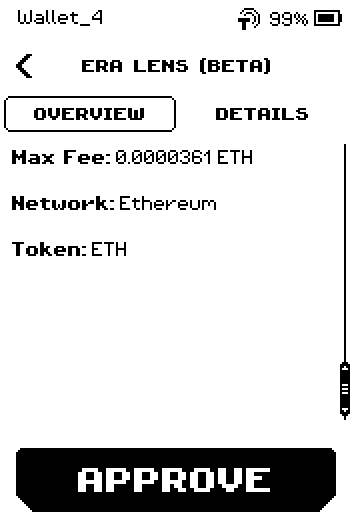
Overview page 2: Max Fee 0.0000361 ETH, Network Ethereum, Token ETH, APPROVE active. Show the SCAN TO APPROVE QR code to the software wallet.
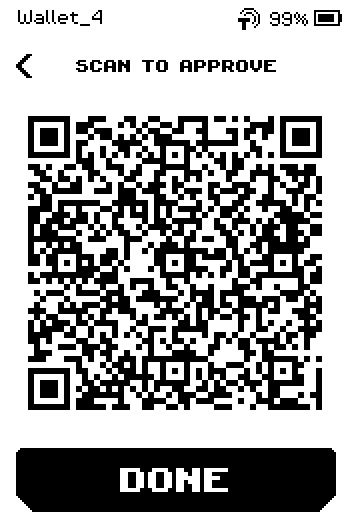
SCAN TO APPROVE page with the Ethereum signature QR In the software wallet, send the transaction.
9:41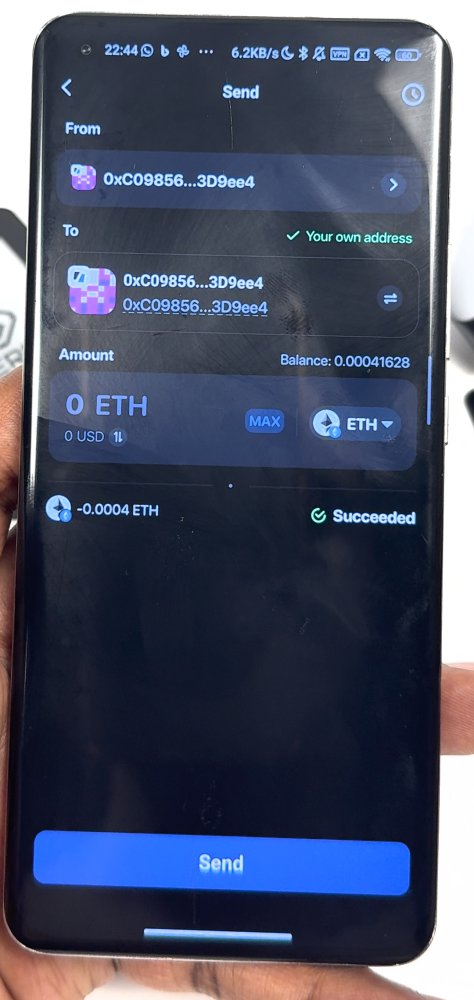
Phone: Rabby reports the transaction as Succeeded after scanning the ERA. On ERA, tap DONE.
What DETAILS adds on a plain transfer
Function (transfer(native token)), Nonce and Gas Limit. None of them changes where your money goes; they matter when you are comparing the request against what the app told you, or debugging a stuck transaction.
Part 2: ERC-20 token transfer
Scan the request the same way (Part 1, steps 1–3). The review names the token and shows the amount in tokens, with Type at the top.
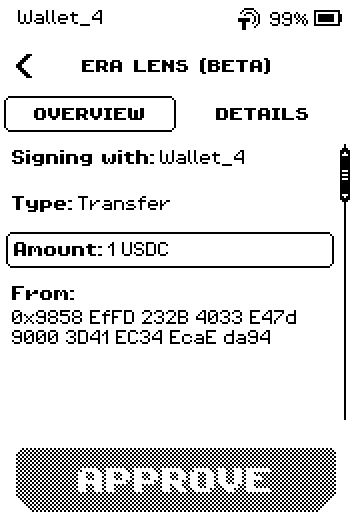
Overview page 1: Type Transfer, Amount 1 USDC, From. Tap Amount to see the token's contract address. This is how you tell a real USDC from a look-alike with the same name.
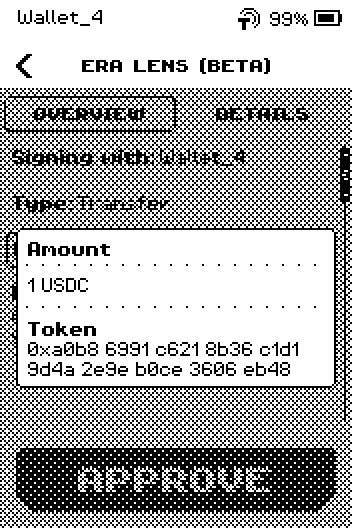
ERA: the token behind the amount. Tap anywhere to close the panel, swipe up, check the fee and Network, then tap APPROVE and return the signature as in Part 1, steps 6–8.
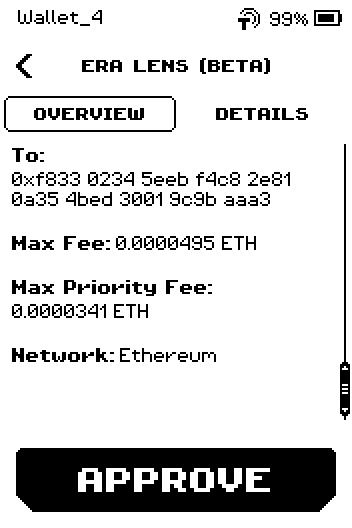
Overview page 2: To, Max Fee, Max Priority Fee, Network.
Note: If ERA does not know the token it says so on the row — the amount is then shown in raw units, not in tokens. Check the contract address before you sign.
Part 3: Approving a spender
An approval does not move money. It gives another address permission to move your tokens later — which is what most drains actually use. Read it more carefully than a transfer.
Scan the request. Type reads Approve, Amount is the ceiling you are granting, and Spender is who gets it.
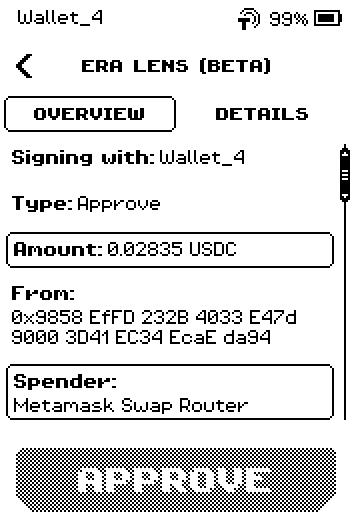
Overview page 1: Type Approve, Amount 0.02835 USDC, From, Spender Metamask Swap Router. Tap Spender. ERA shows the name it recognised and the full address underneath. A name means ERA found the contract in its database; a bare address means it did not.
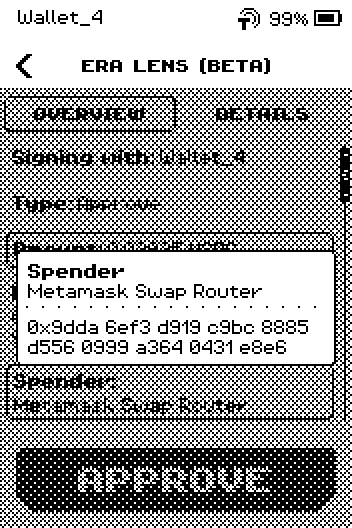
ERA: who you are approving. ERA: the same panel when it cannot identify the spender. Swipe up, check the fee and Network, and approve only if the amount and the spender match what the app asked for.
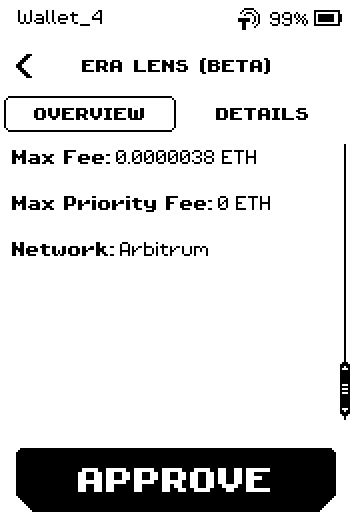
Overview page 2 of the approval: Max Fee, Max Priority Fee, Network.
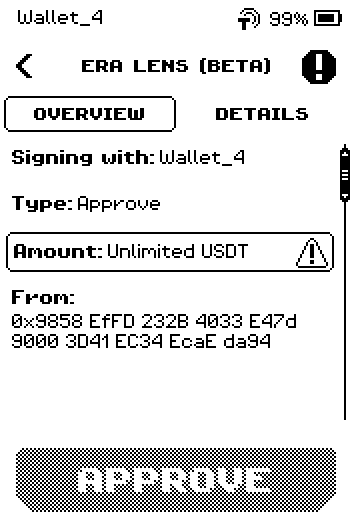
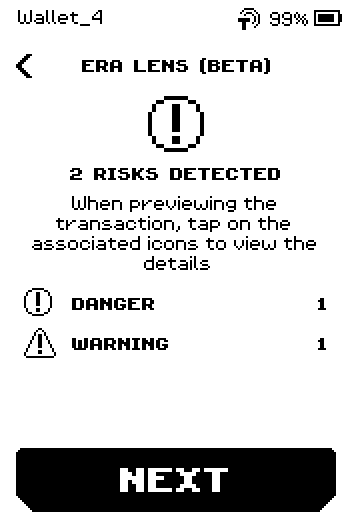
Warning: Unlimited in place of an amount means the approval has no ceiling and stands until you revoke it. The triangle on the amount and the blinking badge in the header both point at it. If ERA also cannot identify the spender, that combination is a Danger finding — an unidentified address that can drain the token — and the risk list opens before the review. Reject it unless you started this yourself and know the contract.
Part 4: Swaps, bridges and batched calls
A swap or a bridge is one signature covering several steps. ERA shows the outcome first — You send, You receive (min), the Contract doing it — and then a Call list with one block per step.
Read the top rows: what leaves your account, and what you are promised in return. You receive (min) is a floor, not a quote — the swap may return more, never less.
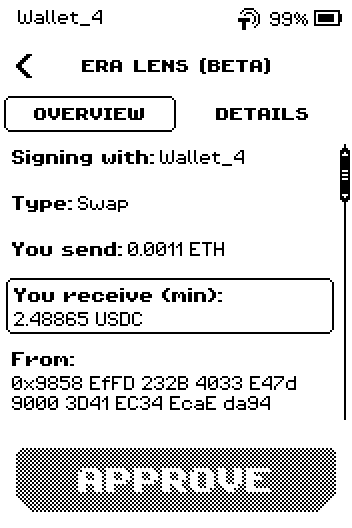
ERA: what the swap does to your balance. Swipe up for who does it: the Contract you are calling, the Recipient of the proceeds, and the DEX Source or Executor it routes through.
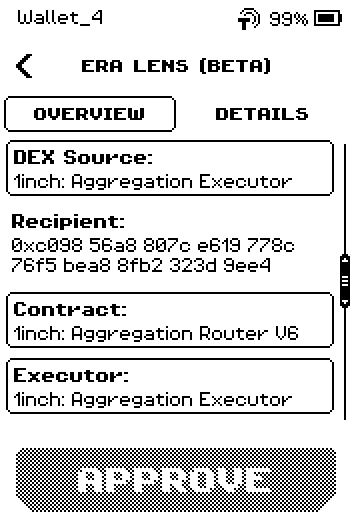
ERA: who executes it, and where the proceeds go. Tap Call list to see the steps: Call, Call 2, Call 3 and so on, each with its own mark if ERA LENS found something in it.
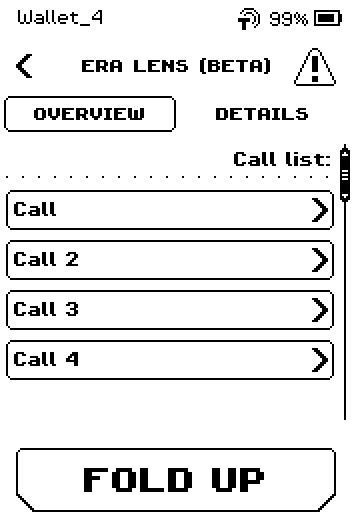
ERA: one row per step of the route. Tap a step to open it. Inside you see what that step does — Action, the Contract it calls, what it moves. Value appears when the step also moves the network's own coin, and a nested Call row means it calls on further. FOLD UP takes you back out.
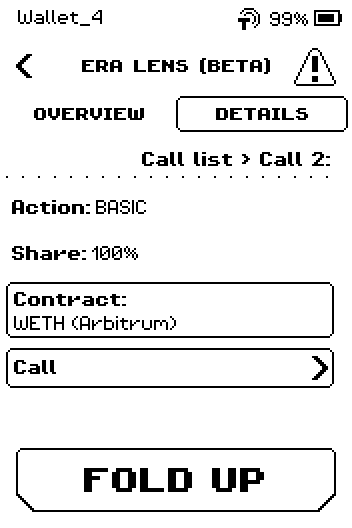
ERA: inside one step. If a step cannot be decoded, its row says so — Unknown 0x…, Unreadable call, or Empty call — and the whole request counts as blind signing. See Warnings explained.
When ERA LENS cannot read the request
If the contract or its function is not in ERA's database, the row that could not be read carries a crossed-out eye and the request is flagged as blind signing: you would be signing something ERA cannot show you.
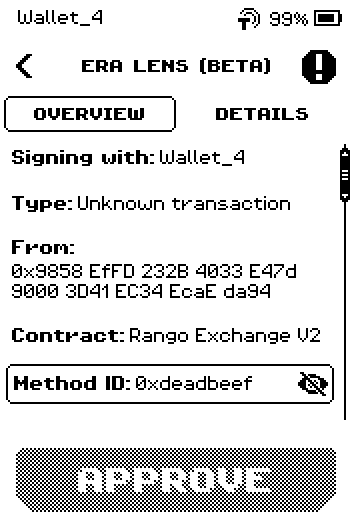
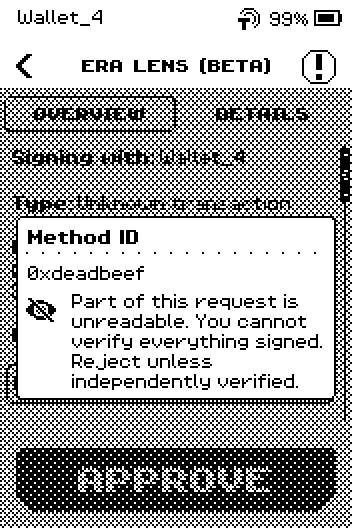
Approve it only if you built this exact request yourself and trust the contract. Otherwise tap the back chevron and cancel.
Part 5: Typed-data message (EIP-712)
Some apps ask you to sign a message instead of a transaction — a token permit, for example. A permit is an approval: it lets another address move your tokens later without a second signature.
Check Type, From, Verifying Contract, Amount and Spender.
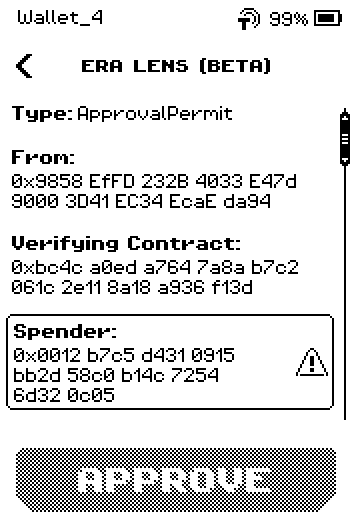
EIP-712 review page 1: ApprovalPermit, from, verifying contract, spender with warning Tap any marked row to read why ERA flagged it.
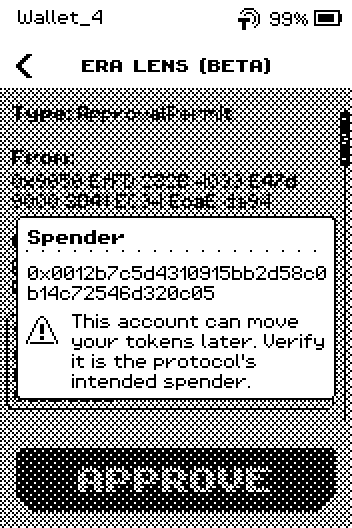
Note pop-up: this account can move your tokens later Swipe up. A row such as Approve All true grants permission over an entire NFT collection, including items you buy later — approve only if you expect this.
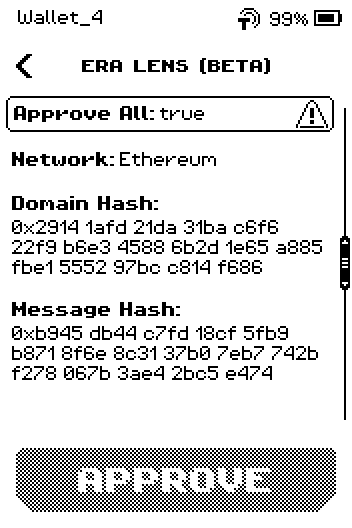
EIP-712 review page 2: Approve All true, network Tap APPROVE only when every row matches what the app told you.
What DETAILS adds on a permit
Deadline (or Expiration and Sig Deadline on a Permit2), Nonce, Domain Hash, Message Hash and the EIP-712 Digest — the values a developer would use to check the signature against the app's own request.
Done
The SCAN TO APPROVE page closes when you tap DONE. Your software wallet shows the transaction or message as sent.
Trouble?
A risk list appears before the review → the request carries at least one Danger finding. That is not only about unreadable data: an unlimited approval to an unidentified spender, a contract taking over your account, or a field your signature does not cover all land here. Read Warnings explained before you continue.
A row you expected is not on screen → tap DETAILS. Nonces, gas limits, function names and hashes live there.
Amount shows raw units instead of a token amount → ERA does not know that token. Check the contract address on the row before signing.
"FIND YOUR WALLET" appears (Quick Sign) → the request was built for an address ERA cannot match. Tap SELECT WALLET to pick the right wallet, or PASSPHRASE to enter its passphrase. ERA matches the request by the key fingerprint and derivation path it carries, so BIP44, Ledger Live and Ledger Legacy addresses are all found automatically; the page appears only when no wallet without a PIN has that fingerprint (a PIN-protected wallet, or one that needs its passphrase).