
Backups and recovery
Fix an ERA Card error
Card errors are common and almost always harmless: a card held slightly off the reader, a card that already holds a backup, the wrong card for the job. This page lists every screen the device can show while it writes or reads an ERA Recovery Card, what each one means, and how to get past it.
Two things are worth knowing before you start.
An error while writing a backup never harms the wallet on the device. The wallet is already on the ERA; the card is a copy. If a write fails, nothing has been lost — try again with the same card or a different one.
An error while restoring never harms the card. Reading is read-only. A card that fails to restore today can be tried again on another device or after a firmware update.
Steps
INVALID CARD
The device does not recognise the card as an ERA Recovery Card, so it will not write a backup to it.
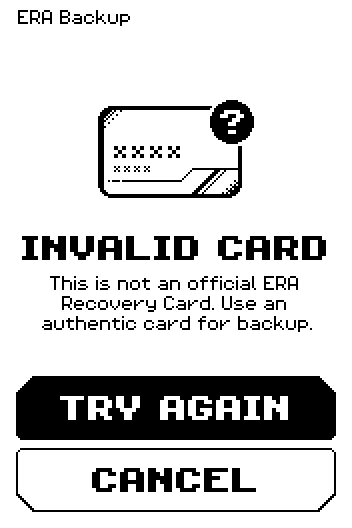
Tap TRY AGAIN and hold the card flat against the upper back of the device, without moving it. A card read at an angle, or lifted early, can come back as unreadable.
Take off any phone case, metal stand or second card, and move away from other NFC devices.
Try one of the other cards from your box. Each ERA comes with three.
If a card you bought with your ERA keeps showing this screen, stop using it for backups. Contact ERA support: support@hwlt.io or Telegram @ERAwlt_support_bot. Say which step you were on and how many of your cards behave this way. Buy replacement cards only from ERA.
Note: Your wallet is safe either way. This screen only means this card cannot hold a backup; back up on paper or with another card in the meantime. See Choose a backup method.
CARD IS BLOCKED
Too many wrong PINs were entered for this card, and it has locked itself for good.
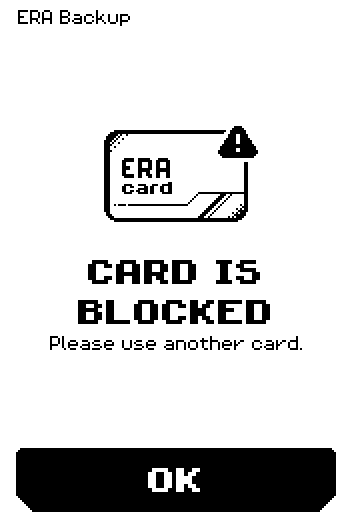
Tap OK. The card cannot be unblocked, and what is on it cannot be read again.
Restore from another backup: a second card, your Shamir shares, or your paper seed words. See Use the Recovery Manager.
Once you are back in, make a fresh backup on a new card and keep the PIN somewhere you will not lose it.
INVALID PIN
The PIN you entered is not this card's PIN. The screen counts the attempts you have left.
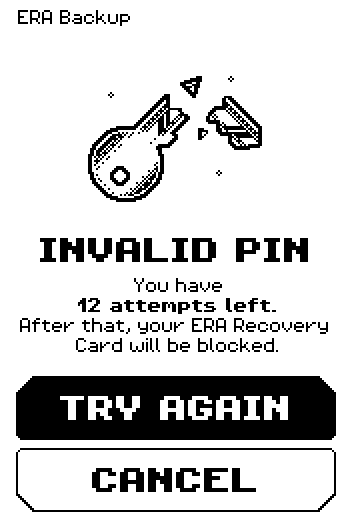
Tap TRY AGAIN and enter the PIN you set when you wrote this card — not your device PIN, which is a different one.
If you are overwriting a card and cannot remember its PIN, tap CANCEL and use a blank card instead. There is no need to spend attempts on a card you are about to erase.
Stop while attempts remain. When they run out the card blocks itself and its backup is gone for good. Source: Help Center
CARD NOT EMPTY
The card you presented already holds a backup, and the device will not overwrite it without asking.
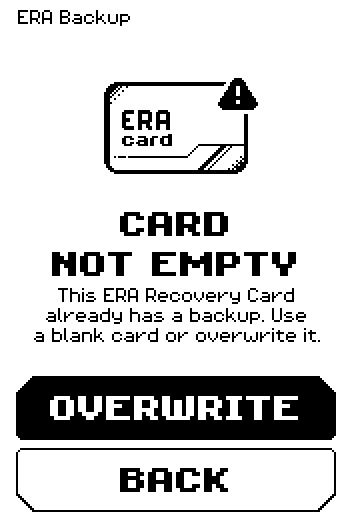
Tap BACK and use a blank card if you want to keep what is on this one.
To reuse it, tap OVERWRITE, then ENTER PIN and give that card's current PIN. The old backup is replaced.
Caution: Overwriting is final. If the card holds the only backup of another wallet, that copy is gone.
ERA CARD IS EMPTY
The card carries no backup, so there is nothing to restore or read from it.
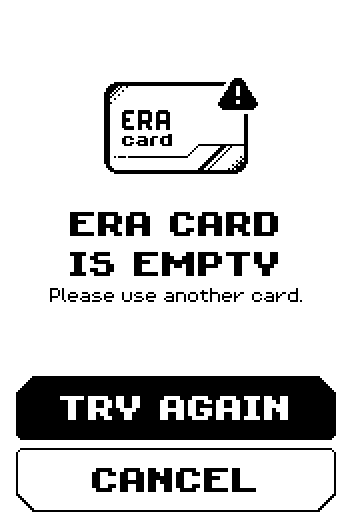
Check that you are holding a card you wrote yourself. A spare card from the box is blank until you use it.
Tap TRY AGAIN with the right card, or CANCEL to leave.
CARD MISMATCH
Part-way through, a different card was presented from the one the operation started with.
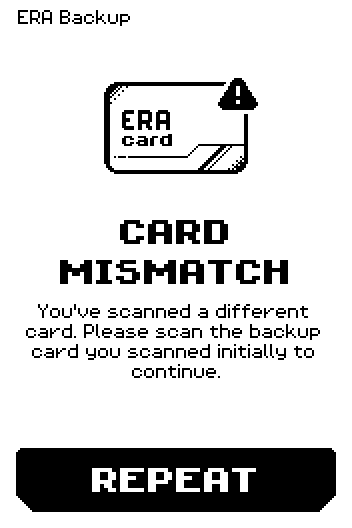
Tap REPEAT and present the card you began with.
If several cards are on the table, move the others away — the reader may have picked up a neighbour.
MULTIPLE CARDS DETECTED
More than one card is within reach of the reader, and the device will not guess which one you meant.
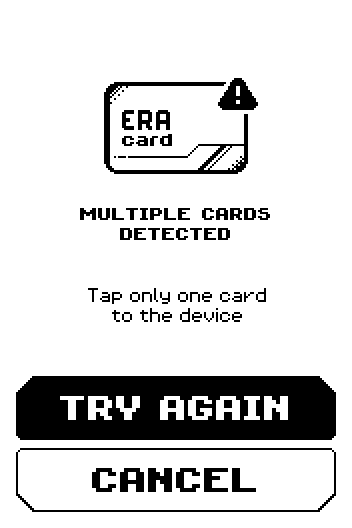
Take every other card off the table, including any still in the box or a wallet in your pocket.
Tap TRY AGAIN with one card only.
Your ERA Card was not detected
The device never saw a card at all.
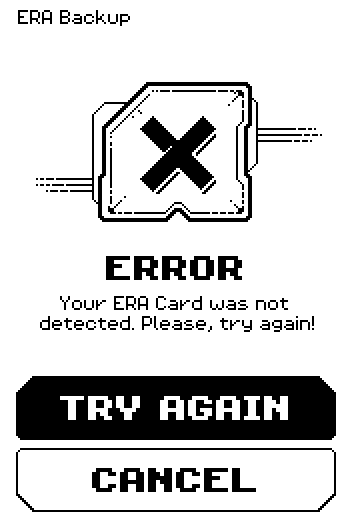
Lay the card flat against the upper back of the device, covering the top third, and hold it still.
Tap TRY AGAIN. Keep the card in place until the screen changes — lifting it early is the usual cause.
Take the ERA off its charging pad and remove anything metal between the card and the device.
We cannot read information from the ERA Recovery Card
The card was found but the read did not complete.
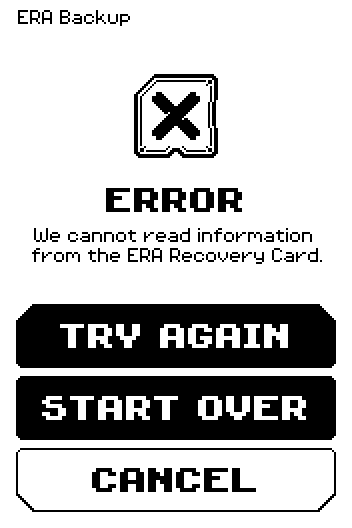
Tap TRY AGAIN and hold the card still against the upper back of the device.
If it fails again, tap START OVER to run the operation from the beginning with the card lying flat before you start.
A card that fails every time in every position is one to raise with ERA support — see the end of this page.
Unable to read data from the ERA Card
The same failure during a Recovery Manager operation.
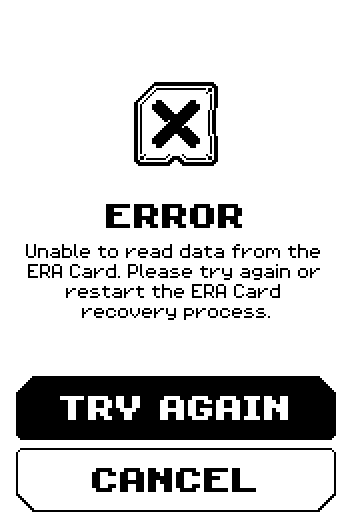
Tap TRY AGAIN, holding the card flat and still.
If that fails, tap CANCEL and start the operation again from the Recovery Manager.
You chose the wrong recovery type
You picked single-card recovery and presented a share card, or picked multishare and presented a single-card backup.
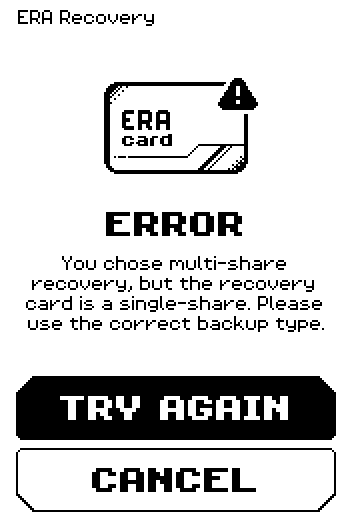
Tap CANCEL and start again with the other method. SINGLE is for a card holding a whole seed; MULTISHARE is for cards that each hold one share.
If you are not sure which you have, read the card first: RECOVERY MANAGER > Read seed. A share card shows that share's own words, not the whole seed. See Use the Recovery Manager.
An internal error occurred
Something went wrong inside the device rather than on the card.
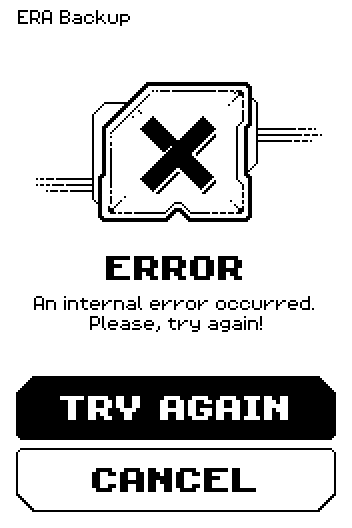
Tap TRY AGAIN.
If it returns, restart the ERA: press and hold the button, then REBOOT. Start the operation again.
If it still returns, note what you were doing and contact ERA support.
Done
You know what each card screen means, and which ones need a different card rather than another attempt.
When to contact ERA support
Write to support@hwlt.io or Telegram @ERAwlt_support_bot when:
a card that came with your ERA shows INVALID CARD;
a card fails to read in every position, on more than one attempt;
a card blocked itself and you have no other backup.
Include your device's serial number (SETTINGS > Device info), which screen you saw, and how many of your cards behave the same way. Support can tell a card fault from a reader fault from what you send.
Warning: Nobody from ERA will ever ask for your seed words, your card PIN or your device PIN. Anyone who does is not ERA. See Choose a backup method.
Trouble?
The same error on every card → the reader, not the cards. Restart the ERA and try once more away from other NFC devices, then contact support.
The card works on another ERA but not on yours → say so when you write in; it narrows the fault down immediately.
You cannot get past an error and you have no other backup → do not factory-reset the device. The wallet on it is still usable; contact support first.