
Device settings and firmware updates
Update the firmware over NFC
ERA never connects to the internet. The app downloads the update to your phone, and the phone hands it to the device over NFC while the two lie together on a table. The device checks the signature before it installs anything, so a broken or wrong file cannot harm it.
Before you start
Charge the device to at least 40 %; with less charge, the update is refused.
Put the phone and the device on a flat surface. You will not need to hold them.
Take both the phone and ERA off any charger first; they can overheat during the transfer. Source: Help Center
Remove a thick or metal phone case; it can block NFC. Source: Help Center
Firmware, bootloader and ERA Lens are three separate parts; the app lists the parts it is about to send. Source: Help Center, Help Center
Steps
Part 1: Get the update on your phone
In the app, tap Settings > Update wallet. The page shows Installed version and Latest version. Source: Help Center
9:41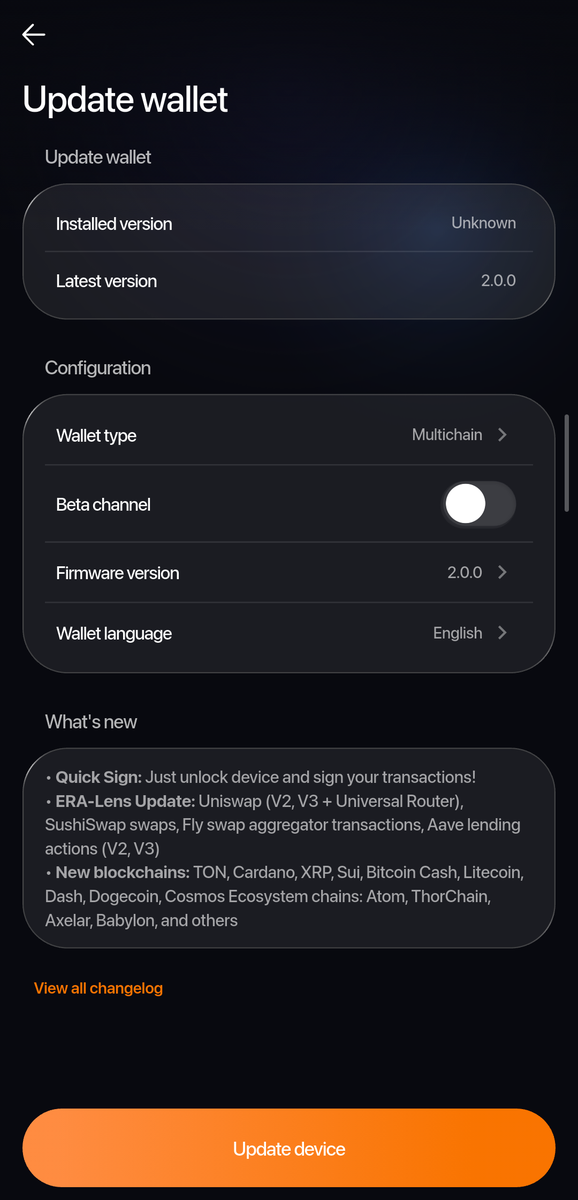
Phone: Update wallet.
Part 2: Start the update on ERA
On the main menu, tap SETTINGS > Updates.
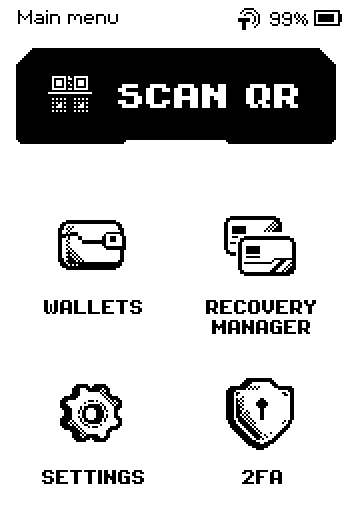
Main menu with SCAN QR, WALLETS, RECOVERY MANAGER, SETTINGS and 2FA Tap UPDATE.
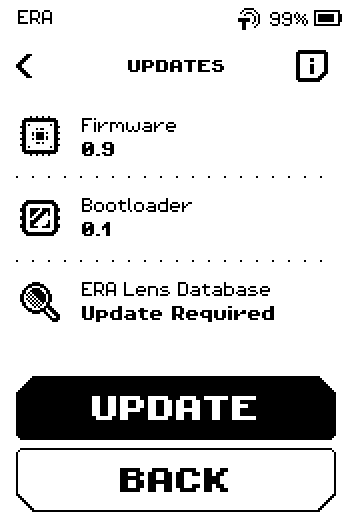
UPDATES page listing Firmware, Bootloader and ERA Lens Database versions with UPDATE button
What the three parts are (the i page)
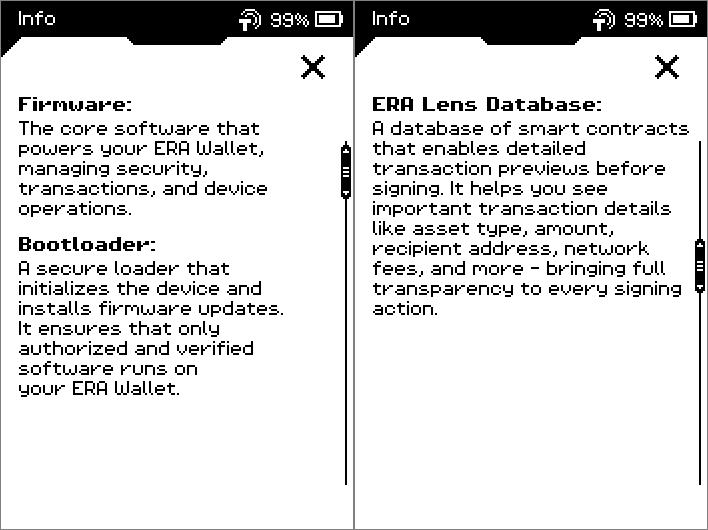
On the UPDATES page, tap the i icon to read what Firmware, Bootloader and ERA Lens Database are, then the X to close.
On your phone, tap Update device in the app. It starts searching for the device over NFC. Source: Help Center
On ERA, tap NEXT.
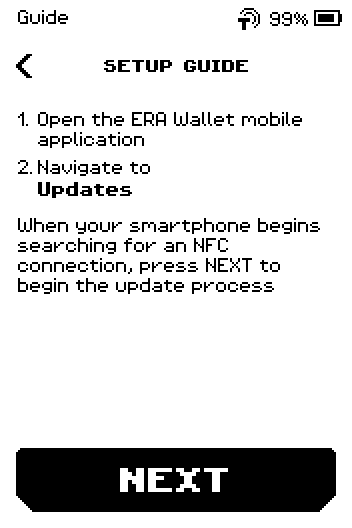
SETUP GUIDE: open the app, go to Updates, press NEXT when the phone searches for NFC Lay the phone on ERA with its NFC antenna over the lower half of the device front, as the DOWNLOAD page drawing shows.
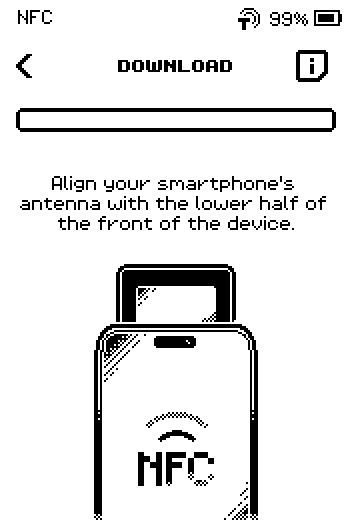
DOWNLOAD page with progress bar and phone-on-device drawing
Note: A firmware update takes a few minutes; ERA Lens is faster. Moving the phone pauses the transfer, and putting it back continues from where it stopped, so nothing is lost. Source: Help Center
Leave both where they are. The progress bar fills and the text shows the part being sent and its version, followed by the percentage — for example
Firmware <version>: 37%(an ERA Lens transfer readsERA-Lens <version>: 37%).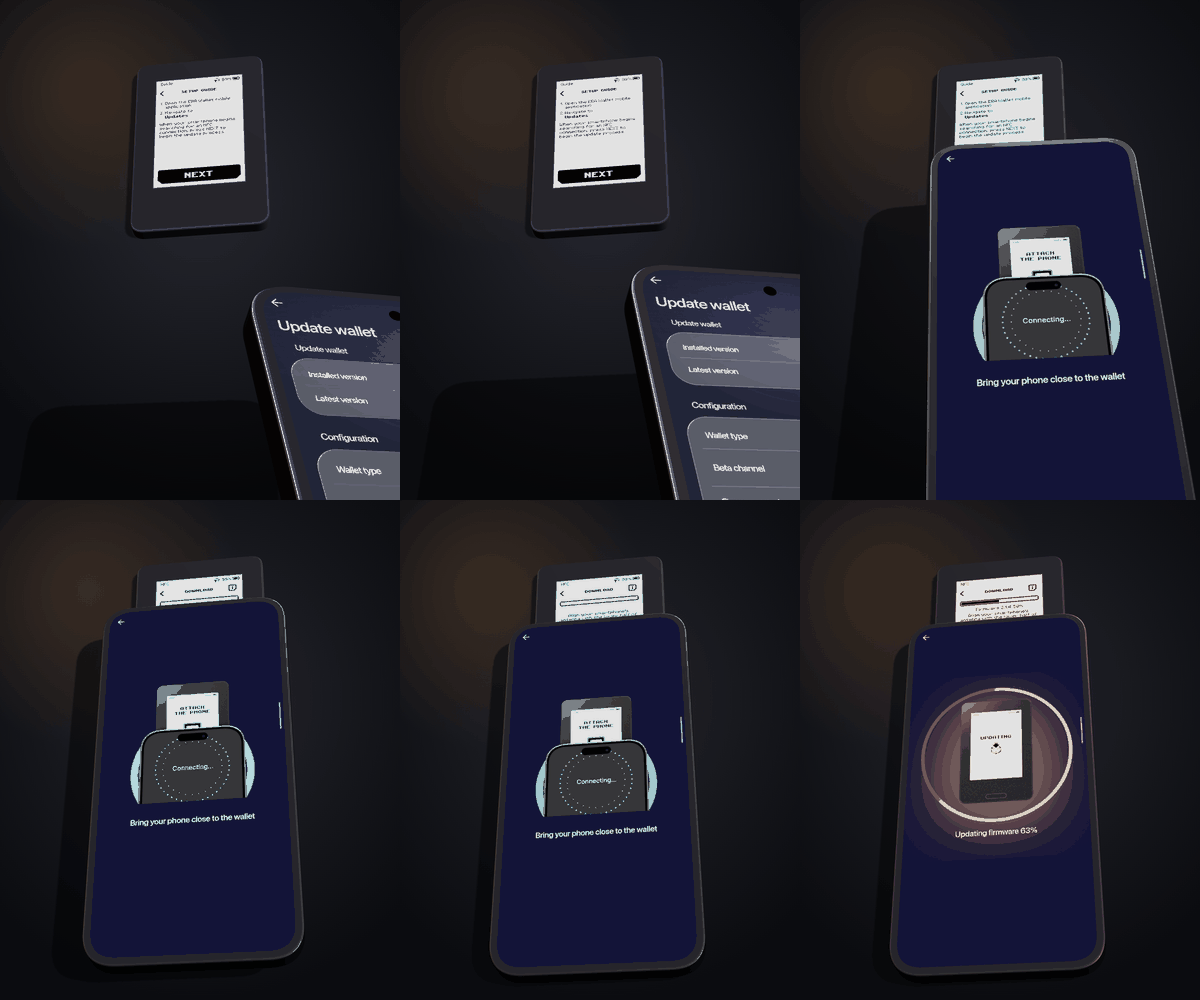
ERA down first, phone on top with its top edge over the lower half of the device; the app helps you find the phone's NFC spot. Then leave both alone. When the bar reaches 100 %, ERA restarts on its own and installs the update. Do not turn it off.
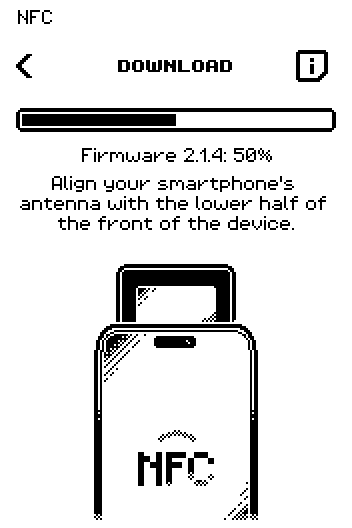
ERA: Download, half-way through a firmware transfer. The restart and the installation need no input from you. When they are finished, ERA shows SUCCESS with Firmware update successful. and the installed version of each part (MF, BL, Era-Lens, Assets). Tap DONE, then unlock with your PIN as usual.
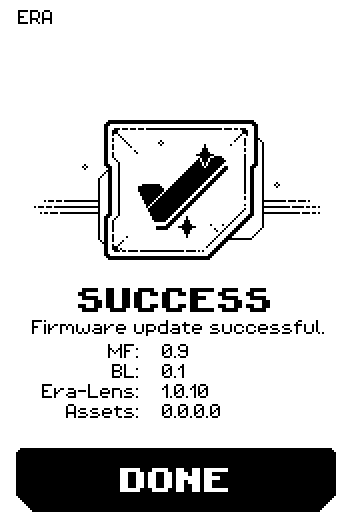
ERA: Success.
Part 3: ERA Lens (transaction preview database)
ERA Lens uses the same DOWNLOAD page. After the transfer, the device verifies the database itself on the ERA LENS VERIFICATION page (a percentage counts up) and then shows the result:
SUCCESS with Firmware update successful. (the same page and wording as after a firmware update, with the version list MF / BL / Era-Lens / Assets) — tap DONE.
ERROR with The file was corrupted, please try to install again. — tap CONTINUE and download it again.
Done
The app shows Success (on the very first update: System Fully Updated), SETTINGS > Updates shows the new version numbers, and ERA Lens Database no longer says Update Required. Source: Help Center, Help Center
First start and the update reminder
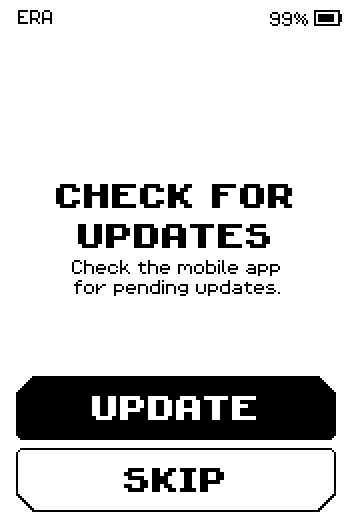
On a new device, or after a full erase, ERA opens with CHECK FOR UPDATES. Tap UPDATE to go straight to the UPDATES page (continue at Part 2, step 2), or SKIP to do it later. The reminder appears at most once per start.
Trouble?
LOW BATTERY with Please charge your device to 40% for process update. → charge, then start again.
The DOWNLOAD page returns to UPDATES by itself → no phone was found for about two minutes; start the app's update first, then tap NEXT on ERA.
The bar does not move → slide the phone a little further down the device; the NFC antenna is usually near the top of the phone's back (iPhone: top edge; Android: varies by model). Source: Help Center
On an iPhone a system notice keeps appearing and disappearing during the transfer → normal; iOS restarts the NFC session every few seconds. Keep the phone still. Source: Help Center
Update incomplete. Open the ERA Wallet Companion app to complete the firmware update. → the transfer was interrupted; open the app's update again and lay the phone back on the device. It continues from where it stopped.
Nothing happens at all → check that NFC is on in the phone's settings. The ERA NFC Connectivity switch does not affect updates: it only enables Tap Sign, and the DOWNLOAD page listens for the phone regardless of it.
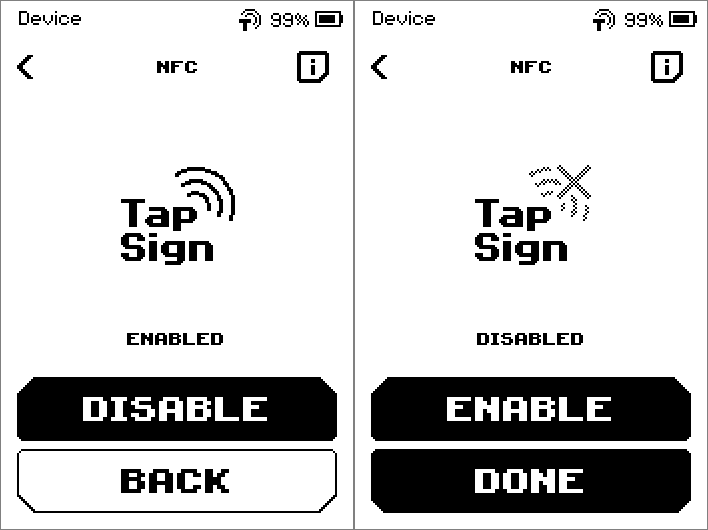
NFC page toggling between ENABLED and DISABLED The app-store links: tap the i icon on the DOWNLOAD page.
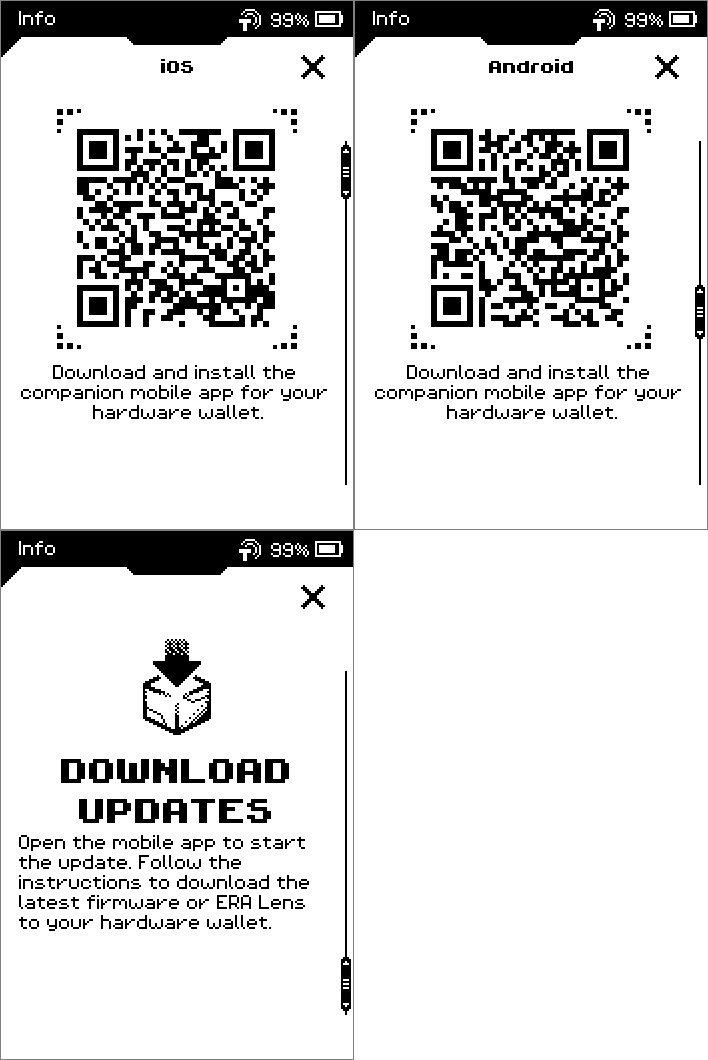
Info pages: iOS and Android app QR codes, then DOWNLOAD UPDATES text
Related
Check device info and run the authenticity check — where the version numbers live
Bitcoin-only firmware — choosing Bitcoin Only or Multichain in the app before the update
Set the device clock — the clock is refreshed during NFC sessions