
Signing transactions
Sign with Tap Sign over NFC
Tap Sign sends a transaction from the ERA Wallet app to ERA over NFC and brings the signature back the same way: one tap to hand the transaction over, one tap to collect the signature. ERA shows exactly the same ERA LENS review and APPROVE button as for a scanned QR code; only the camera and the QR codes are replaced by two taps.
Tap Sign exists only in the ERA Wallet app. Every other software wallet (MetaMask, Sparrow, Rabby, …) keeps using QR codes — see Signing a transaction.
Note: Tap Sign is not yet visible in the current app version. The Tap Sign switch appears under Settings > Device settings with the release that enables it; until then the app signs with QR codes only.
What you need
ERA unlocked, with NFC Connectivity enabled (it is on by default).
The ERA Wallet app with Tap Sign switched on under Settings > Device settings (on by default once the switch is there).
9:41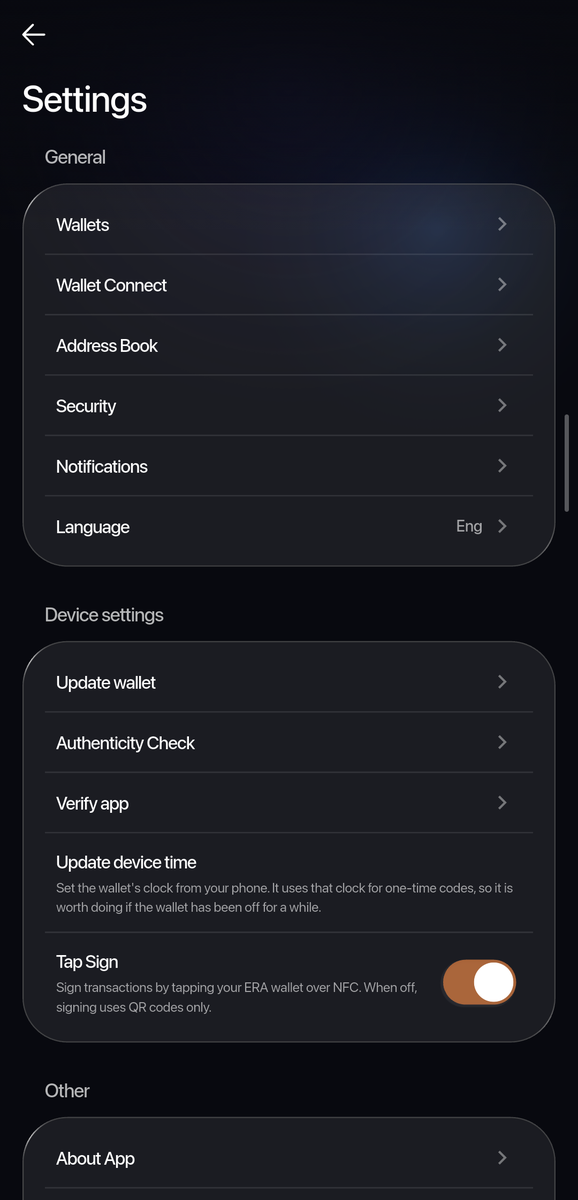
Phone: Settings > Device settings with the Tap Sign switch (Tap Sign enabled). A phone with NFC. Without NFC the app shows only the QR option.
ERA firmware that supports Tap Sign. With older firmware the app says "The wallet's firmware doesn't support NFC signing yet. Update the wallet or use the QR code." — see Update the firmware.
Before you start
Check that the NFC switch on ERA is on: tap SETTINGS > NFC Connectivity. The page shows ENABLED; if it shows DISABLED, tap ENABLE, then DONE.
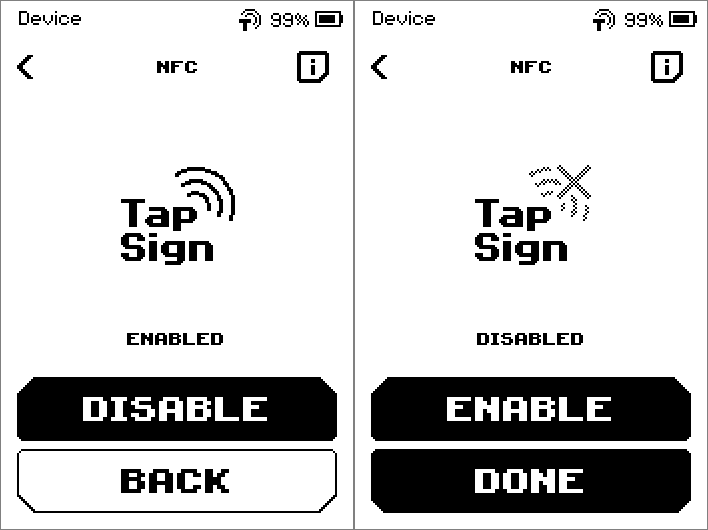
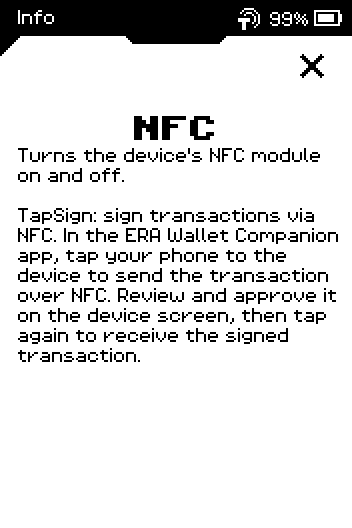
The i icon on that page explains what the switch does: it powers ERA's NFC module for Tap Sign. It has no effect on firmware updates.
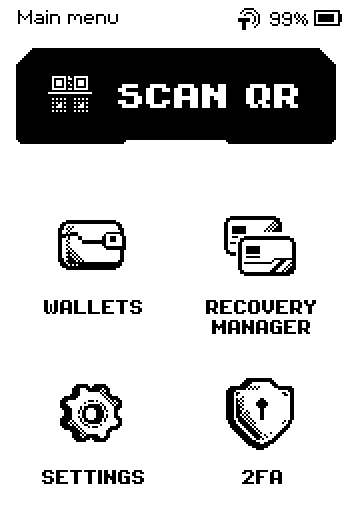
While Tap Sign is ready, ERA shows a small NFC wave icon in the status bar next to the battery. It is there on the main menu, in the wallet list, inside a wallet and in Settings; it disappears while you create, restore or import a wallet, while an ERA card backup runs, and while the device is locked.
Steps
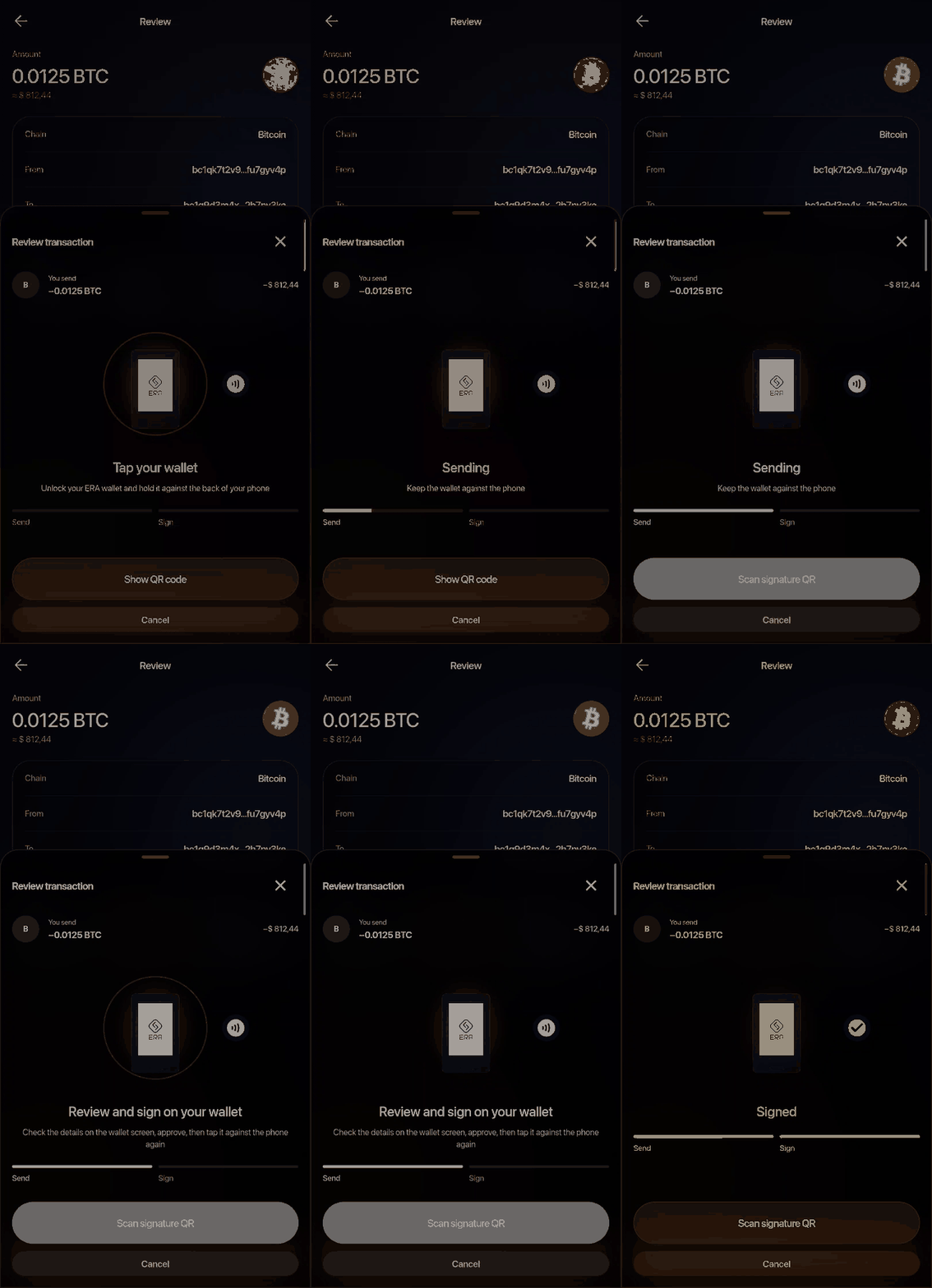
Part 1: Send the transaction to ERA (first tap)
In the app, build the send or swap as usual and continue to Sign transaction.
9:41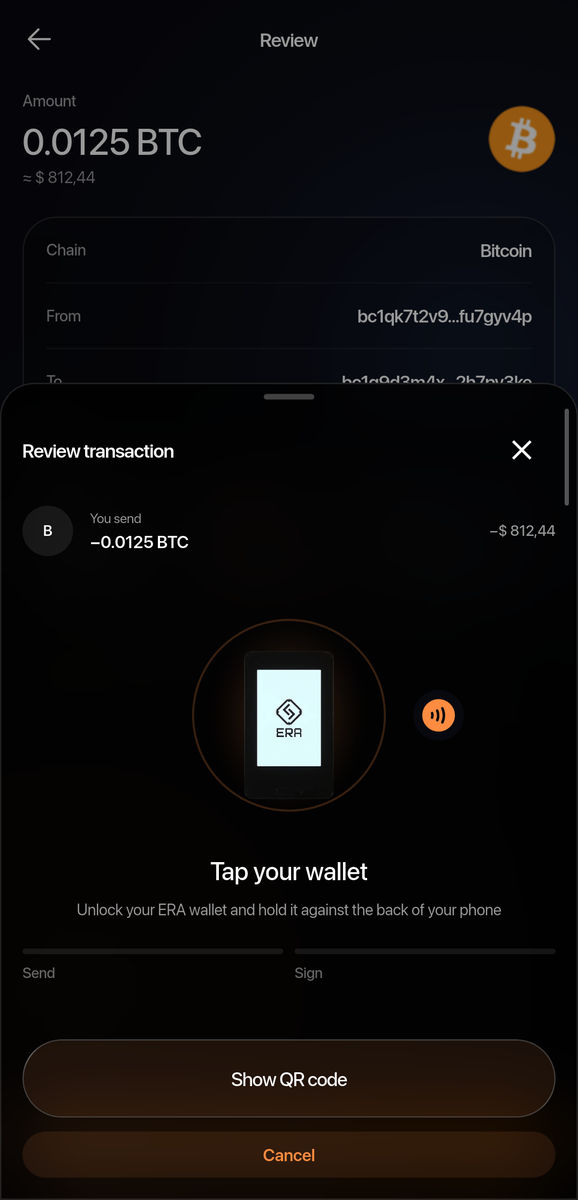
Phone: the sign sheet in Tap Sign mode, waiting for the first tap. The transaction you are signing stays visible above it. Unlock ERA with your PIN. Leave it on the main menu, the wallet list, or a wallet page — any unlocked page accepts the tap.
Main menu with the NFC wave icon in the status bar next to the battery Lay the phone on ERA with the phone's NFC antenna over the lower half of the device front, and hold it still.
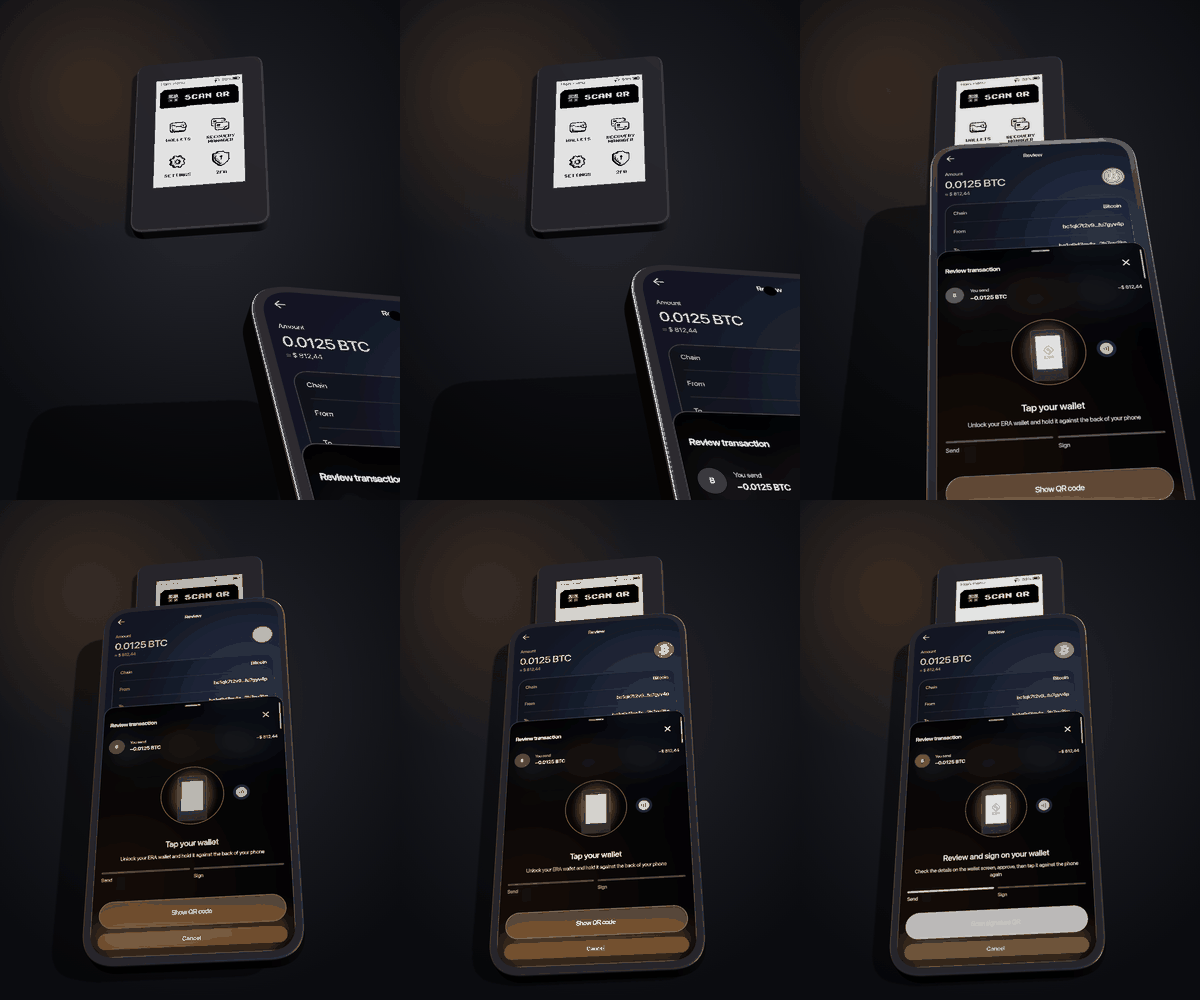
The same position as for a firmware update: ERA down first, phone on top, top edge over the lower half. Wait for the app to say Sent to wallet. ERA vibrates once when the transaction arrives. On an iPhone the system NFC sheet shows "Sent" with a tick.
9:41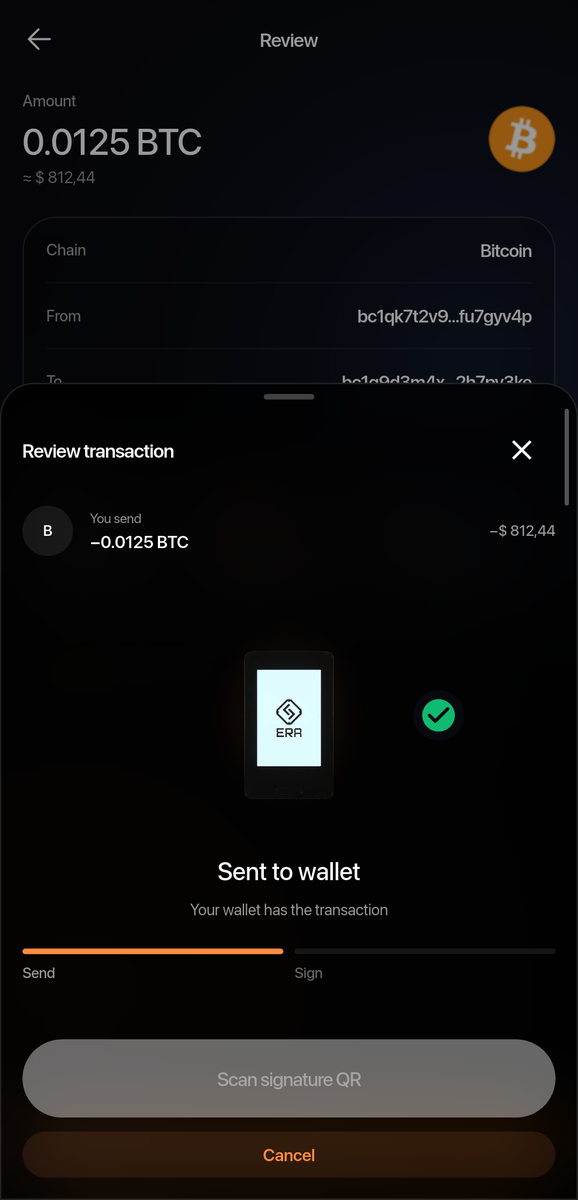
Phone: the transaction is on the wallet. Lift the phone off ERA. The app now waits for you to approve on the device.
9:41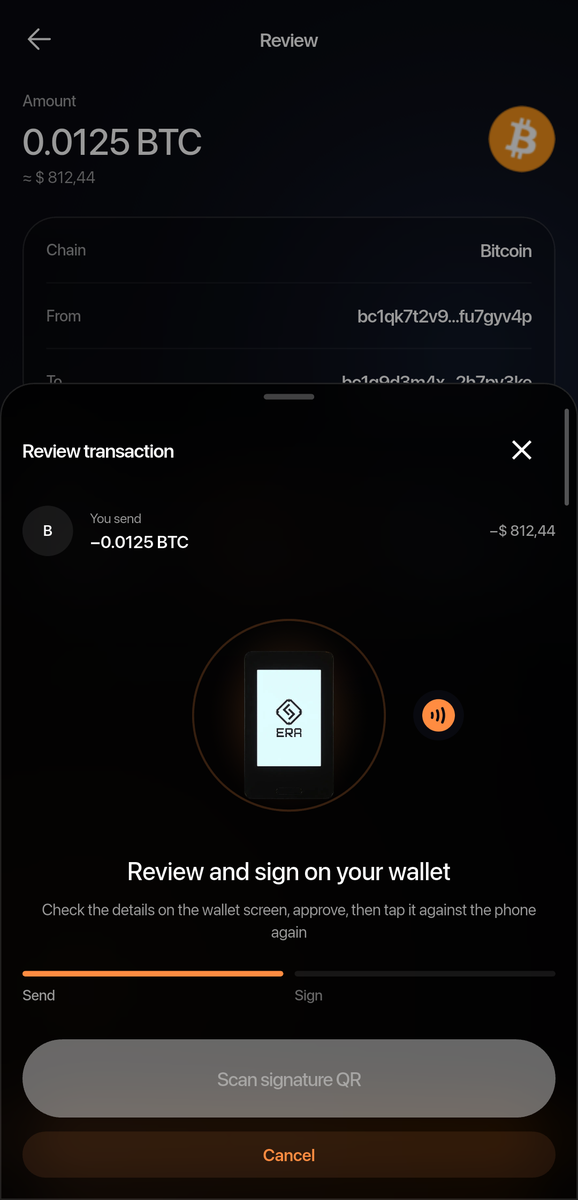
Phone: what the app shows while you read the transaction on ERA.
Part 2: Check and approve on ERA
If CHECK PIN appears, enter your device PIN. The review pages open next.
ERA accepts the tap only while it is unlocked, so the PIN check is never how a Tap Sign starts. The secure chip asks for the device PIN again after a number of wallet operations, or after a wrong wallet password. The same check guards SCAN QR.
Read every field on the ERA LENS review pages. Swipe up to see the next page.
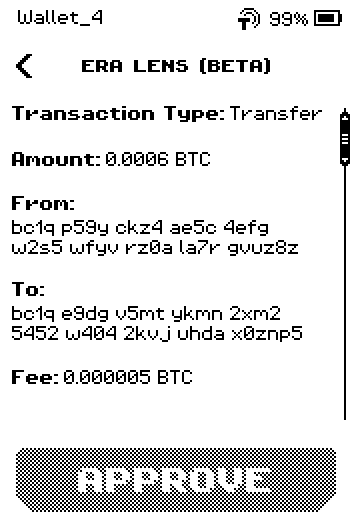
ERA LENS review page showing amount, from, to and fee On the last page, tap APPROVE. If the wallet has a wallet password, ERA asks for it here, as it does for a QR sign.
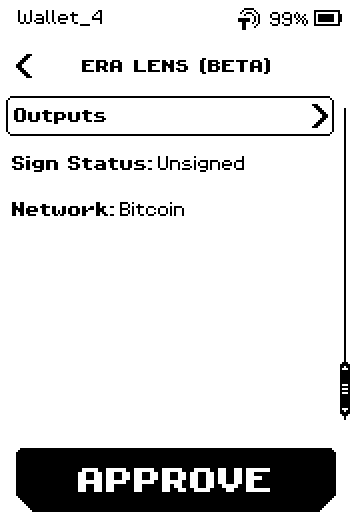
Last review page: Outputs row, Sign Status Unsigned, Network Bitcoin, APPROVE active ERA shows TAP TO SIGN with the message Tap your phone to get the signature and a phone-tap animation.
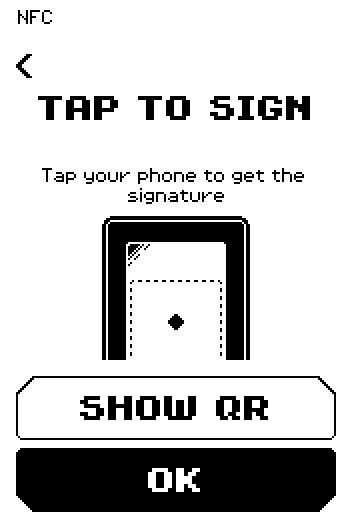
ERA: Tap to sign.
Part 3: Collect the signature (second tap)
Lay the phone on ERA again, in the same position. The app shows Receiving signature. On an iPhone a second system sheet, "Sign on wallet, then tap it", appears by itself about ten seconds after the first tap.
ERA shows SIGNATURE SENT with the success graphic, vibrates, and returns to the main menu on its own after about two seconds. Tapping OK returns at once.
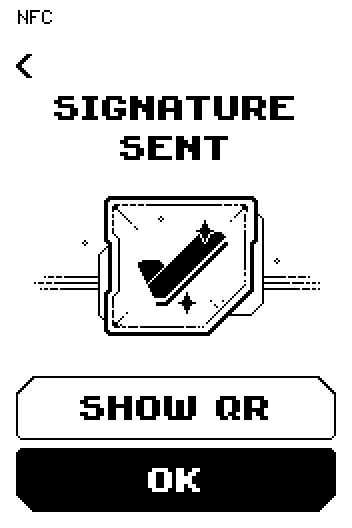
ERA: Signature sent. The app shows Signed and sends (broadcasts) the transaction, then reports the result.
9:41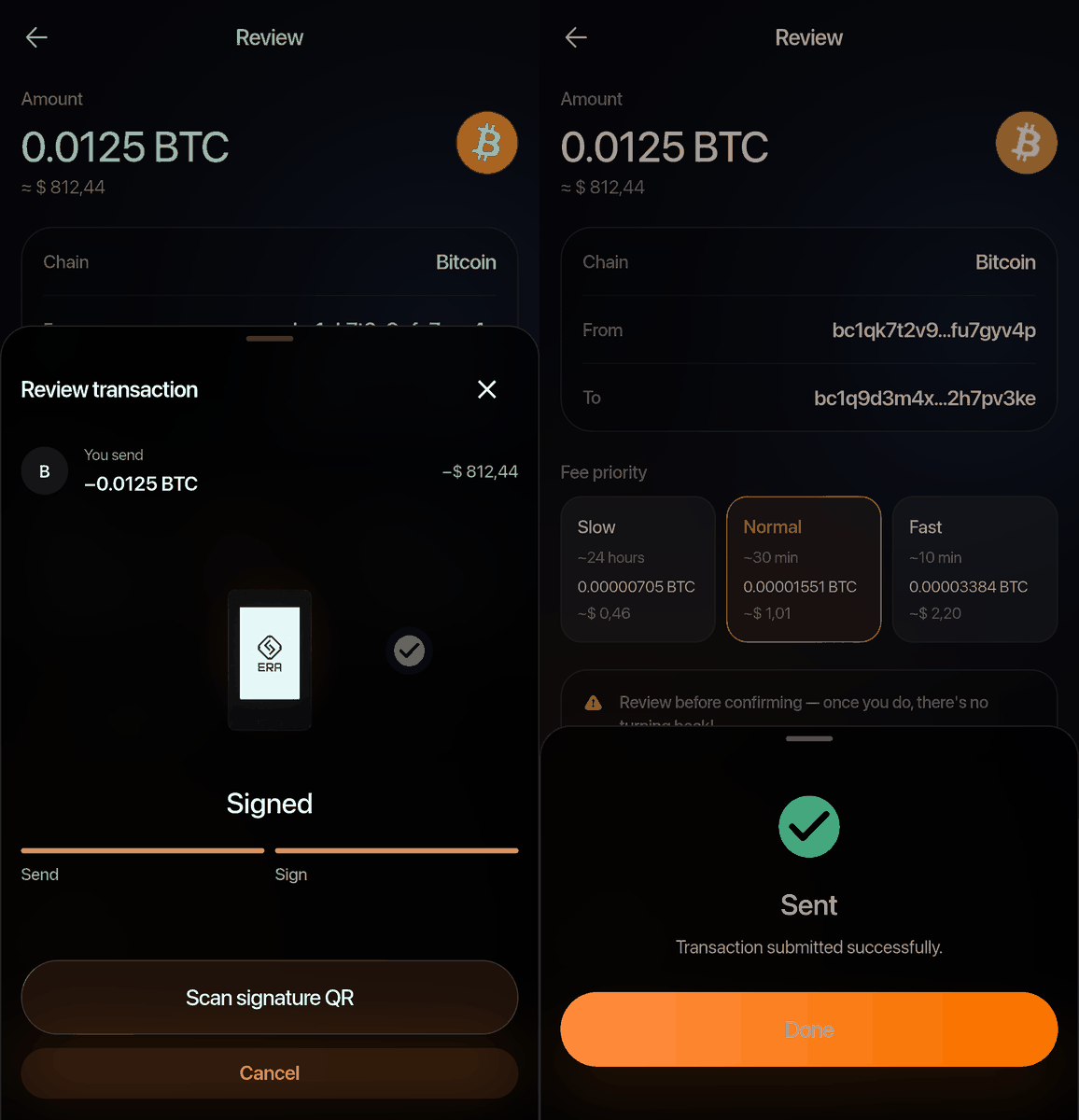
Phone: signed, then sent.
Done
The transaction is signed and sent. ERA is back on the main menu with the NFC icon in the status bar, ready for the next tap.
Tap Sign from inside a wallet
If a wallet page is open when you tap, ERA signs with that wallet — the same as pressing SIGN there. From the main menu or any other page ERA uses Quick Sign and works out the wallet from the transaction; if it cannot, it shows FIND YOUR WALLET exactly as for a scanned code.
Switching to QR codes half-way
In the app, tap Show QR code before the first tap to sign with the camera instead: the app shows the animated QR code and ERA's SCAN QR page reads it as usual.
9:41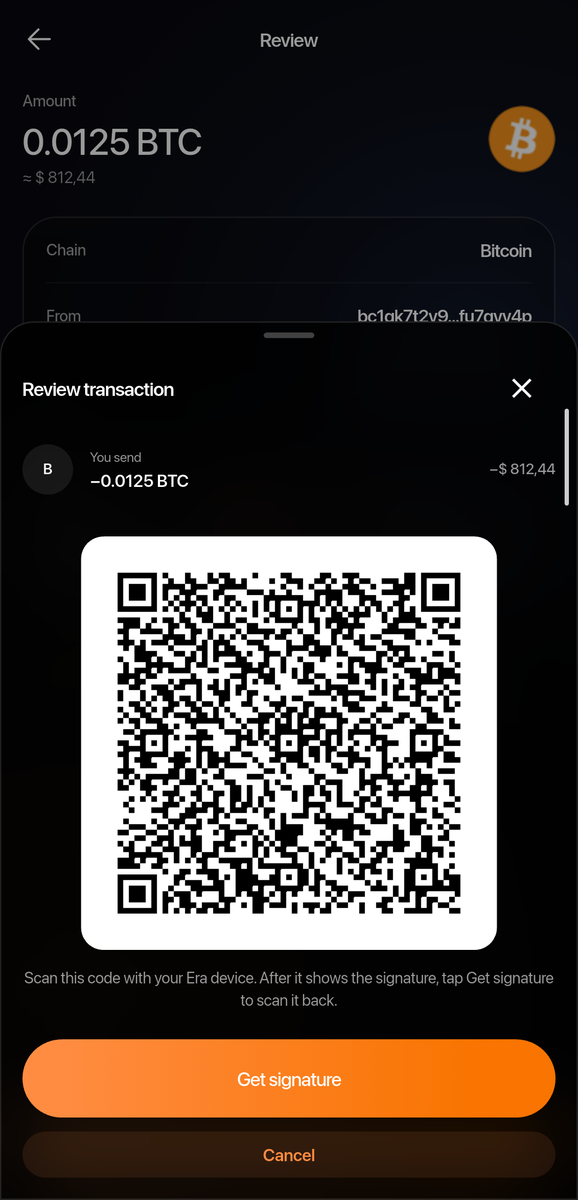
Phone: the same sheet after Show QR code. After ERA has the transaction, the app's button changes to Scan signature QR. On ERA, tap SHOW QR on the TAP TO SIGN page; the usual SCAN TO APPROVE QR code appears for the app's camera. The back chevron on the QR page returns to TAP TO SIGN.
In the app, Use Tap Sign on the QR view switches back to NFC.
What still needs QR codes
Any software wallet other than the ERA Wallet app.
Linking ERA to the app: the link is still made by scanning the QR code on ERA.
Multisig transactions. ERA itself signs a multisig transaction over a tap exactly as it does over a QR code: the received payload goes into the same signing path, and the multisig checks never ask how it arrived. The limit is the app: only the ERA Wallet app can tap, and it builds single-signature transactions only. Its Bitcoin builder skips any input that is not a single-key Legacy, Nested SegWit, Native SegWit or Taproot output, and it holds no descriptor or cosigner code at all. So a multisig wallet stays with a coordinator — Sparrow, Nunchuk or similar — and coordinators reach ERA by QR code.
Saving a multisig descriptor. ERA takes a wallet config from its camera, not from a tap.
Very large transactions (over 20 KB): the app says "This transaction is too large to send over NFC. Use the QR code."
Trouble?
"NFC is turned off on the wallet, or it isn't on its Home screen. Unlock it and try again, or use the QR code." → ERA is locked, NFC Connectivity is disabled, or ERA is in the middle of creating, restoring or backing up a wallet or a firmware update. Unlock it, finish what it is doing, and tap again.
"Didn't find your wallet." → the app waited about 90 seconds without contact. Tap Try again, then lay the phone so that its NFC antenna (usually near the top of the phone's back) is over the lower half of ERA.
9:41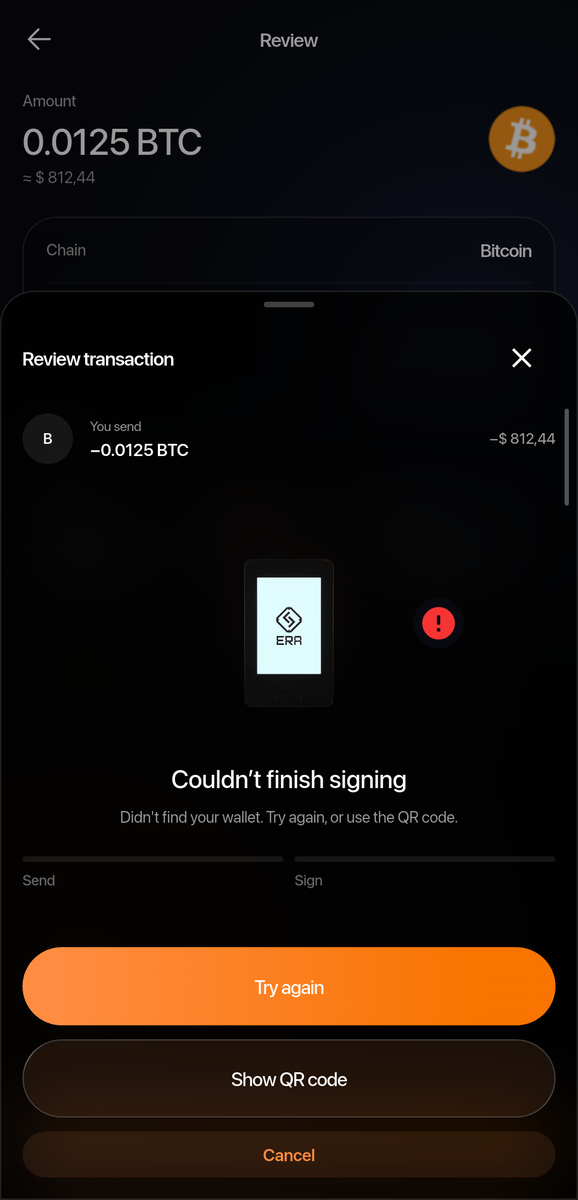
Phone: the app could not find the wallet; the transaction is unharmed. "The wallet is busy with another request." → ERA is still reviewing or serving an earlier transaction. Finish or cancel it on ERA.
"Return your wallet to its Home screen, then try again." → ERA still holds the result of a previous tap. Go to the main menu on ERA, then tap again.
"Rejected on your wallet" → you cancelled the review on ERA. Nothing was signed or sent. Start the transaction again.
ERA shows INVALID REQUEST with a HOME button → the transaction is not for this device or wallet. Tap HOME, check the app, and send again.
The TAP TO SIGN page went back to the main menu by itself → two minutes passed without the second tap, and the signature was dropped. The app says "The request is no longer on your wallet"; send the transaction again.
"Still waiting for your wallet." → the app waited about three minutes for the second tap. Tap Try again to keep collecting (ERA still holds the signature while TAP TO SIGN is showing) or Scan signature QR and use SHOW QR on ERA.
iPhone: you tapped Cancel on the system NFC sheet → the app shows Paused. Tap Resume; the transaction is still on ERA.
Related
Signing a transaction — the QR round trip
Find your way around Settings — the NFC Connectivity switch