
Two-factor authentication (2FA)
Add an authenticator account (TOTP)
Most websites offer "authenticator app" as a 2FA method and show a QR code during setup. ERA scans that QR code instead of a phone app. Both ways in start with SCAN QR on the Main menu: one website QR code at a time (Part 1), or a Google Authenticator export that brings all your codes over at once (see the end of this page). ERA recognises the QR code type by itself; there is no separate "add 2FA" menu.
Note: ERA can only scan the QR code. If the site offers a text key instead of a QR code, choose the QR option; ERA has no keyboard for typing a secret.
Steps
Part 1: Scan the website's QR code
On the website, start "authenticator app" setup in the security settings. The site shows a QR code.
Image coming soon — Phone or computer screen — a website's 2FA setup page showing the "scan this QR code with your authenticator app" stepOn ERA, on the Main menu, tap SCAN QR. Do not open a wallet first.
It is the same button that signs transactions (see SCAN QR: one button for everything); from a wallet's SIGN button an authenticator QR code is rejected as INVALID REQUEST.
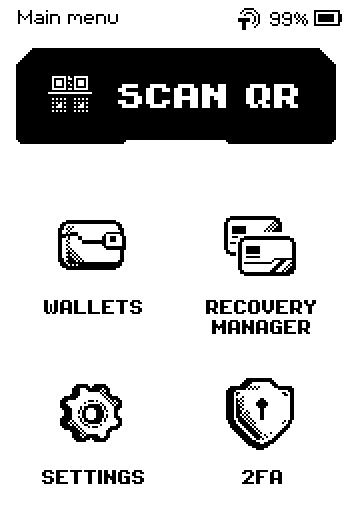
ERA Home screen with SCAN QR, WALLETS, RECOVERY MANAGER, SETTINGS and 2FA tiles Point the ERA camera at the QR code on the screen. Hold still for a second.
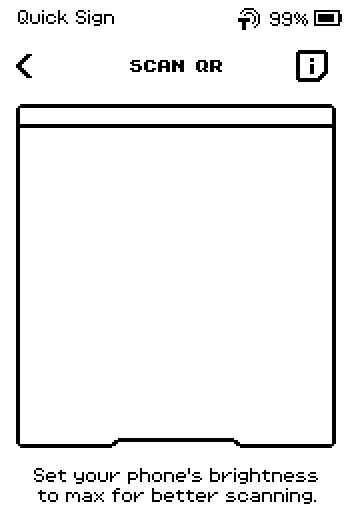
SCAN QR page with an open camera frame and a brightness hint Check the site name and account name, then tap ADD.
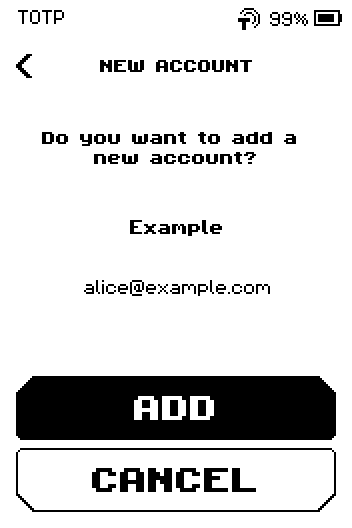
NEW ACCOUNT page asking Do you want to add a new account? with Example and alice@example.com, ADD and CANCEL Read the six-digit code on the new row. The ring next to it empties as the 30 seconds run out.
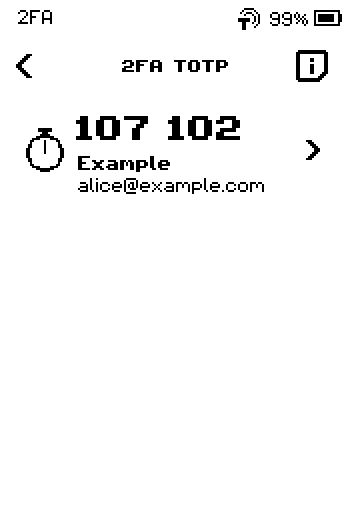
2FA TOTP list with one account, code 107 102, countdown ring and Example alice@example.com On the website, enter the code shown on ERA to finish the setup. If the ring empties first, use the next code.
Image coming soon — Phone or computer screen — the website's "enter the 6-digit code" confirmation field
Part 2: Use the code when you sign in
On the Home screen, tap 2FA.
Find the account row and read the code. Codes change every 30 seconds; ERA keeps them up to date while the list is open.
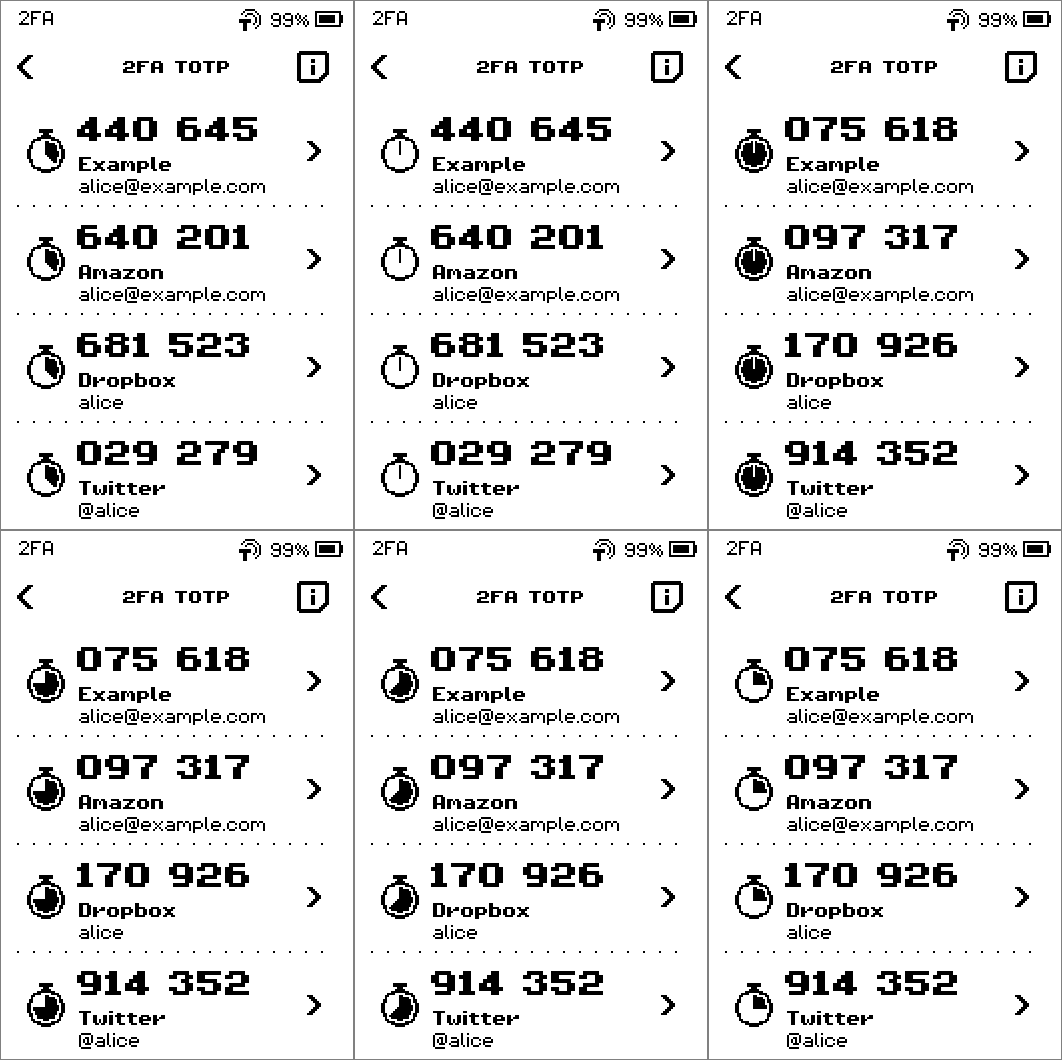
Animated 2FA TOTP list where the codes roll over and the countdown rings empty On the website, enter the code.
Done
The website shows 2FA as enabled, and ERA lists the account with a live code.
Import all your accounts from Google Authenticator at once
Google Authenticator can export its accounts as one or more QR codes. ERA imports them in one go — this is the quick way to bring all your codes over, and it starts from the same SCAN QR button. Each export QR code holds the secrets of every account you ticked, so treat the phone screen as private and do not photograph or share it.
In Google Authenticator, open the menu, then tap Transfer accounts > Export accounts. The path is the same on Android and on iPhone. Source: support.google.com, support.google.com
Tap the accounts to include, then continue. Google shows one QR code, and may make more than one when you export several accounts. Source: support.google.com
Image coming soon — Phone screen — Google Authenticator "Export accounts" QR code page for a multi-account exportOn ERA, on the Main menu, tap SCAN QR.
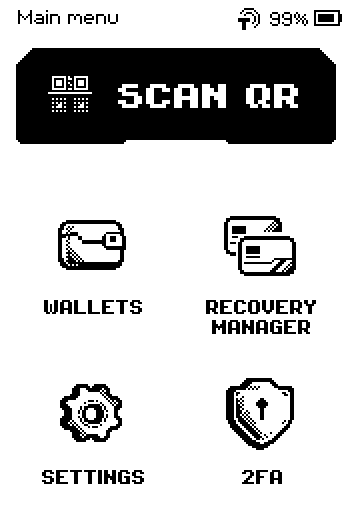
Main menu with the SCAN QR button at the top Point the ERA camera at the first QR code.
When ERA shows SCANNED 1 OF 2, tap NEXT. With a single QR code this page is skipped.
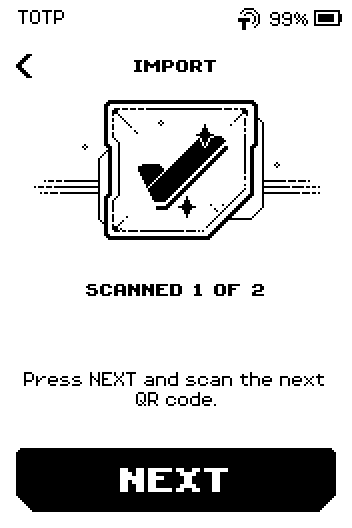
IMPORT page with a check mark, SCANNED 1 OF 2, Press NEXT and scan the next QR code, and a NEXT button On the phone, go to the next QR code and point the ERA camera at it. Repeat until every QR code is scanned. Until the last one is in, ERA accepts only QR codes of this export; any other code brings up QR ALREADY SCANNED and the page asks for the next one.
Review the list. Every account that fits is ticked; accounts already on ERA are shaded and stay as they are. Tap a row to leave it out.
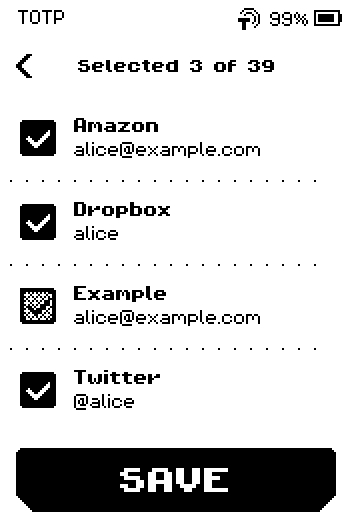
Import list headed Selected 3 of 39 with Amazon, Dropbox, Twitter ticked and Example shaded as already added Tap SAVE. ERA returns to the Main menu; the accounts are in the 2FA list.
Trouble?
This account is already added. after a scan → ERA already holds an account with this name. Tap ACCOUNTS to see it, or remove the old one first and scan again (see Remove an authenticator account).
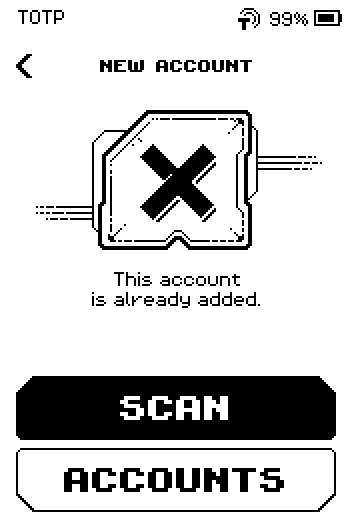
NEW ACCOUNT error page: This account is already added, with SCAN and ACCOUNTS buttons Unsupported or invalid OTP parameters. → the QR code is not a standard authenticator QR, or part of it was not visible. Make the whole QR code fit in the camera frame and scan again.
TOTP storage is full. First remove one of your accounts. → the list holds 40 entries. Remove one you no longer use.
The website rejects the code → the device clock is off. See Keep the device time correct for 2FA codes.
The website still rejects the code after you updated the clock → wait for the ring to restart and type the fresh code without a pause; a code already used once is refused a second time. The full remedy sequence is in Keep the device time correct for 2FA codes. Source: rfc-editor.org
QR ALREADY SCANNED during an import → you showed the same export QR twice. Show the next one.