
First-time setup
Update the firmware
Do this first. A new ERA asks for it on its first screen, and every guide here describes the latest firmware, so the screens will match what you see. The app downloads the update to your phone; the phone hands it to the device over NFC while both lie on the table. ERA never goes online.
Before you start
Charge the device to at least 40 %; with less charge, the update is refused.
Install the ERA app on your phone (ERA Wallet Companion on the App Store and on Google Play). Source: era-wallet.com
Take the phone and the ERA off any charger, and remove a thick or metal phone case; it can block NFC. Source: Help Center
Steps
On CHECK FOR UPDATES, tap UPDATE.
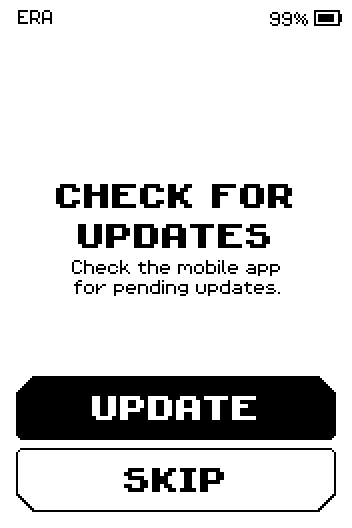
ERA: Check for updates.
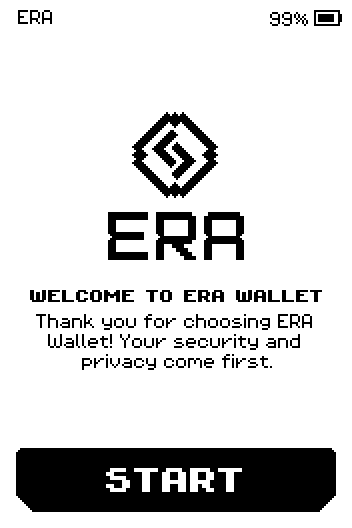
Note: A device straight from the factory may show WELCOME TO ERA WALLET with START instead: it runs a small initial firmware whose only job is this first update. Tap START, pick your phone platform and continue with step 2. Source: Help Center
In the app, tap Settings > Update wallet, then Update device. The phone starts searching for the device over NFC. Source: Help Center
9:41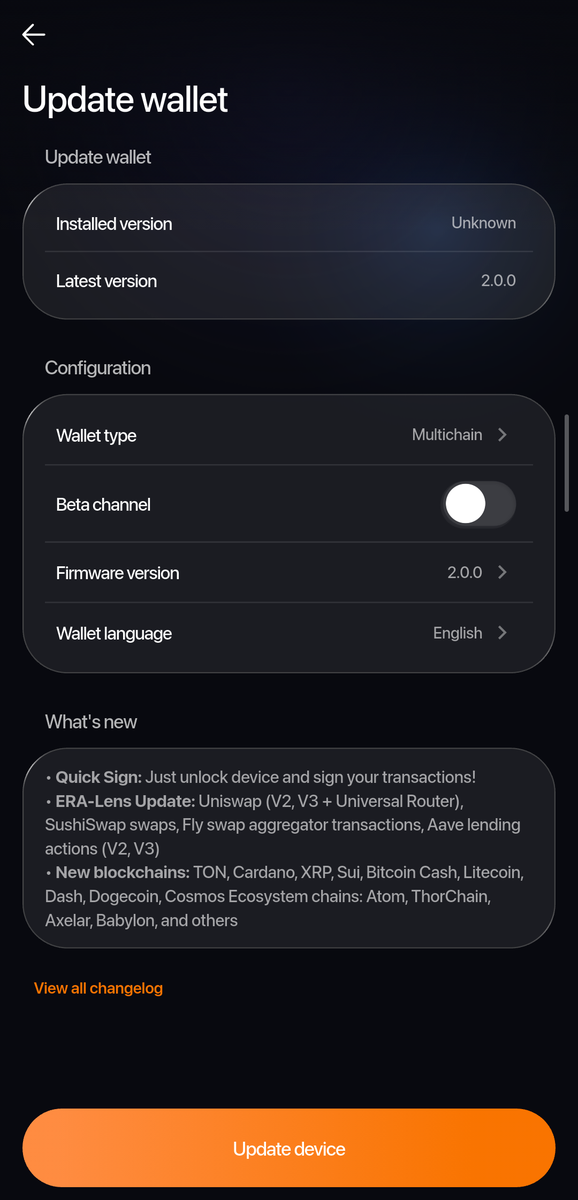
Phone: Update wallet. On the ERA, tap NEXT.
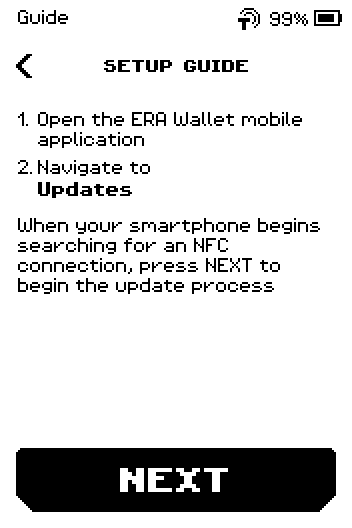
ERA: Setup guide. Lay the phone on the ERA so the phone's NFC spot covers the lower half of the device, as the DOWNLOAD page drawing shows. The app helps you find the spot.
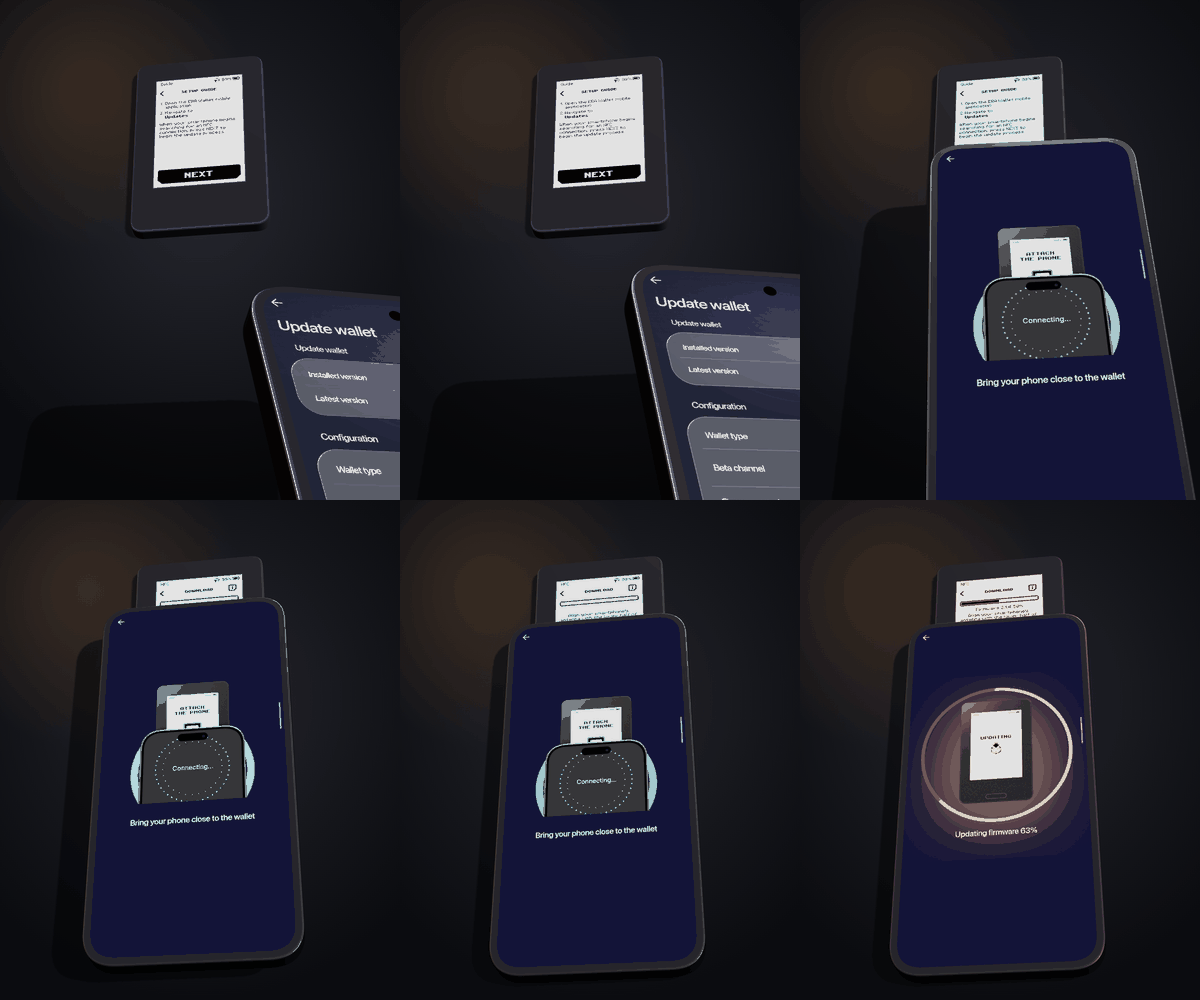
Put the ERA down first, then lay the phone on it with its top edge over the lower half of the device — and leave both alone until the bar reaches 100 %. Leave both where they are until the bar reaches 100 %. The text shows the part being sent, for example
Firmware <version>: 37%. Moving the phone pauses the transfer; putting it back continues it.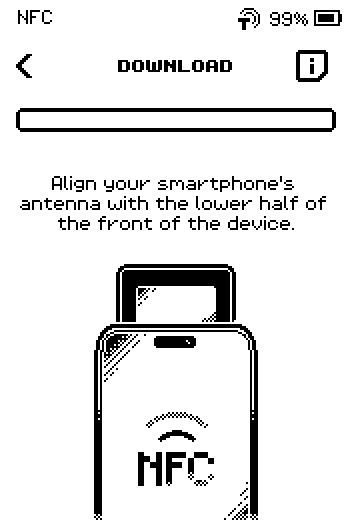
ERA: Download. The ERA restarts and installs the update by itself. Do not turn it off.
On SUCCESS ("Firmware update successful"), tap DONE. The app shows System Fully Updated. Source: Help Center
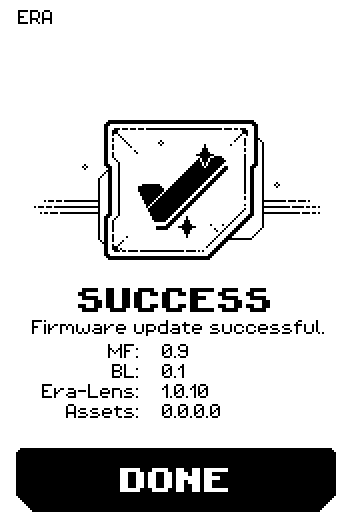
ERA: Success.
Done
The ERA shows WELCOME TO ERA WALLET. Continue with the next step, the authenticity check.
Skipping the update
SKIP on CHECK FOR UPDATES takes you to WELCOME TO ERA WALLET without updating. You can update later from the main menu under SETTINGS > Updates, see Update the firmware over NFC. Some screens in these guides may then look different.
Trouble?
LOW BATTERY → put the ERA on its charging pad until it reads 40 % or more, then start again.
The DOWNLOAD page goes back by itself → no phone was found for about two minutes. Start the app's update first, then tap NEXT on the ERA.
The bar does not move → slide the phone a little further down the device; the NFC antenna is usually near the top of the phone's back. On an iPhone a system notice that appears and disappears during the transfer is normal. Source: Help Center
Update incomplete → open the app's update again and lay the phone back on the device; it continues from where it stopped.
Related
Update the firmware over NFC — the full reference, including ERA Lens updates
Check that your ERA is genuine — the next step