
Linking
Link VESPR
Steps
Part 1: On the ERA
On the wallet screen, tap the settings icon (sliders) > Link. See Open the Link menu.
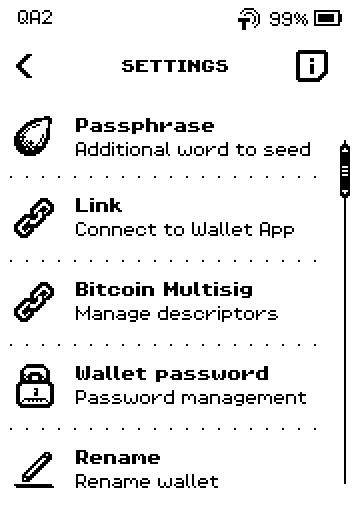
ERA: Wallet settings. On the wallet list, swipe up to the third page and tap VESPR.
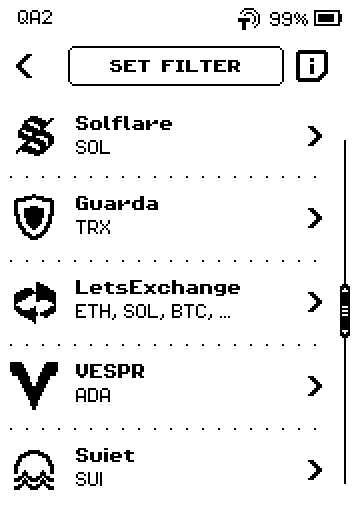
ERA: Wallet app list. On DOWNLOAD VESPR, tap the store for your phone: IOS or ANDROID.
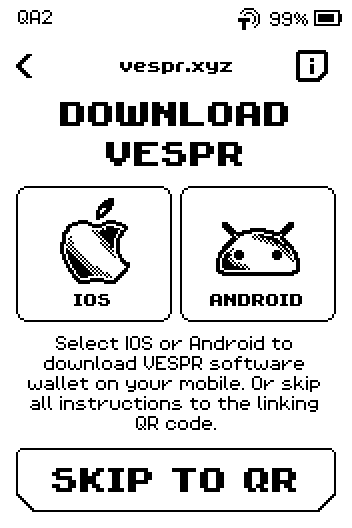
ERA: Download VESPR. On the store page, tap NEXT. If VESPR is not on your phone yet, scan the store QR with your phone first.
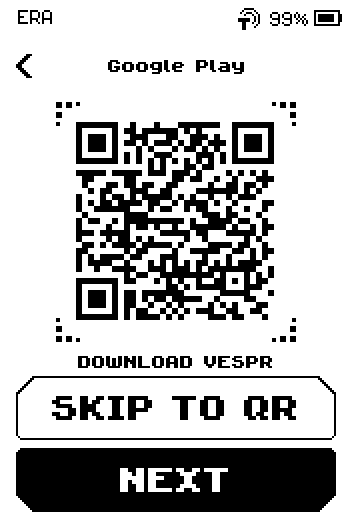
ERA: Download VESPR from Google Play. Swipe up to the last page of CONNECT VESPR.
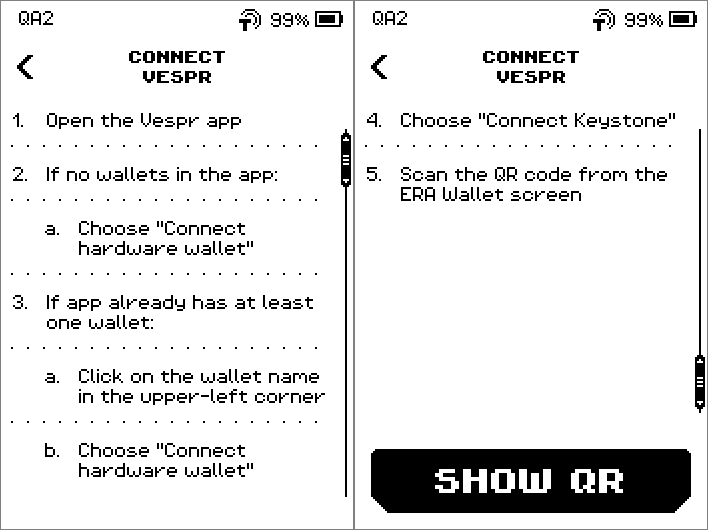
ERA: Connect VESPR. Tap SHOW QR.
QR FOR LINK appears. Leave it on screen.
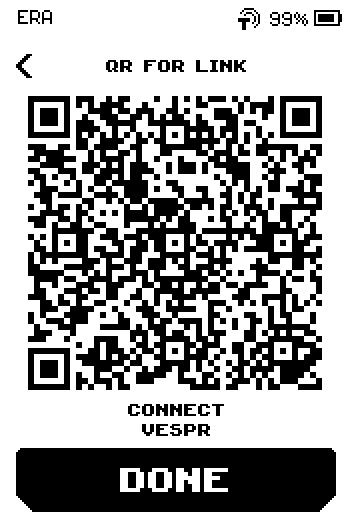
ERA: QR for link.
Part 2: In VESPR
The device shows these steps; they are repeated here.
Open the VESPR app.
Tap Connect hardware wallet.
Image coming soon — Phone screen — VESPR wallet menu with Connect hardware walletPhone: Connect hardware wallet.
Tap Connect Keystone.
Point the phone camera at the ERA screen and hold still until VESPR confirms the import.
Image coming soon — Phone screen — VESPR Keystone scanner reading the ERA link codePhone: Scan QR.
On the ERA, tap DONE. The device returns to the wallet SETTINGS.
If VESPR already has a wallet
Instead of step 2: tap the wallet name in the upper-left corner, then Connect hardware wallet.
Done
VESPR shows your ERA Cardano wallet, and the ERA is back on SETTINGS.
Trouble?
Scanning never completes → see Linking problems.
VESPR rejects the code → make sure you picked VESPR on the ERA, not Multichain; Cardano apps do not accept the multi-account code.