
Linking
Linking problems
Work through the checks in order; most linking problems are one of the first three. The symptom list after the steps covers the rest.
Steps
On the ERA, open QR FOR LINK again for the same app (see Open the Link menu). Nothing changes on the device.
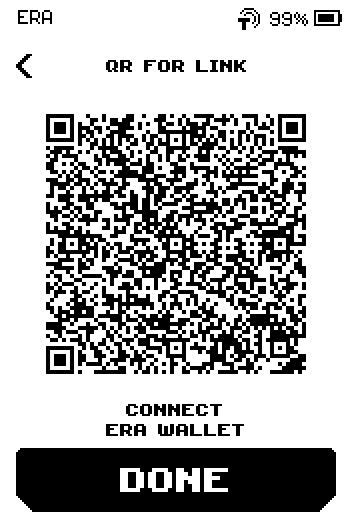
ERA: QR for link. Hold the phone still 15–20 cm from the ERA and let the animation loop twice. The code is several QR codes shown in turn; the app needs every part.
Move the ERA out of direct lamp or window light. The e-ink screen has no backlight, so it needs room light without glare.
In the app, check that you chose Keystone as the hardware wallet type. That is the QR format the ERA uses.
On the ERA, check that you picked the entry named after your app. If the app is not listed, use Generic BTC, Generic ETH or Multichain.
To see which networks the link contains, tap the i icon on the app's DOWNLOAD page on the ERA.
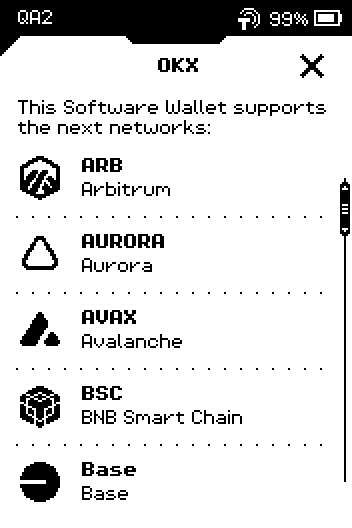
ERA: Supported networks.
Done
The app reports the import as complete and shows the same address as the ERA DEPOSIT screen.
Trouble?
The camera will not focus → move the phone farther away (20–25 cm) so the whole code fits with a white margin, then bring it back slowly.
A laptop webcam never reads it → hold the ERA 10–15 cm from the webcam, parallel to the screen. LetsExchange already gets a larger-module code from the ERA.
The animation stopped → the ERA left the QR FOR LINK screen (a tap, or the device auto-locked). The QR page has no timer of its own; it closes when auto-lock fires — 60 seconds without a touch by default, adjustable under SETTINGS > Display > AUTO LOCK. Open Link again.
The app says the code is not valid → each ERA entry produces a different code type; use the entry named after the app. Cardano, XRP and TON apps reject the Multichain code: use VESPR, XRP Toolkit or Tonkeeper.
The app shows the wrong network → the link carries keys for several networks; switch the network inside the app. EVM networks (Ethereum, BSC, Polygon, Base, …) share one address, so no re-link is needed.
Bitcoin address starts with 1…, 3… or bc1p… instead of bc1q… → the app chose Legacy, Nested SegWit or Taproot. Choose Native SegWit in the app, or compare with the ERA DEPOSIT screen for the same type; see Supported chains.
Ethereum shows a different 0x… address → the app is showing a Ledger Live-style account (m/44'/60'/n'/0/0). The ERA default is the standard path (m/44'/60'/0'/0/n); pick it in the app's account list.
Solana app lists five accounts → the ERA exports account indexes 0–4; the first one is the ERA DEPOSIT address.
The wallet list is short or empty → a filter is set. Tap CHANGE FILTER, then RESET FILTER.
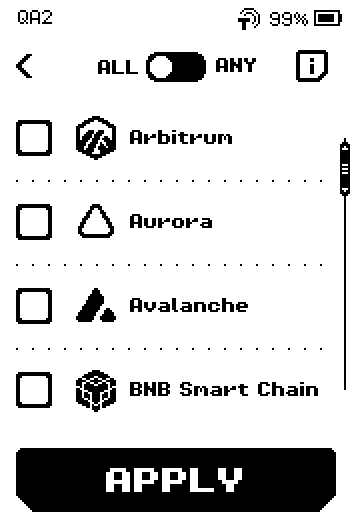
ERA: Wallet app filter.
Note: A different address is not lost money. Any address derived from your ERA keys is spendable with the ERA; the app only needs to look at the right derivation path (the rule that turns a key into an address).