
Linking
Link ERA to a software wallet
Linking lets a phone or desktop wallet watch your balances and prepare transactions while the ERA keeps the keys. The ERA shows a QR code that contains only public keys; the app scans it. No private key or seed word ever leaves the device.
Two ways to link
Multi-chain link: one QR code carries keys for several networks at once. Use it for the ERA Wallet app (the companion app) or for any app that accepts a multi-account QR — see Link several chains at once.
One software wallet at a time: the ERA lists the apps it knows and shows the exact steps for each. Pick your app from the table on this page.
Steps
On the main menu, tap WALLETS, then tap the wallet you want to link.
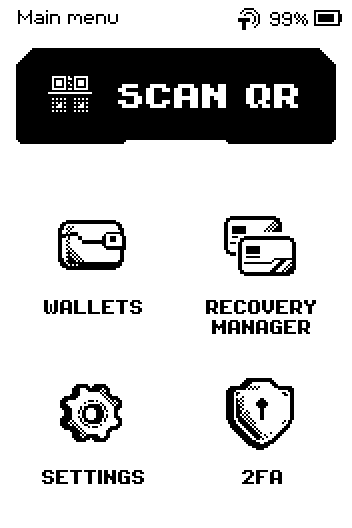
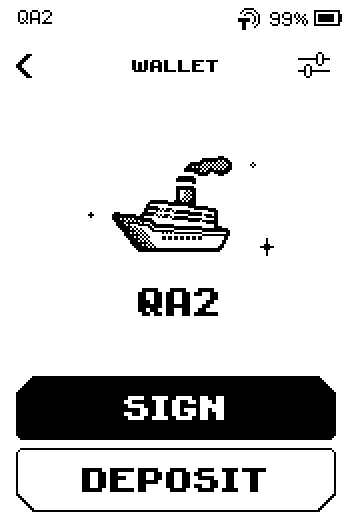
ERA: Main menu. On the wallet screen, tap the settings icon (sliders) in the header.
ERA: Wallet. On SETTINGS, tap Link ("Connect to Wallet App").
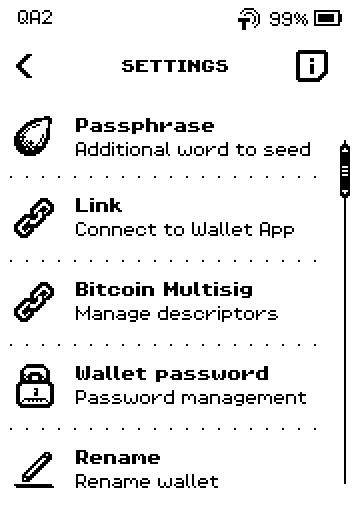
ERA: Wallet settings.
Note: SET FILTER shows only apps that support a given network. The i icon explains that each app supports its own set of networks; check the app's website before you link if you need a specific network or token.
The wallet list opens. Swipe up to see more apps, then tap the app you want to link.
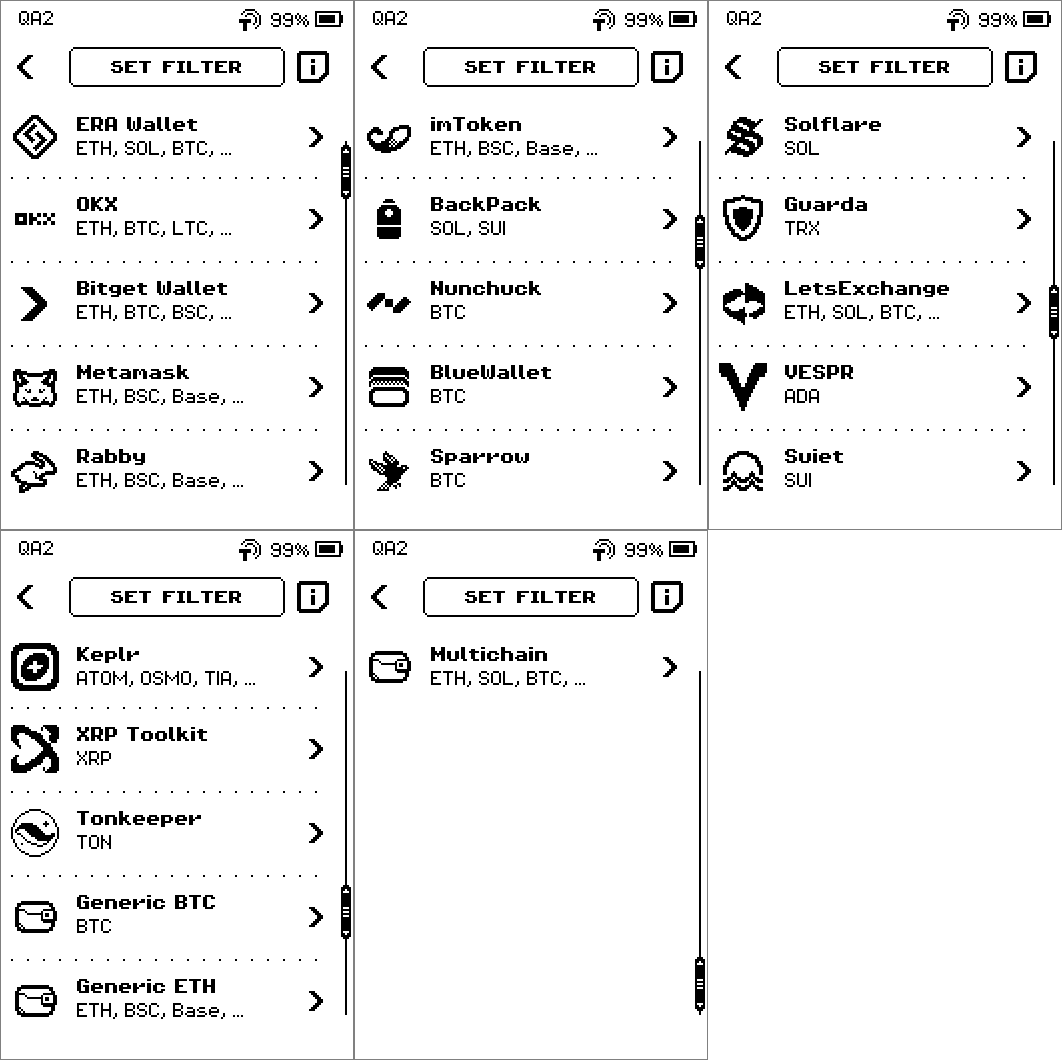
ERA: Wallet app list.
Guides per software wallet
The list on your device shows these 21 apps, in this order.
| App | Runs on | Networks (as listed on ERA) | Guide |
|---|---|---|---|
| ERA Wallet (companion app) | Phone | ETH, SOL, BTC, … | Link the ERA Wallet app |
| OKX | Phone | ETH, BTC, LTC, … | Link OKX |
| Bitget Wallet | Phone | ETH, BTC, BSC, … | Link Bitget Wallet |
| Metamask | Phone | ETH, BSC, Base, … | Link Metamask |
| Rabby | Phone | ETH, BSC, Base, … | Link Rabby |
| imToken | Phone | ETH, BSC, Base, … | Link imToken |
| BackPack | Phone | SOL, SUI | Link BackPack |
| Nunchuck | Phone | BTC | Link Nunchuk |
| BlueWallet | Phone | BTC | Link BlueWallet |
| Sparrow | Desktop | BTC | Link Sparrow |
| Solflare | Phone | SOL | Link Solflare |
| Guarda | Web / desktop | TRX | Link Guarda |
| LetsExchange | Web | ETH, SOL, BTC, … | Link LetsExchange |
| VESPR | Phone | ADA | Link VESPR |
| Suiet | Browser extension | SUI | Link Suiet |
| Keplr | Browser extension | ATOM, OSMO, TIA, … | Link Keplr |
| XRP Toolkit | Web | XRP | Link XRP Toolkit |
| Tonkeeper | Phone | TON | Link Tonkeeper |
| Generic BTC | Any Bitcoin app that imports a Keystone-style QR | BTC | Link a generic Bitcoin wallet |
| Generic ETH | Any Ethereum app that imports a Keystone-style QR | ETH, BSC, Base, … | Link a generic Ethereum wallet |
| Multichain | Any app that imports a multi-account QR | ETH, SOL, BTC, … (you choose) | Link several chains at once |
What every link journey looks like
Every guide follows the same shape on the ERA:
Pick the app from the list.
Phone apps only: tap IOS or ANDROID and get a store QR to install the app. SKIP TO QR jumps straight to the link code.
Swipe through the connection steps the ERA shows for that app.
Tap SHOW QR. The QR FOR LINK screen appears; it may animate because the data does not fit in one code.
Scan it with the app, then tap DONE on the ERA. You are back on the wallet SETTINGS.
Done
You know where Link lives and which guide to open for your app.