
Linking
Link a generic Bitcoin wallet
Use Generic BTC when your Bitcoin app is not listed by name. The code contains the same keys as the Sparrow link.
Steps
Part 1: On the ERA
On the wallet screen, tap the settings icon (sliders) > Link. See Open the Link menu.
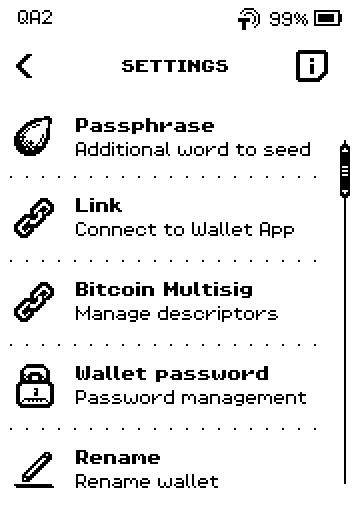
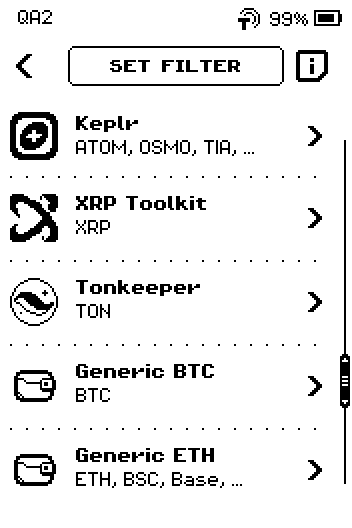
ERA: Wallet settings. On the wallet list, swipe up to the fourth page and tap Generic BTC.
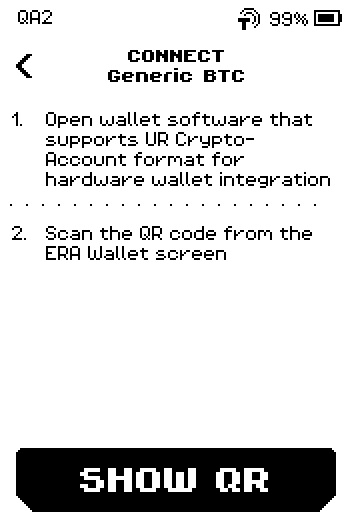
ERA: Wallet app list. On CONNECT Generic BTC, tap SHOW QR. The screen reads "Open wallet software that supports UR Crypto-Account format for hardware wallet integration. Scan the QR code from the ERA Wallet screen."
ERA: Connect Generic BTC. QR FOR LINK appears. Leave it on screen.
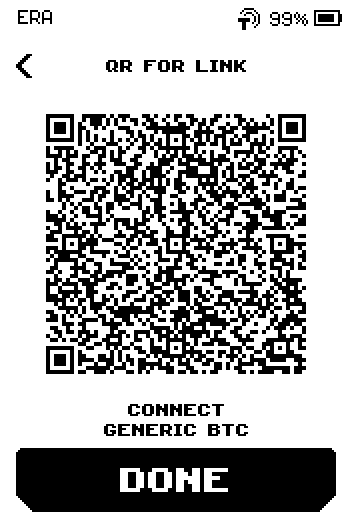
ERA: QR for link.
Part 2: In the app
Open the app's "add hardware wallet" or "import" flow and choose Keystone (or "QR code / air-gapped") if asked.
Image coming soon — Phone or desktop screen — the app's hardware-wallet import with the QR scanner openPhone: Import via QR.
Point the camera at the ERA screen and hold still until the app confirms the import.
On the ERA, tap DONE. The device returns to the wallet SETTINGS.
Done
The app shows a Bitcoin wallet whose keys come from the ERA, and the ERA is back on SETTINGS.
Trouble?
The app asks for an address type → the code carries Native SegWit, Taproot, Nested SegWit and Legacy keys; pick the one matching the ERA DEPOSIT address. See Supported chains.
The app rejects the code → it may expect a multi-account QR instead; try Link several chains at once.
Scanning never completes → see Linking problems.