
Device settings and firmware updates
Bitcoin-only firmware
ERA comes in two firmware builds. Multichain contains every supported network. Bitcoin-only contains the Bitcoin code and nothing else: the other networks are left out of the build, not switched off. It is the same device and the same seed words; only the menus get shorter.
Before you start
People choose Bitcoin-only for less code on the device and simpler screens: DEPOSIT opens the Bitcoin address at once, and Link lists Bitcoin apps only. Source: era-wallet.com
Both builds are official. Switching is a normal firmware update from the app, in either direction, as often as you like. Source: era-wallet.com
Your wallets stay on the device through the switch (see Part 2). A wallet on Bitcoin-only firmware holds the same Bitcoin as on Multichain; coins on other networks are not shown until you switch back, and nothing about them changes.
Steps
Part 1: Tell which firmware you have
No screen names the firmware build. Two rows do.
On the main menu, tap SETTINGS. The main menu looks the same on both builds.
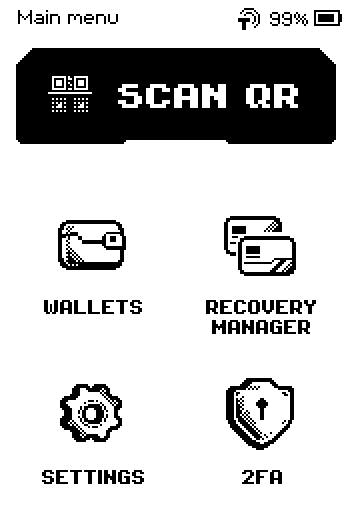
ERA: Main menu (Bitcoin-only firmware). Tap Updates.
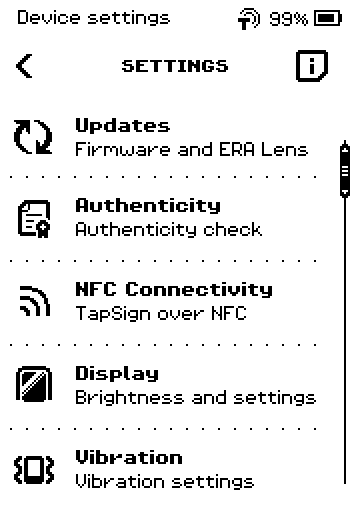
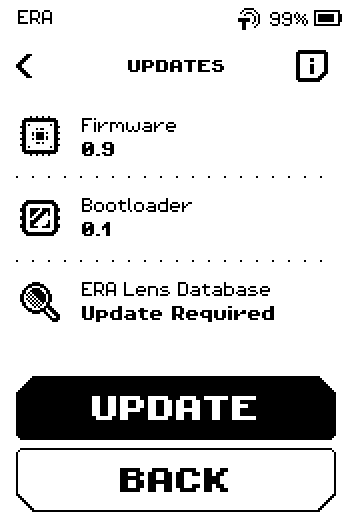
ERA: Settings. Count the rows on UPDATES. Bitcoin-only firmware lists Firmware and Bootloader only; Multichain firmware has a third row, ERA Lens Database.
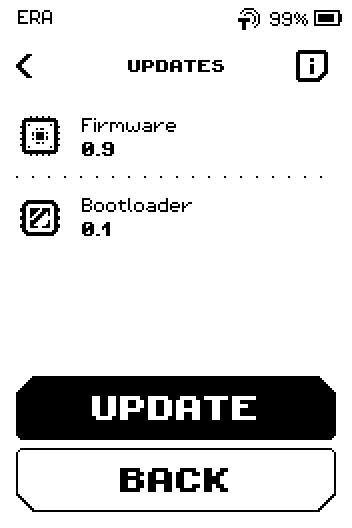
ERA: Updates (Bitcoin-only firmware).
The version text on a real device
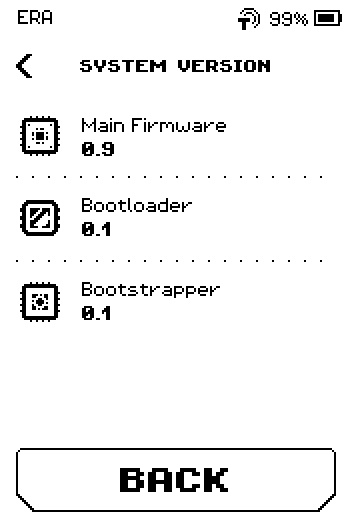
On a device, the Firmware version on UPDATES and the Main Firmware version on SYSTEM VERSION end with (BTC Only) on Bitcoin-only firmware, for example 2.0.0 (BTC Only). Multichain firmware shows the bare number.
ERA: Updates, version text with the (BTC Only) suffix.
Go back to the main menu and tap WALLETS.
ERA: Main menu. Tap a wallet name.
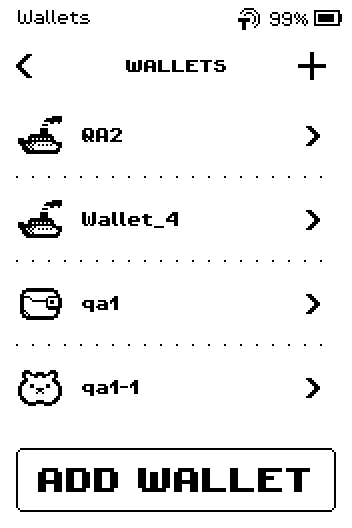
ERA: Wallets. Tap DEPOSIT.
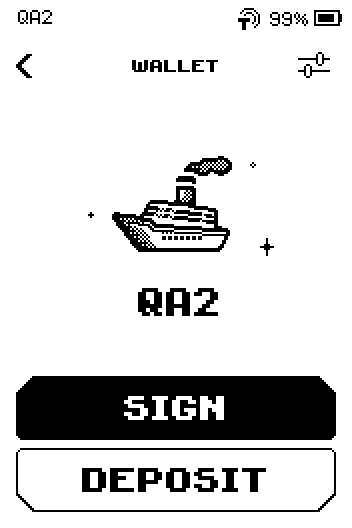
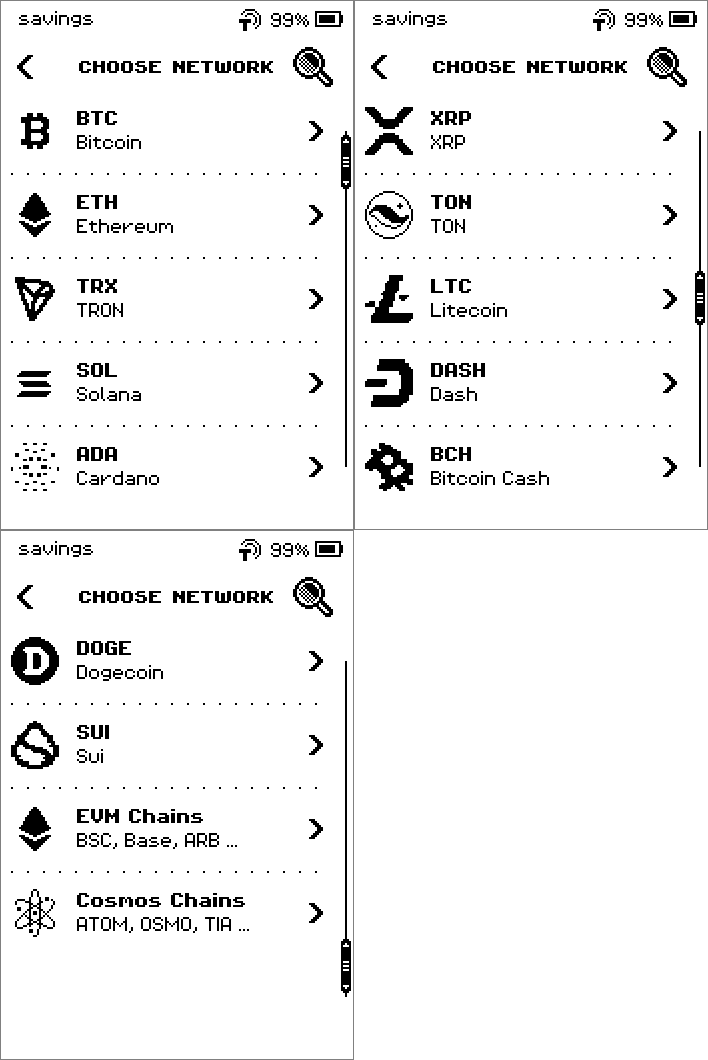
ERA: Wallet. Check what opens. On Bitcoin-only firmware the Bitcoin address appears at once; Multichain firmware shows the CHOOSE NETWORK list first.
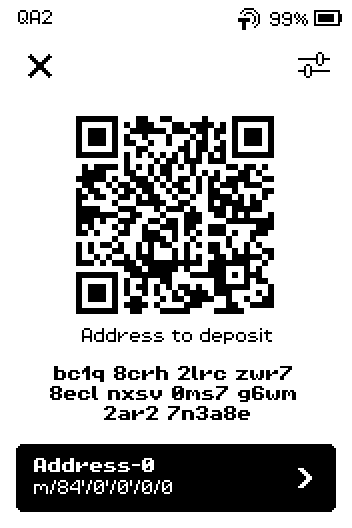
ERA: Deposit (Bitcoin-only firmware).
Part 2: Switch between Bitcoin-only and Multichain
The switch is a firmware update: you choose Bitcoin Only (or Multichain) in the app's settings, the app downloads that build, and the transfer over NFC is the same as any other update.
Note: Switching does not erase anything. The wallets on the device keep the same seeds and are all there after the update, in both directions.
In the app, tap the Settings gear, then Update wallet.
9:41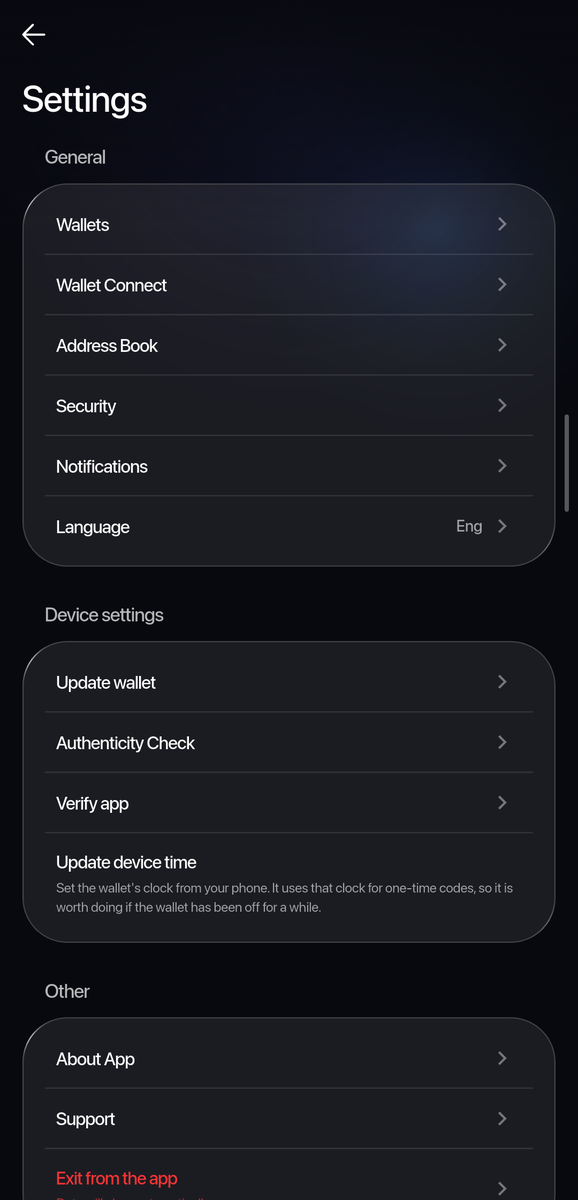
Phone: Settings. Under Configuration, tap Wallet type. It shows the build the app will download: Multichain or Bitcoin Only.
9:41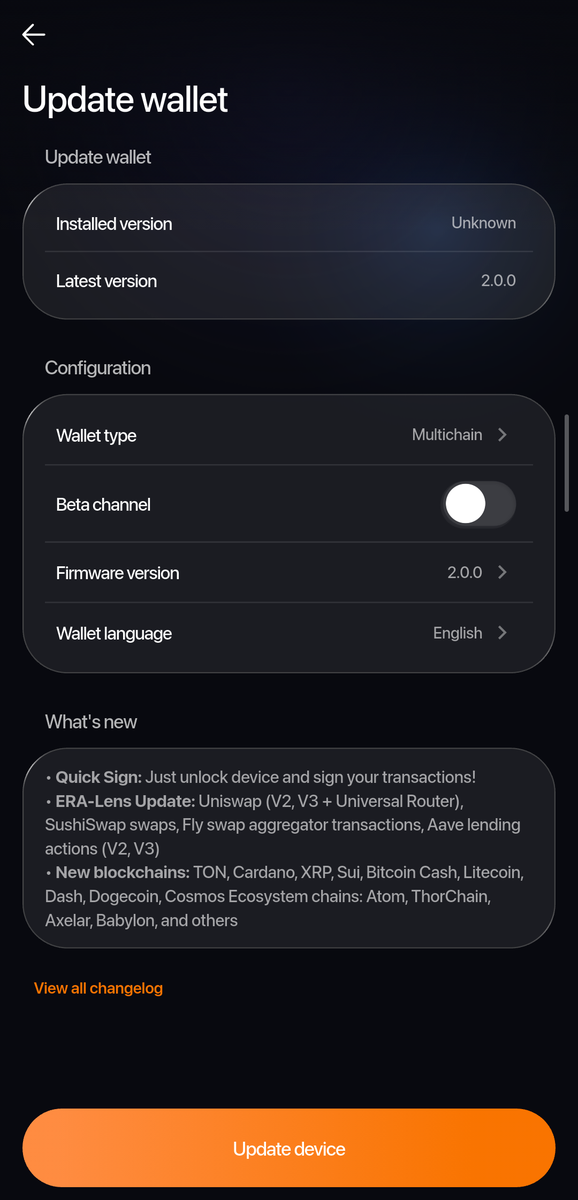
Phone: Update wallet. Tap Bitcoin Only or Multichain. The app drops any file it downloaded before, fetches the latest release of the chosen build and sets Firmware version to Latest.
9:41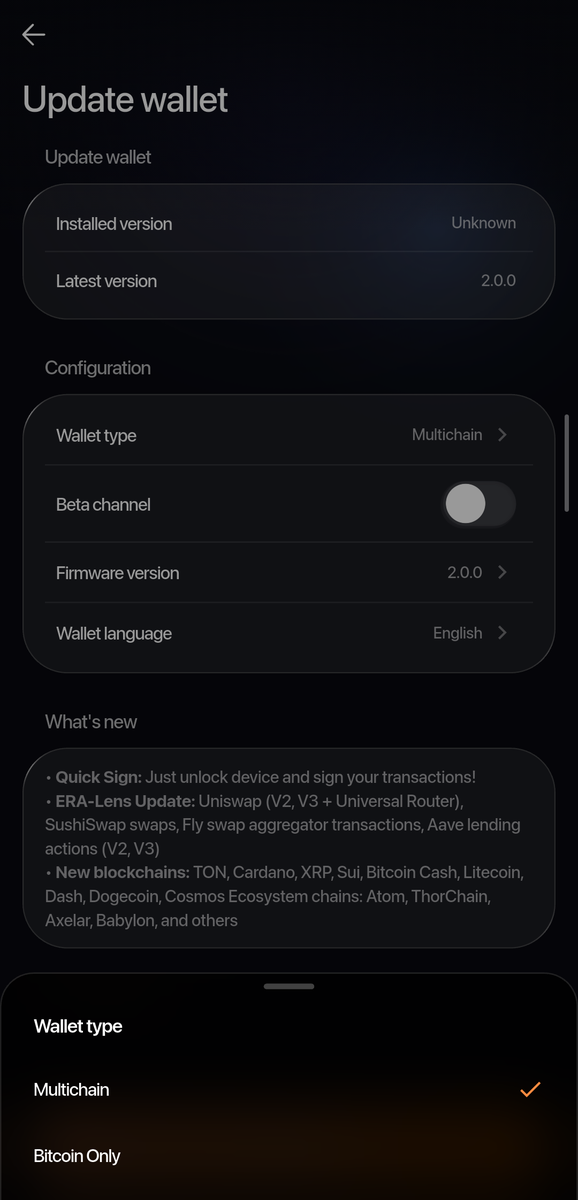
Phone: Wallet type.
Note: Beta channel is offered for Multichain only; the row disappears when Bitcoin Only is chosen.
Tap Update device. Then follow Update the firmware over NFC, Part 2: on ERA tap SETTINGS > Updates > UPDATE > NEXT and lay the phone on the device.
9:41Phone: Update wallet, Update device. When ERA shows SUCCESS after its restart, tap DONE and unlock. Repeat Part 1 to confirm the build.
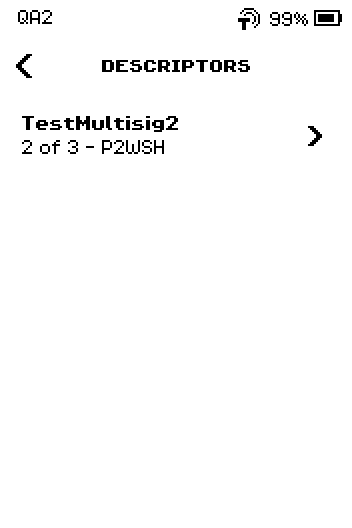
What stays on the device: a firmware update replaces only the firmware. Your wallets and their seeds, multisig descriptors, 2FA accounts and settings are all still there afterwards, whichever direction you switch; nothing is erased. Source: Help Center
What is different on the device
| Screen | Multichain | Bitcoin-only |
|---|---|---|
| Main menu, SETTINGS, RECOVERY MANAGER, 2FA | — | Same. No other setting changes. |
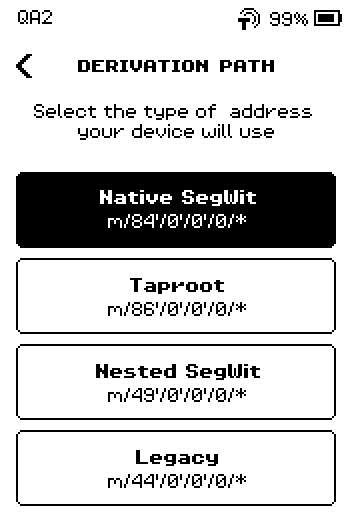
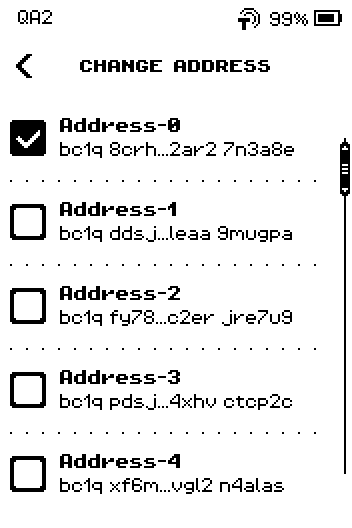
| DEPOSIT | CHOOSE NETWORK list first | Bitcoin address at once. The sliders icon (DERIVATION PATH: Native SegWit, Taproot, Nested SegWit, Legacy) and CHANGE ADDRESS work as before. |
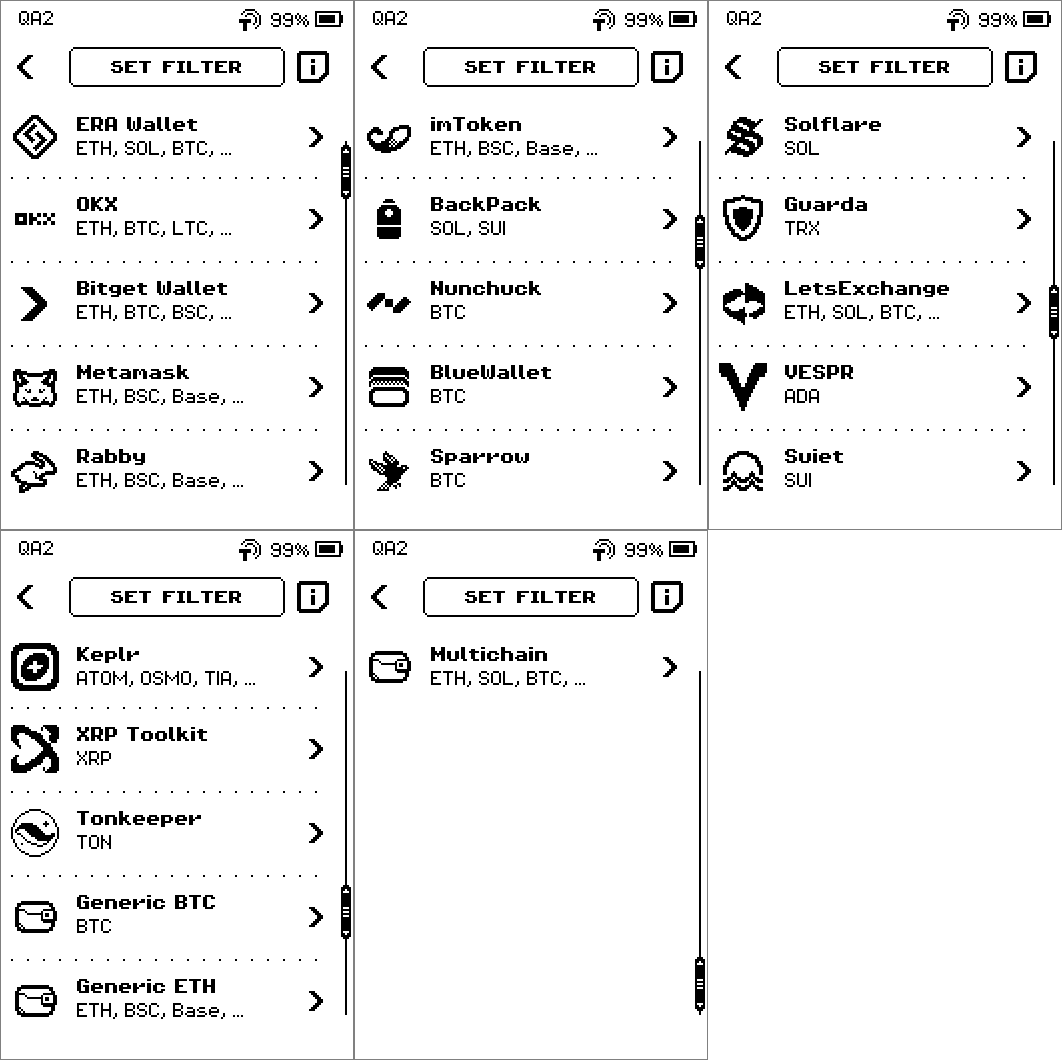
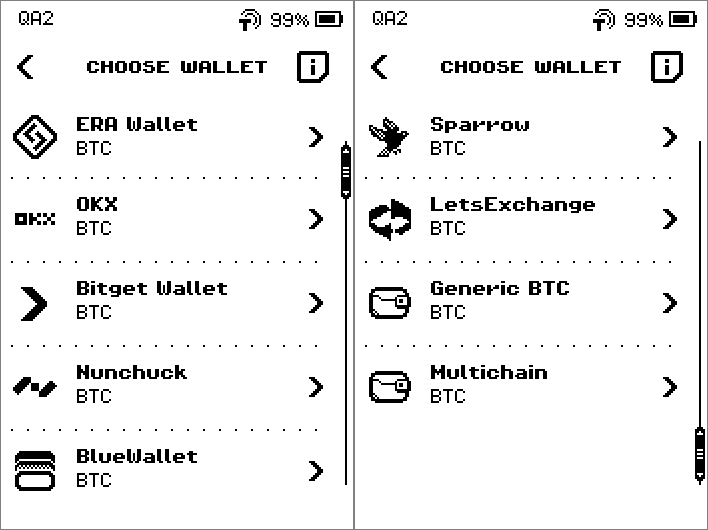
| Link in wallet settings | SET FILTER button; the full app list | Header CHOOSE WALLET, no filter; nine Bitcoin apps: ERA Wallet, OKX, Bitget Wallet, Nunchuck, BlueWallet, Sparrow, LetsExchange, Generic BTC, Multichain. |
| Multichain entry under Link | Asks SELECT CHAINS | Links Bitcoin straight away; no chain list. |
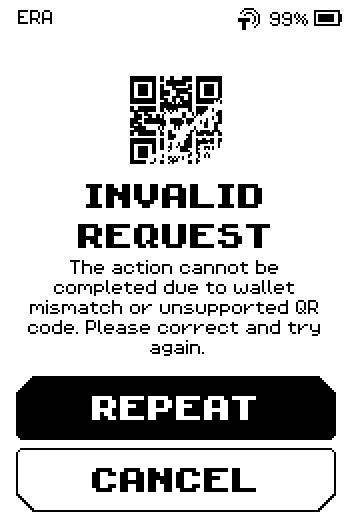
| SCAN QR and SIGN | Requests from every supported network | Bitcoin transactions (PSBT) and Bitcoin multisig. A request from another network ends on INVALID REQUEST. |
| Bitcoin Multisig | — | Same. |
| ERA Lens | Rows on UPDATES and SYSTEM VERSION; separate database update | No ERA Lens row and no ERA Lens update; the database decodes Ethereum and Solana contracts, which this build does not sign. The Bitcoin review page is unchanged. |
| Version text | 2.0.0 | 2.0.0 (BTC Only) on UPDATES and SYSTEM VERSION (device only). |
| App: Beta channel | Offered | Not offered. |
The deposit screen on both builds, for comparison:
The address options behind the deposit screen are the same on both builds — the sliders icon opens DERIVATION PATH, the Address-0 button opens CHANGE ADDRESS:
The Link list on both builds:
The UPDATES page on Multichain firmware, with the ERA Lens row that Bitcoin-only firmware does not have:
SYSTEM VERSION under SETTINGS > About Device drops the ERA Lens row in the same way:
What a non-Bitcoin request looks like on Bitcoin-only firmware:
Done
UPDATES shows the rows of the build you want (two rows on Bitcoin-only, three on Multichain), and DEPOSIT behaves to match: the Bitcoin address at once on Bitcoin-only, CHOOSE NETWORK on Multichain.
Trouble?
INVALID REQUEST after scanning a request from MetaMask, Rabby, Solflare or another non-Bitcoin app → the device runs Bitcoin-only firmware. Switch to Multichain (Part 2) to sign it.
The Link list has no MetaMask, Rabby or other non-Bitcoin app → same cause; the list on Bitcoin-only firmware is the nine Bitcoin apps.
The app says Bitcoin Only but UPDATES still shows ERA Lens Database → the update has not run yet. Wallet type only chooses which file the app downloads; the device changes after the NFC update.
The i pages on UPDATES still describe ERA Lens Database: on Bitcoin-only firmware → the info text is shared between the builds; there is no ERA Lens on this build.
The app offers no update after you change Wallet type → wait for the download to finish (the app fetches the other build first), and check that the phone is online.
Related
Update the firmware over NFC — the NFC transfer used for the switch
Supported chains — what Multichain firmware adds
Receive coins (deposit address) — address formats and fresh addresses, the same on both builds
Link a software wallet — the full app list on Multichain firmware
Scan a QR code — what ERA does with each kind of request