
Device settings and firmware updates
Change the device language
The language is part of the firmware. You choose it in the app and install it with a normal firmware update; nothing on the device is erased.
Steps
In the app, tap Settings > Update wallet.
9:41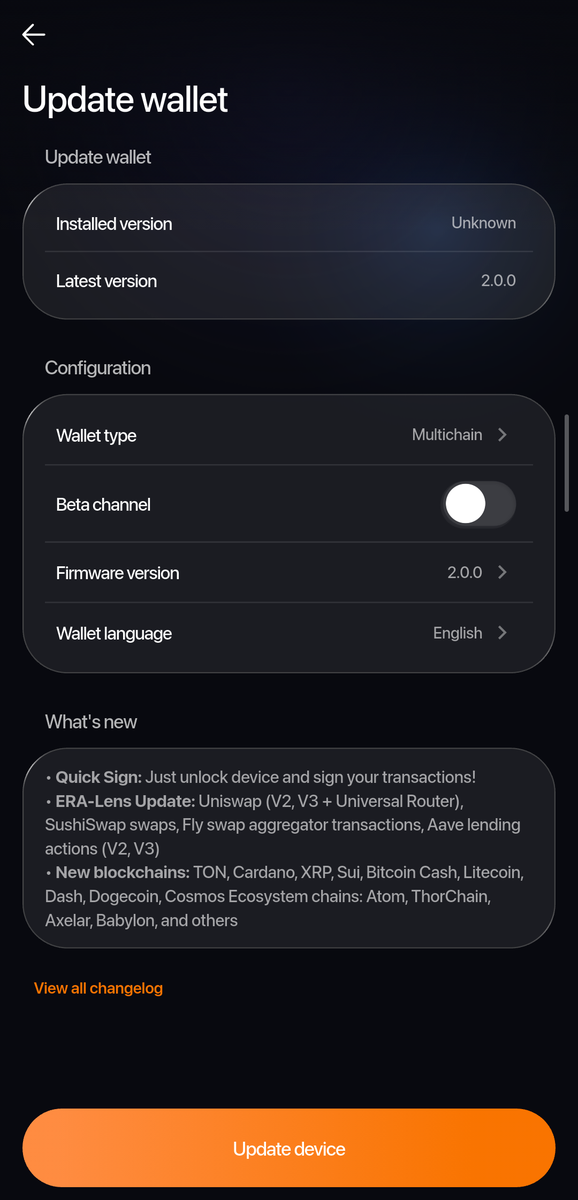
Phone: Update wallet. Under Configuration, tap Wallet language and pick English, Deutsch or Russian.
9:41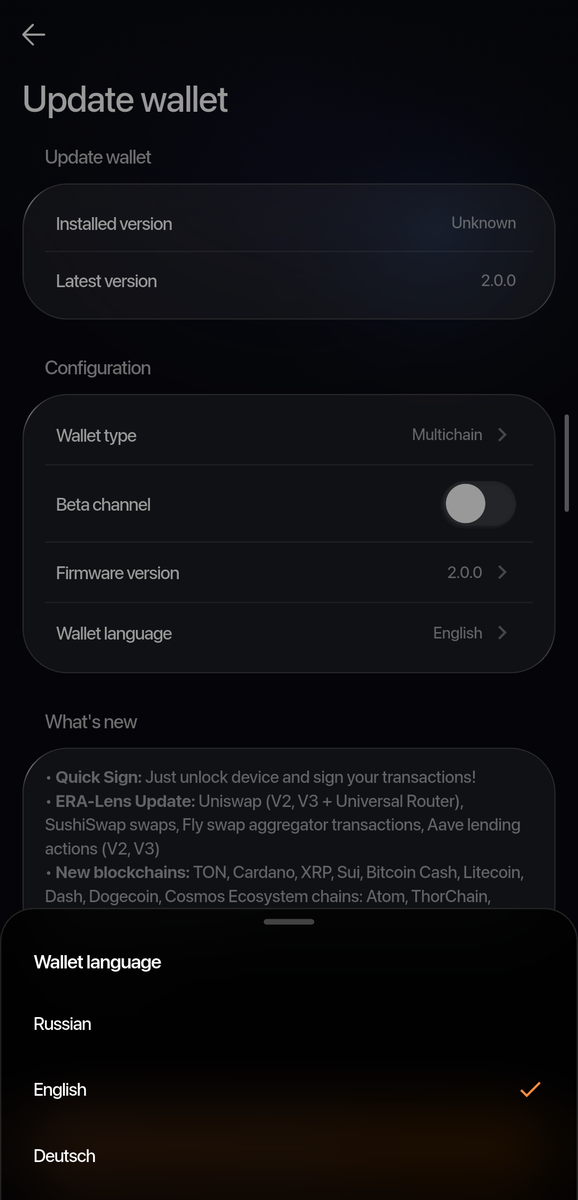
Phone: Wallet language. Tap Update device and follow Update the firmware over NFC from its Part 2.
9:41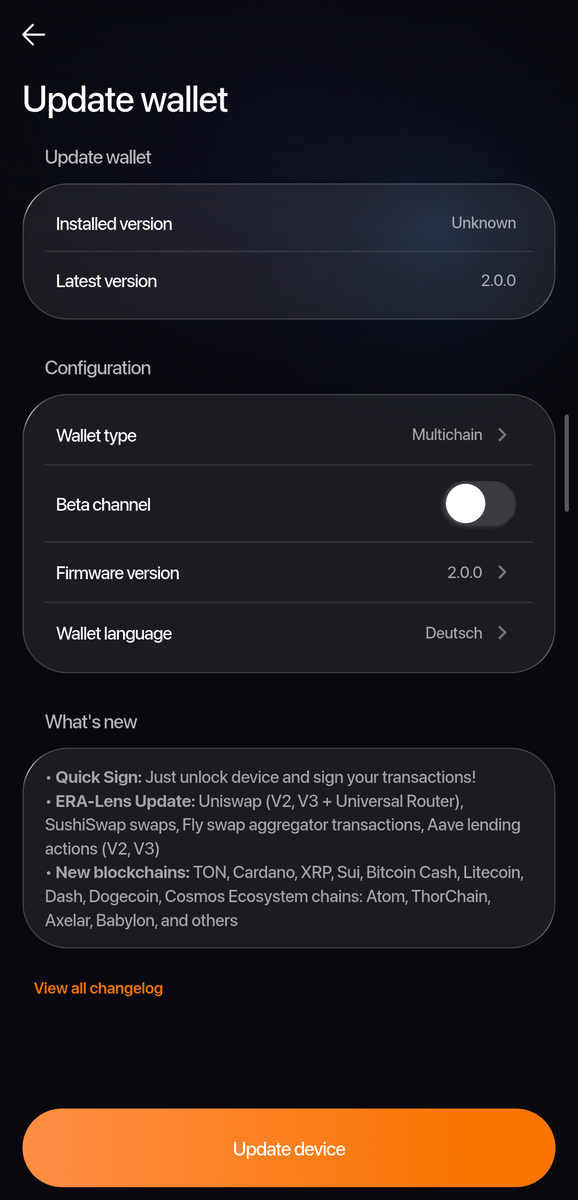
Phone: Update wallet with the new language chosen. When ERA shows SUCCESS after its restart, tap DONE and unlock. The menus are in the new language.
Done
ERA shows its menus in the language you picked, and your wallets are all still there.
Trouble?
The Wallet language row shows a language you did not choose → it shows the language of the firmware the app will install; pick again and run the update.
The update does not start → charge the device above 40 % and try again; see Update the firmware over NFC.
Related
Update the firmware over NFC — the NFC transfer, step by step
Find your way around Settings — the device has no language item of its own