
Using a wallet day to day
Wallet password vs device PIN
The device PIN unlocks the device itself and is always on. A wallet password (or wallet PIN) is optional and locks one wallet: the device asks for it every time you open that wallet.
Part 1: Set a wallet password or PIN
Open the wallet and tap the sliders icon at the top of the screen.
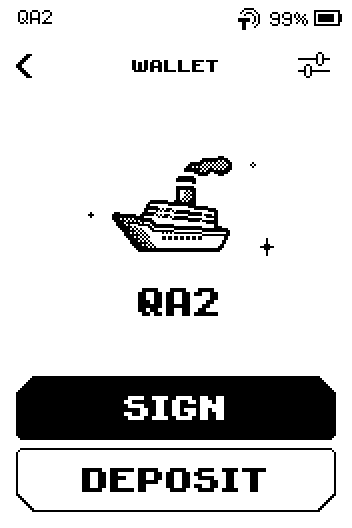
Wallet screen with SIGN and DEPOSIT buttons and the sliders icon at the top. Tap Wallet password.
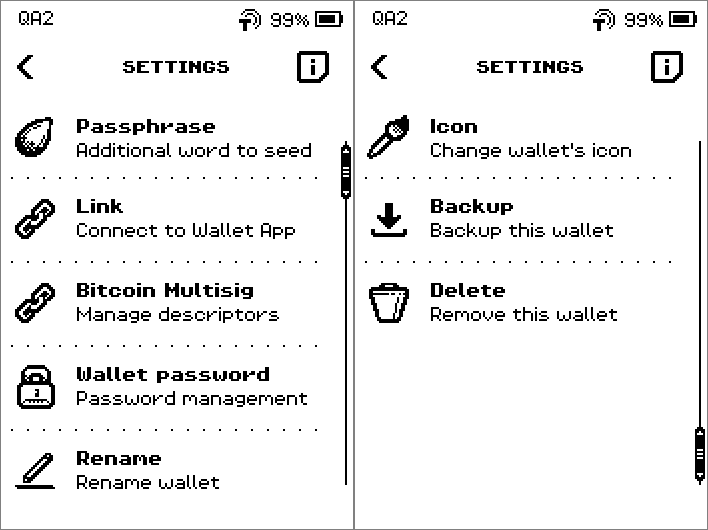
SETTINGS list with Passphrase, Link, Bitcoin Multisig, Wallet password and Rename. Tap the Password/PIN protection switch.
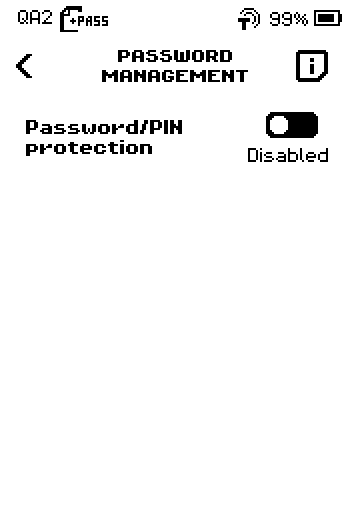
PASSWORD MANAGEMENT screen with the Password/PIN protection switch set to Disabled.
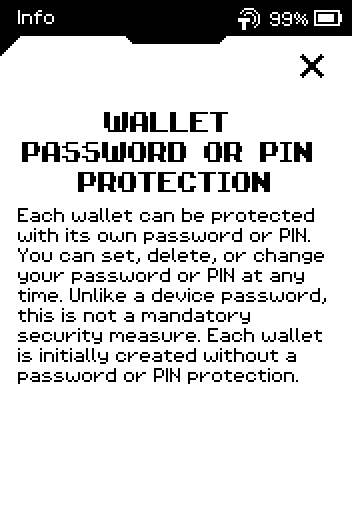
The i screen on PASSWORD MANAGEMENT
Tap i for a short explanation of wallet password or PIN protection.
Tap PINCODE (digits only) or PASSWORD (letters, digits, symbols).
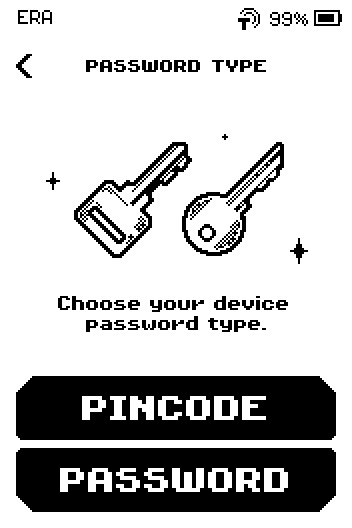
PASSWORD TYPE screen with PINCODE and PASSWORD buttons. Enter 4 to 8 digits (PIN) or 4 to 256 characters (password), then tap OK.
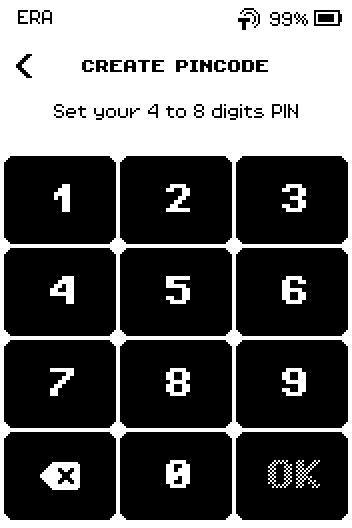
CREATE PINCODE keypad: set your 4 to 8 digits PIN. Enter it again and tap OK. The message Wallet PIN set successfully. (or Wallet password set successfully.) appears.
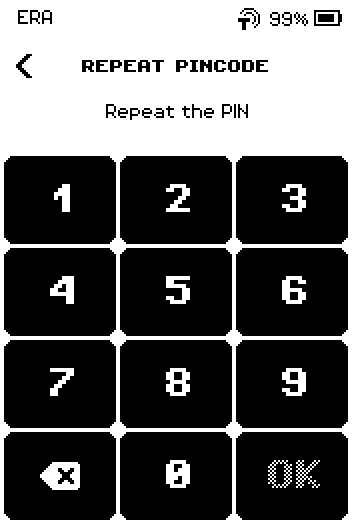
REPEAT PINCODE keypad. Check that the switch shows Enabled and that a Change row has appeared.
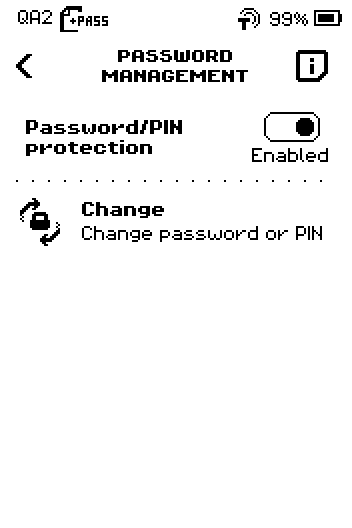
PASSWORD MANAGEMENT with protection Enabled and a Change row.
Part 2: Change it
On PASSWORD MANAGEMENT, tap Change.
PASSWORD MANAGEMENT with protection Enabled and a Change row.
Note: The keyboard icon next to the title switches between the digit keypad and the letter keyboard. If the wrong one opens, tap it.
Enter the current wallet password or PIN, then tap OK.
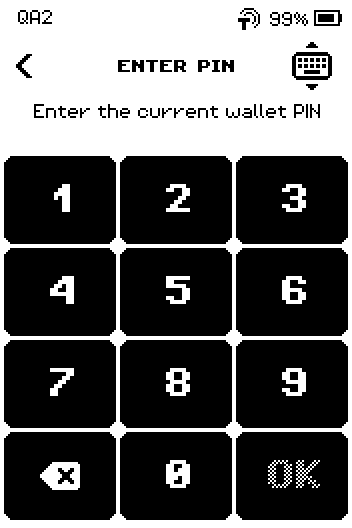
ENTER PIN keypad asking for the current wallet PIN. Tap PINCODE or PASSWORD for the new type.
PASSWORD TYPE screen with PINCODE and PASSWORD buttons. Enter the new password or PIN, then tap OK.
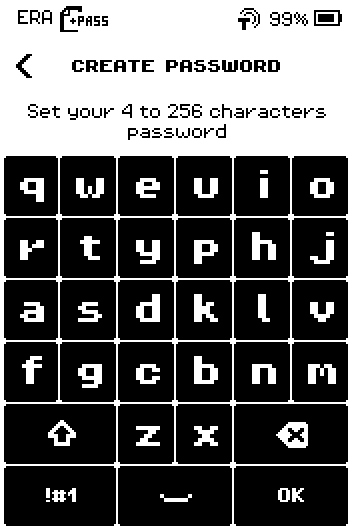
CREATE PASSWORD keyboard: set your 4 to 256 characters password. Enter it again and tap OK. The message Wallet password changed successfully. appears.
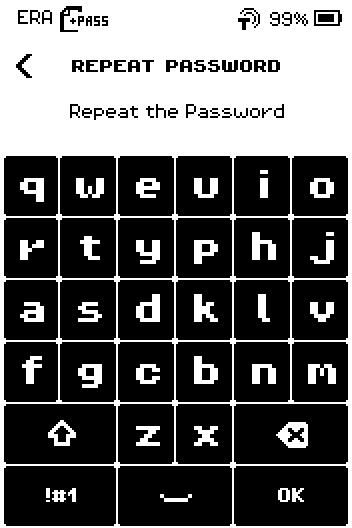
REPEAT PASSWORD keyboard.
Part 3: Remove it
On PASSWORD MANAGEMENT, tap the Password/PIN protection switch.
PASSWORD MANAGEMENT with protection Enabled and a Change row. Tap DISABLE.
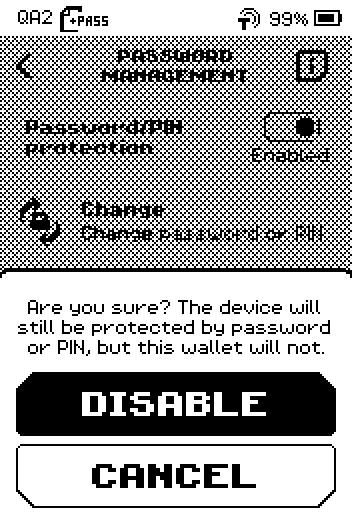
Are you sure? question with DISABLE and CANCEL buttons. Enter the current wallet password or PIN, then tap OK. The message Wallet password/PIN protection was disabled. appears.
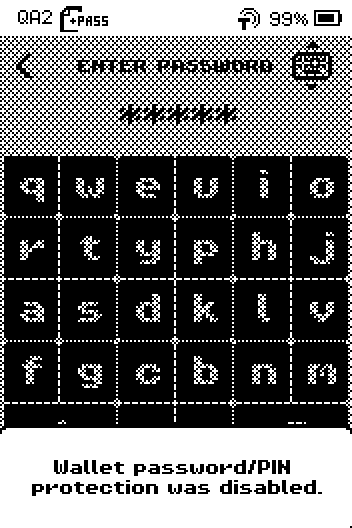
Wallet password/PIN protection was disabled message over the keyboard.
Done
The wallet asks for its own password or PIN when you open it (or no longer does), while the device PIN still protects the device.
Warning: Five wrong wallet passwords in a row delete the wallet from the device; the screen counts down the attempts. If you are unsure, stop and restore from your seed words later instead of guessing.
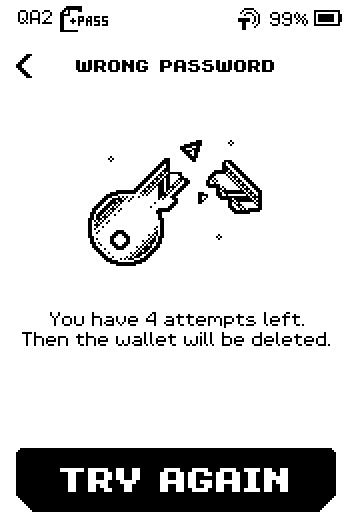
Trouble?
The device asks for a PIN but you set a password (or the other way round) → tap the keyboard icon next to the title to switch input.
You forgot the wallet password → the wallet cannot be opened on this device. Delete it (see Rename, change icon or delete a wallet) and restore it from your seed words; then set a new password.
Nothing happens after OK → a PIN needs at least 4 digits, a password at least 4 characters.