
Signing transactions
SCAN QR: one button for everything
SCAN QR on the Main menu is the fastest way to use ERA: point the camera at whatever QR code your phone or computer shows and ERA works out what it is and which wallet it belongs to. A transaction goes straight to the review page of the right wallet; a multisig descriptor, an authenticator QR code or a Google Authenticator export opens its own import screen.
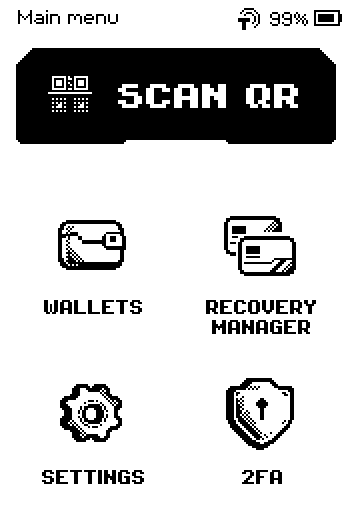
You scan → ERA does
| You scan | ERA does | Continue in |
|---|---|---|
| A transaction or message from any linked software wallet (Bitcoin PSBT, Ethereum, Solana, TRON, Cosmos, XRP and every other supported chain) | Finds the wallet whose keys the request names among the wallets on the device (up to 10), shows that wallet's name in the status bar and opens the review page | Sign a Bitcoin transaction, Sign an Ethereum or token transaction, Sign on other chains |
| A multisig transaction (PSBT) | Picks the cosigner wallet that has the multisig descriptor saved and names the descriptor on the review page | Sign a multisig transaction |
| A multisig descriptor (wallet export from the coordinator app) | Opens CONFIRM IMPORT; SAVE asks which wallet to save it for | Import a multisig descriptor |
| An authenticator QR code from a website (2FA setup) | Opens NEW ACCOUNT; ADD stores the code | Add an authenticator account (TOTP) |
| A Google Authenticator export (one or several QR codes) | Collects every QR code of the export, then lists the accounts with check boxes; SAVE imports them | Add an authenticator account (TOTP) |
| A link QR code or any other QR code in wallet format that is not a request | Shows INVALID REQUEST | Warnings explained |
| A plain text or website QR code | Nothing: the camera shows the code in the frame and keeps waiting for a wallet QR code | — |
Steps
The common case: sign a transaction from any of your linked software wallets without opening the wallet on ERA first.
In the software wallet, build the transaction and choose to sign it with ERA. The app shows a QR code.
On the Main menu, tap SCAN QR.
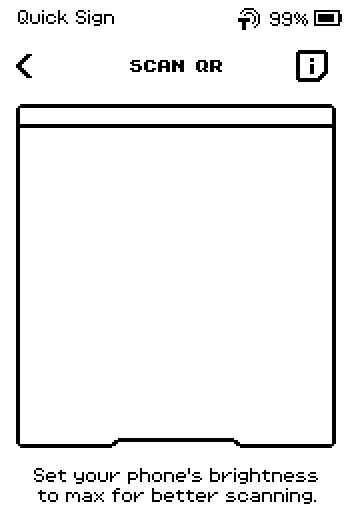
SCAN QR page with an empty camera frame; the status bar reads Scan QR
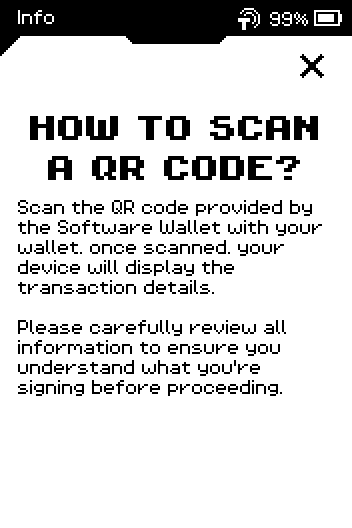
The i screen on SCAN QR
Tap the i icon for a reminder of what the page expects. Tap X to close it.
Point the ERA camera at the QR code. Keep the phone still until the screen changes; an animated QR code takes a few seconds.
Check the wallet name in the status bar at the top: it is the wallet ERA picked for this request.
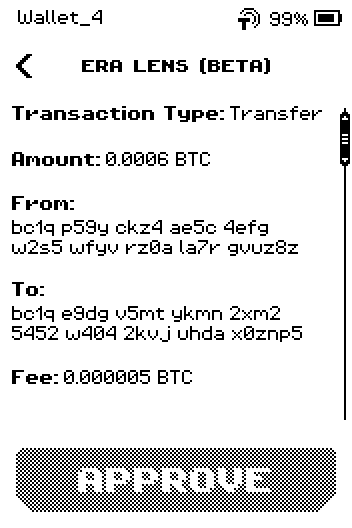
Review page for a Bitcoin transfer; the status bar reads Wallet_4 Read every review page (swipe up), then tap APPROVE on the last page.
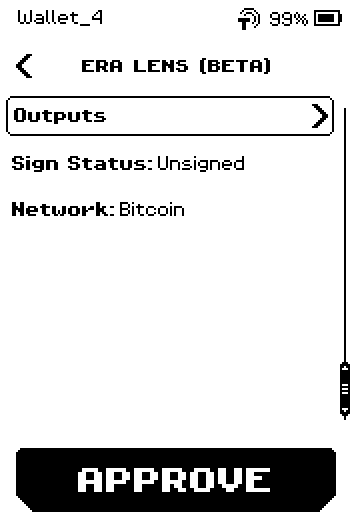
Last review page with Sign Status, Network and an active APPROVE button Show the SCAN TO APPROVE QR code to the software wallet, send the transaction there, then tap DONE.
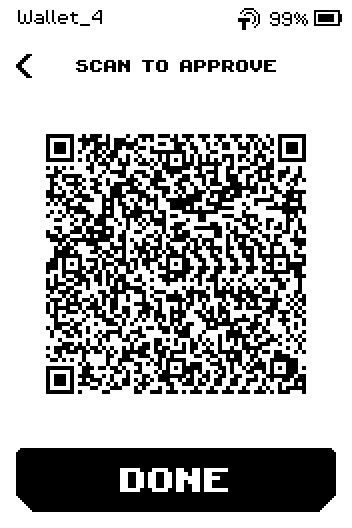
SCAN TO APPROVE page with the signed transaction QR code
Note: ERA only picks a wallet automatically among wallets that have no wallet password. A wallet with a password or PIN is never unlocked behind your back: for its transactions ERA shows FIND YOUR WALLET and asks you to pick it and enter the PIN (see Trouble?).
Done
ERA returns to the Main menu after DONE. The software wallet shows the transaction as sent.
Trouble?
FIND YOUR WALLET appears → no wallet without a password matched the request. Tap SELECT WALLET and pick the wallet the request was built for; if that wallet has a wallet PIN or password, ERA asks for it on ENTER PIN and then opens the review. If the wallet only matches with its passphrase, tap PASSPHRASE instead and enter it.
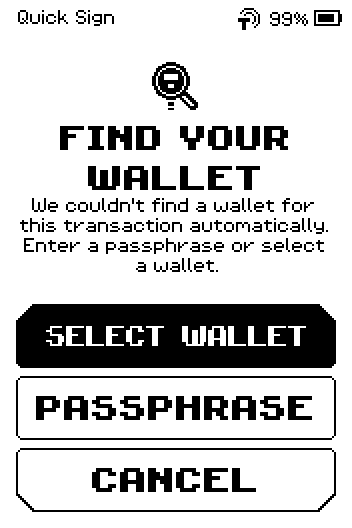
FIND YOUR WALLET page with SELECT WALLET, PASSPHRASE and CANCEL ENTER PIN appears after you pick a wallet → the wallet is protected with a wallet PIN or password. Enter it and tap OK; the review page opens with that wallet's name in the status bar.
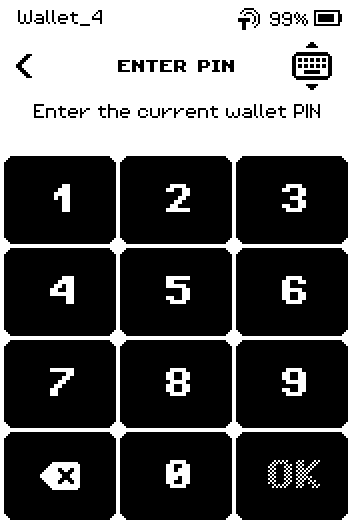
ENTER PIN keypad asking for the current wallet PIN of Wallet_4 PASSPHRASE NEEDED? appears after you pick a wallet → the wallet you picked does not own the keys in the request. Tap PASSPHRASE if that wallet uses a passphrase, or BACK to pick another wallet. The request may belong to a wallet that is not on this device: in that case tap BACK, then CANCEL, and check in the software wallet which ERA wallet it is linked to.
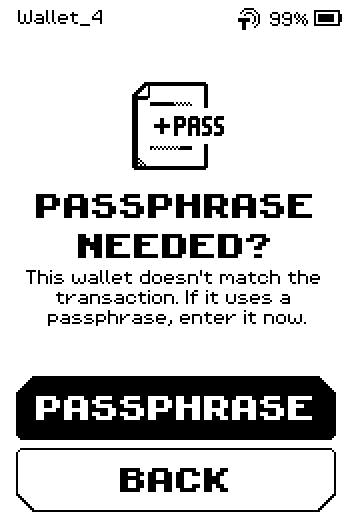
PASSPHRASE NEEDED? page with PASSPHRASE and BACK ALREADY SIGNED appears → every wallet on the device that can sign this transaction has signed it already. Tap BACK; the transaction now needs a different cosigner.
INVALID REQUEST appears → the QR code is in wallet format but is not something ERA can act on here (for example a link QR code, or a transaction for an unsupported network). Tap REPEAT to scan another code or CANCEL to return to the Main menu.
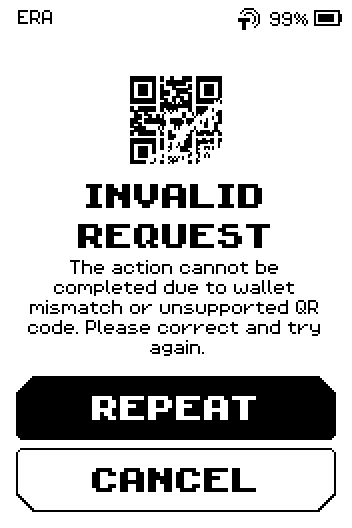
INVALID REQUEST page with REPEAT and CANCEL The camera shows the QR code but nothing happens → it is a plain text or website QR code. ERA reacts only to wallet-format codes and the 2FA formats in the table.
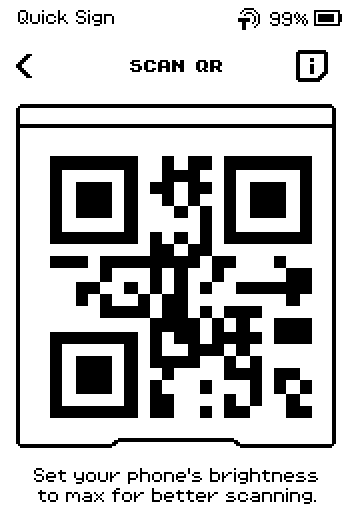
SCAN QR page with a plain text QR code visible in the camera frame CHECK PIN (device PIN) appears before the camera opens → the secure chip asks for the device PIN again after a number of wallet operations, or after a wrong wallet password. Enter it; the scan page follows.
You want to sign with a specific wallet, not the one ERA picks → open that wallet and tap its SIGN button instead. See Signing a transaction.