
Two-factor authentication (2FA)
Passkeys (FIDO2) on ERA
A passkey is a password-free sign-in: the website sends a request, ERA signs it, and the website checks the signature. Passkeys share the 2FA list and the 40-entry limit with authenticator codes.
Note: Passkeys are not available in the current firmware. Scanning a passkey request shows COMING SOON. The steps in this guide describe the planned flow and are marked for verification.
What the current firmware shows
On the Home screen, tap SCAN QR.
Point the ERA camera at a passkey request QR code. ERA shows COMING SOON with the note that FIDO passkeys are not supported yet.
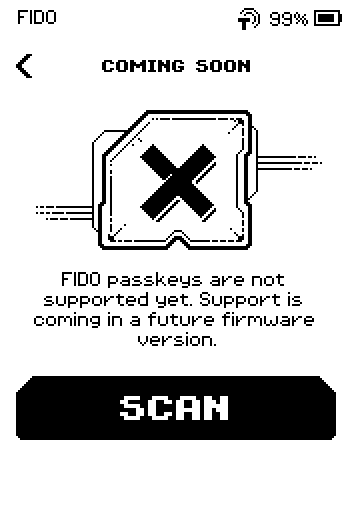
COMING SOON page: FIDO passkeys are not supported yet, support is coming in a future firmware version, with a SCAN button Tap SCAN to scan something else, or the back arrow to leave.
Steps
Part 1: Register a passkey [VERIFY: whole section, firmware with passkeys enabled]
In the browser, create a passkey with ERA as the security key. The ERA browser extension or desktop app shows a QR code.
Image coming soon — Computer screen — the ERA browser extension / desktop app showing the passkey registration QR code for a websiteOn ERA, on the Home screen, tap SCAN QR.
Point the ERA camera at that QR code.
Check the website name and account name on the ERA screen. ERA shows a response QR code under the APPROVE header. [VERIFY]
Image coming soon — ERA screen — the passkey response page headed APPROVE with the response QR code, firmware build with passkeys enabledShow the ERA screen to the computer's camera. The website confirms the new passkey.
Part 2: Sign in with a passkey [VERIFY]
In the browser, sign in with a passkey and pick ERA. The extension shows a QR code.
On ERA, on the Home screen, tap SCAN QR.
Point the ERA camera at that QR code.
If several passkeys match the website, tap the account on the CHOOSE PASSKEY page.
Show the response QR code on the ERA screen to the computer's camera.
What to know [VERIFY]
Registering twice for the same account: ERA shows PASSKEY EXISTS and asks whether to REPLACE the old passkey (it stops working on the site) or ADD ANOTHER (both keep working).
Deleting a passkey: in the 2FA list, tap the passkey row, then DELETE, then confirm. Delete the passkey on the website too, or the site keeps listing a key that no longer answers.
Unknown passkey for this website.: the site asked for a passkey that is not on this device. Sign in with the device that holds it.
Done
You know that passkeys are not available yet and what the future flow will look like.